Types of question formats (14 types)
Types of Basic Questions
There are multiple different types of questions that can be created in a survey. This guide covers the basic question types.
1. Single Selection Question
This enables participants to select one choice among multiple different choices. This is also often used for Likert-type or frequency rating scales (e.g., "strongly agree" to "strongly disagree"; "not at all" to "very often"). This format is excellent for presenting a single question on a page and can show up to 10 response options without scrolling.
2. Multiple Selection Question
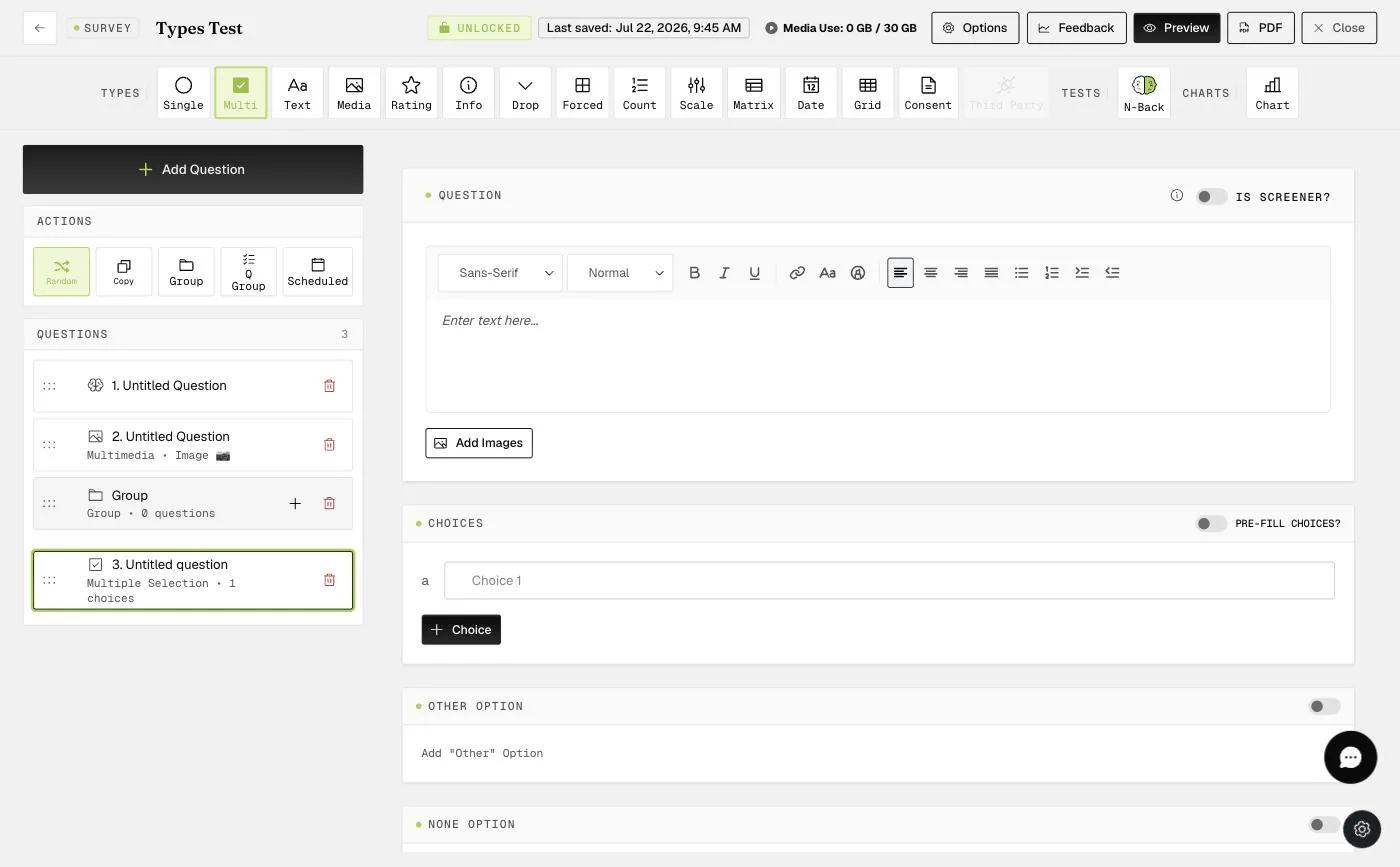
This allows participants to select multiple options in their response. This option is excellent for when researchers want to have participants choose multiple possibilities (e.g., what activities did you do in the past 5 hours?).
-
If participants choose 'None of the above', they would not be able to select any other response.
-
If participants choose 'Other (please specify)', they would be able to type in their response.
-
Researchers are also allowed to toggle both NONE and OTHER options, giving participants more ways to respond.
3. Text-type Question
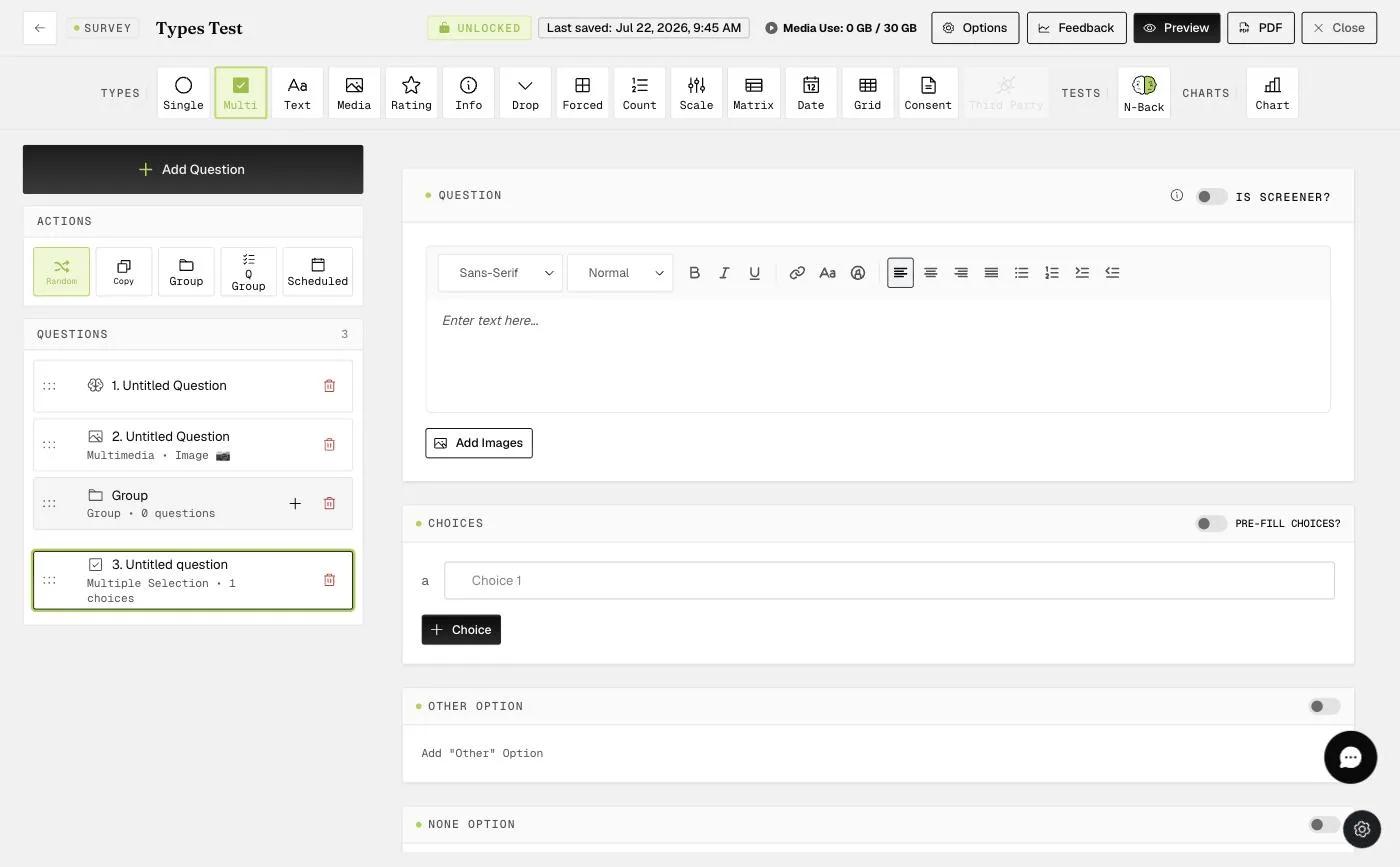
This question type captures text information from participants (e.g., qualitative text information). The text may be long-form text that participants type. It may also be numeric, email, or date. The mobile apps will check the format of the numeric, email, and date texts to ensure that they are correct. For example, if "email" is requested, the program will check if the email address format participants enter is valid.
Some researchers want to obtain "text" information from participants through audio data. For example, some researchers who are interested in day narratives may ask participants to share about their day on audio. This can help save participants time from having to type their responses. There will be an automated text transcription that you can download.
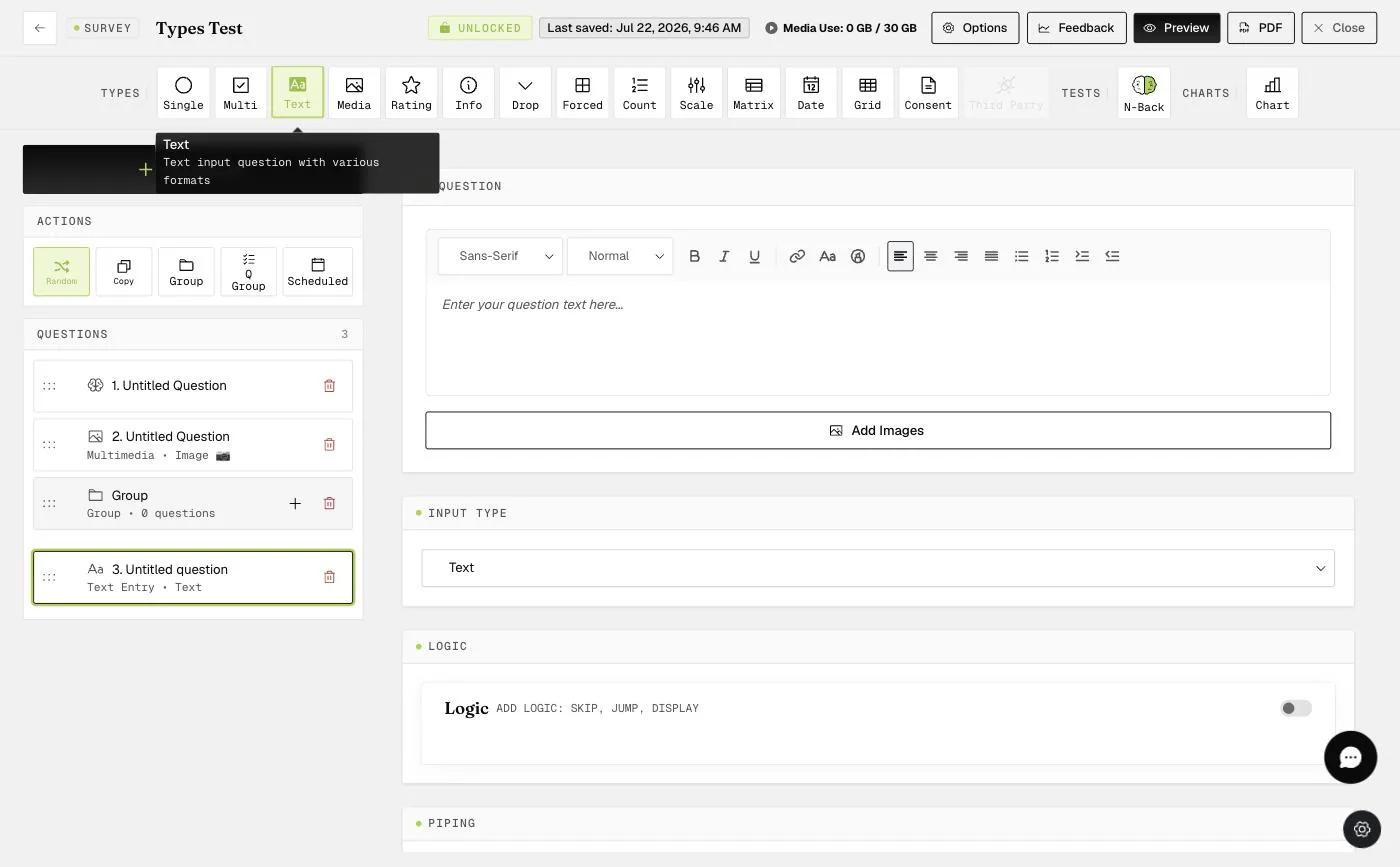
Select the format of the response you would like from participants.
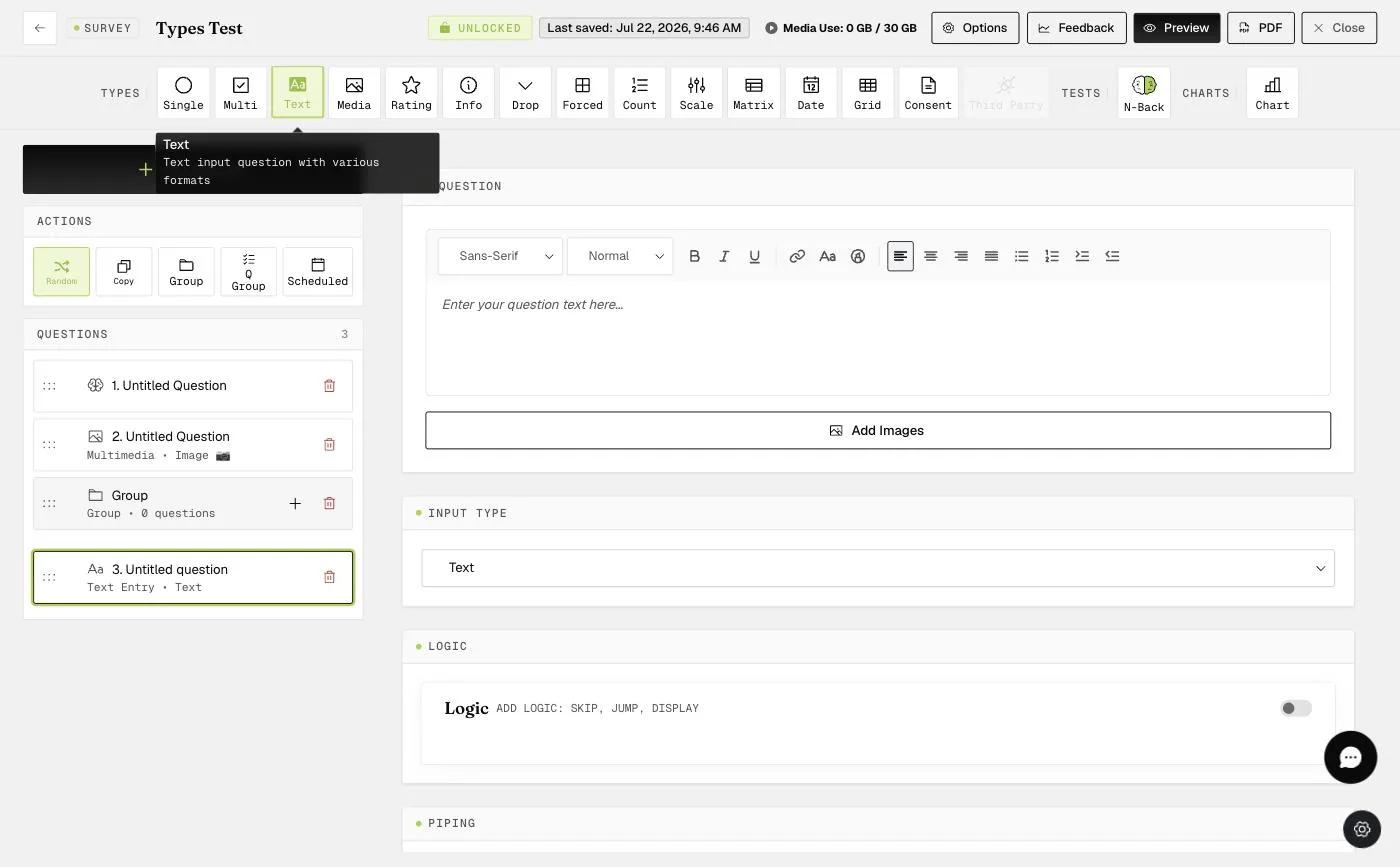
Note: The 'numeric range' input is for whole numbers, which are selected via a dropdown list on mobile devices. The 'numeric decimal range' input allows participants to type in any number with decimals within the set range. Although the range won't be displayed automatically, an error message will appear if the input value is outside the required range.
4. Multimedia Capture Question
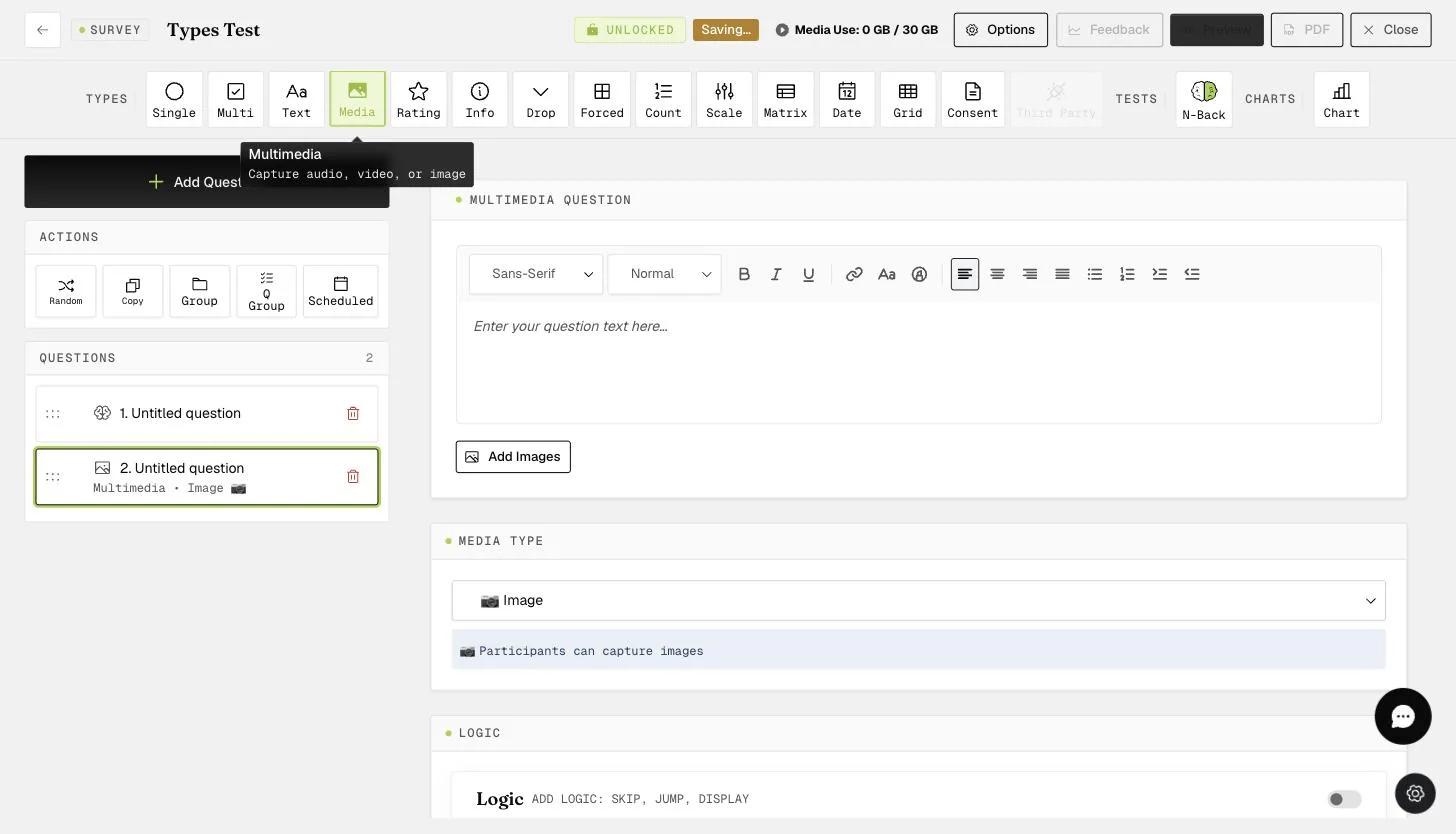
This question type allows participants to provide photo, video, or voice data. Researchers often use this to capture information about the environment that participants are in or use it to obtain lengthy audio recordings instead of having participants type responses. Or, researchers may be interested in having participants take pictures of a product, social environment, or an experience. Researchers can choose from the "Input Type" dropdown menu to select image, audio, or video data. There will be an automated text transcription that you can download for audio and video submission.
Participants are allowed to upload only 1 media file per question. The maximum upload size is up to 500 MB for video and up to 100 MB for images. For image or video data, participants can either take a video or photo on the app or upload it from their media library.
5. Rating "Stars" Question
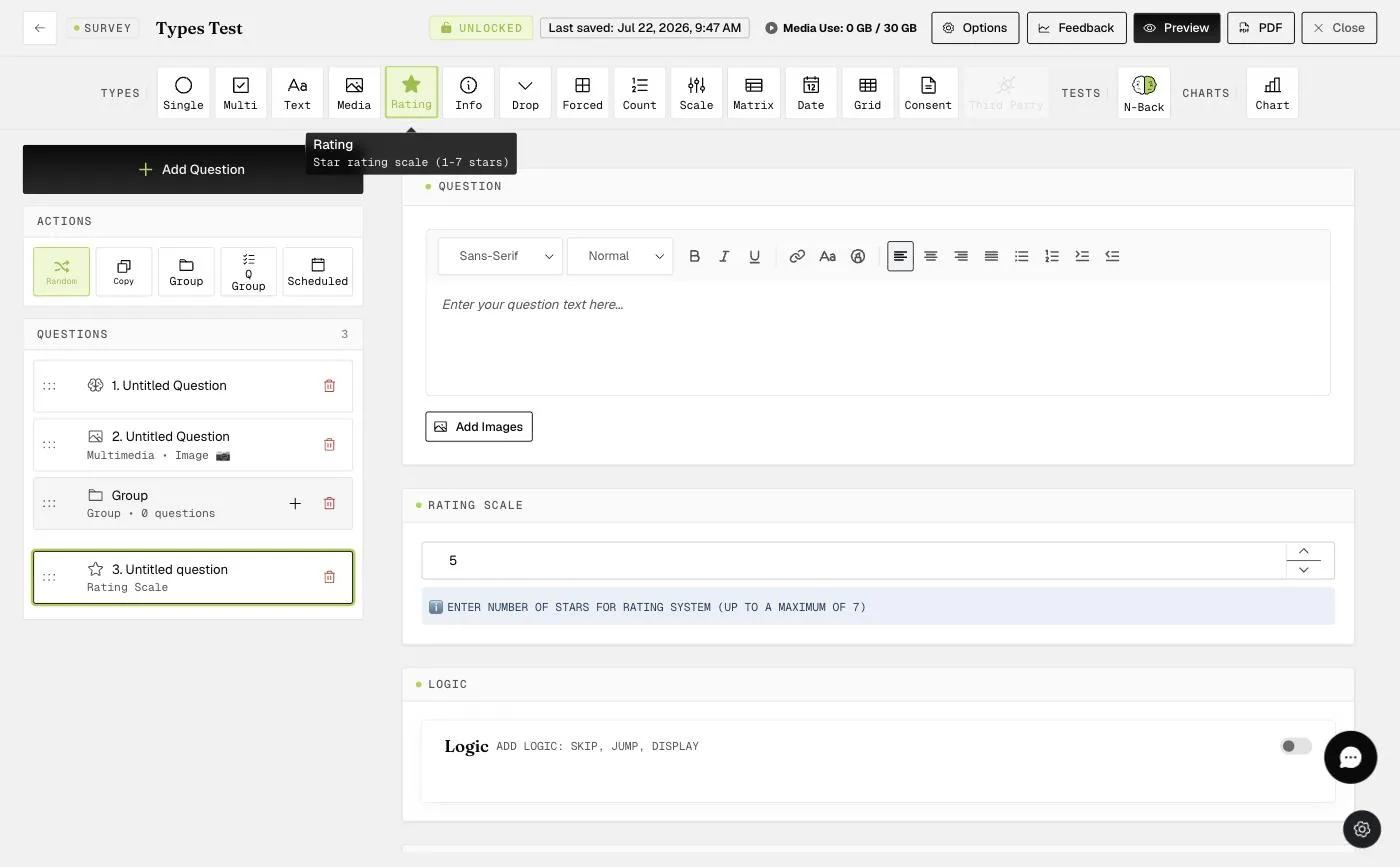
This question type enables participants to choose the number of "stars" when rating something (e.g., event, movie, restaurant, etc.). Researchers can set the rating scale by specifying the number of stars up to a maximum of 7, with 5 stars as the default. Participants can also give half-star ratings (e.g., 3.5 stars).
6. Instruction
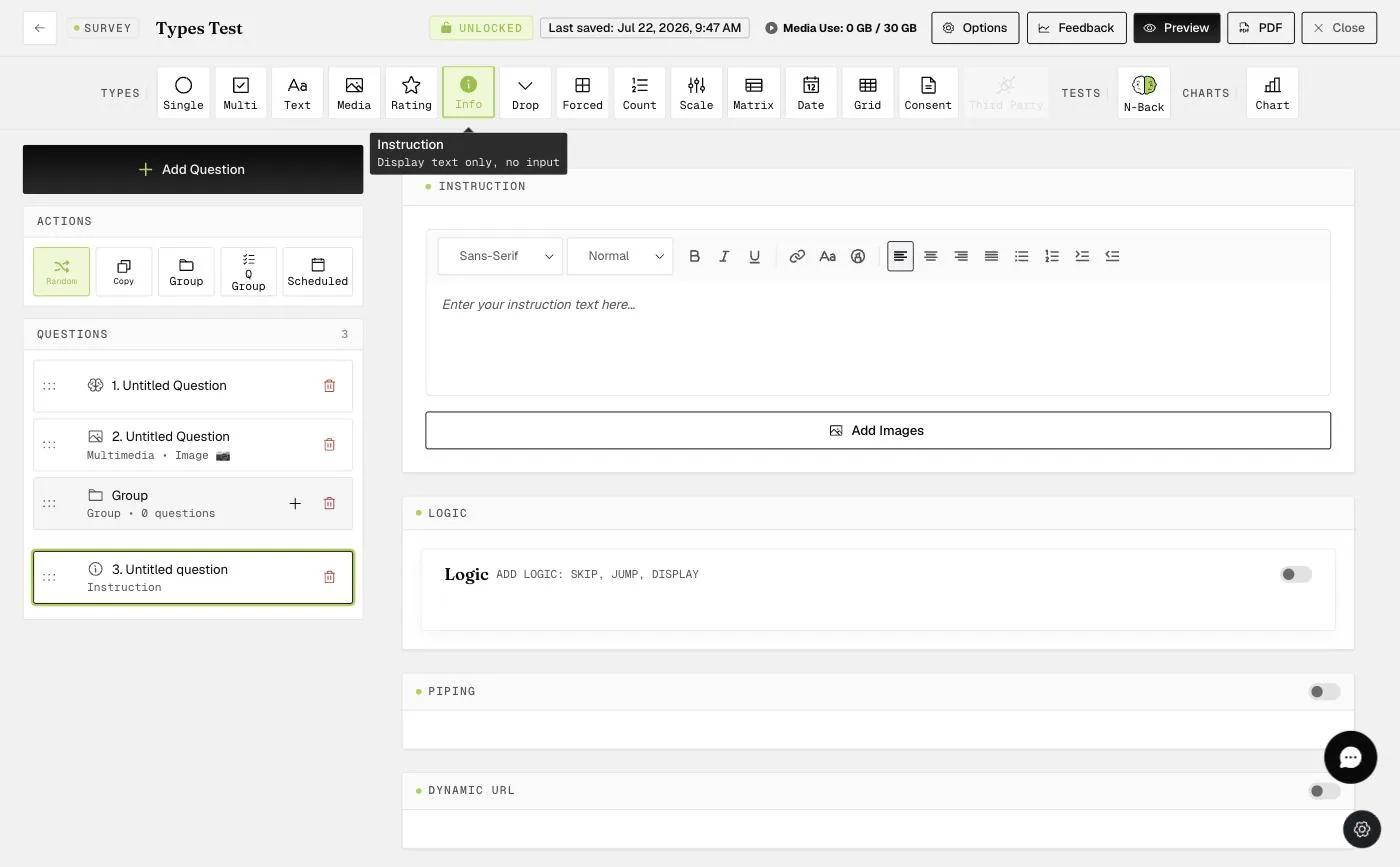
As the name implies, this allows researchers to include instructions or consent form information. Participants are not given the option to respond. This is a form of read-only content.
7. Dropdown Question
The dropdown question enables participants to view and choose one option from a long list of options (e.g., countries, age in years, etc.) from a dropdown options box. This is very helpful when you do not want participants to page scroll.
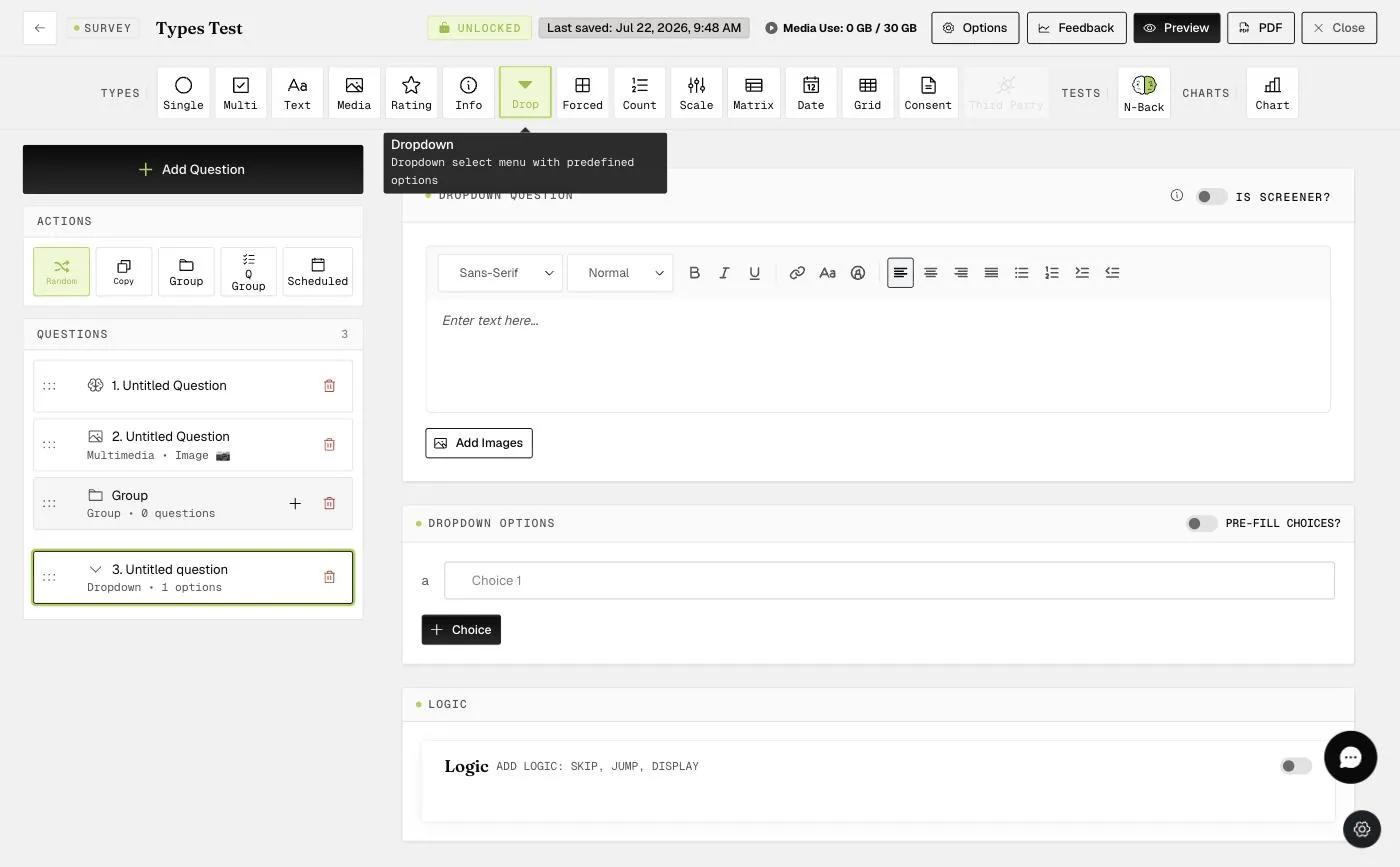
8. Branching Forced Choice Question
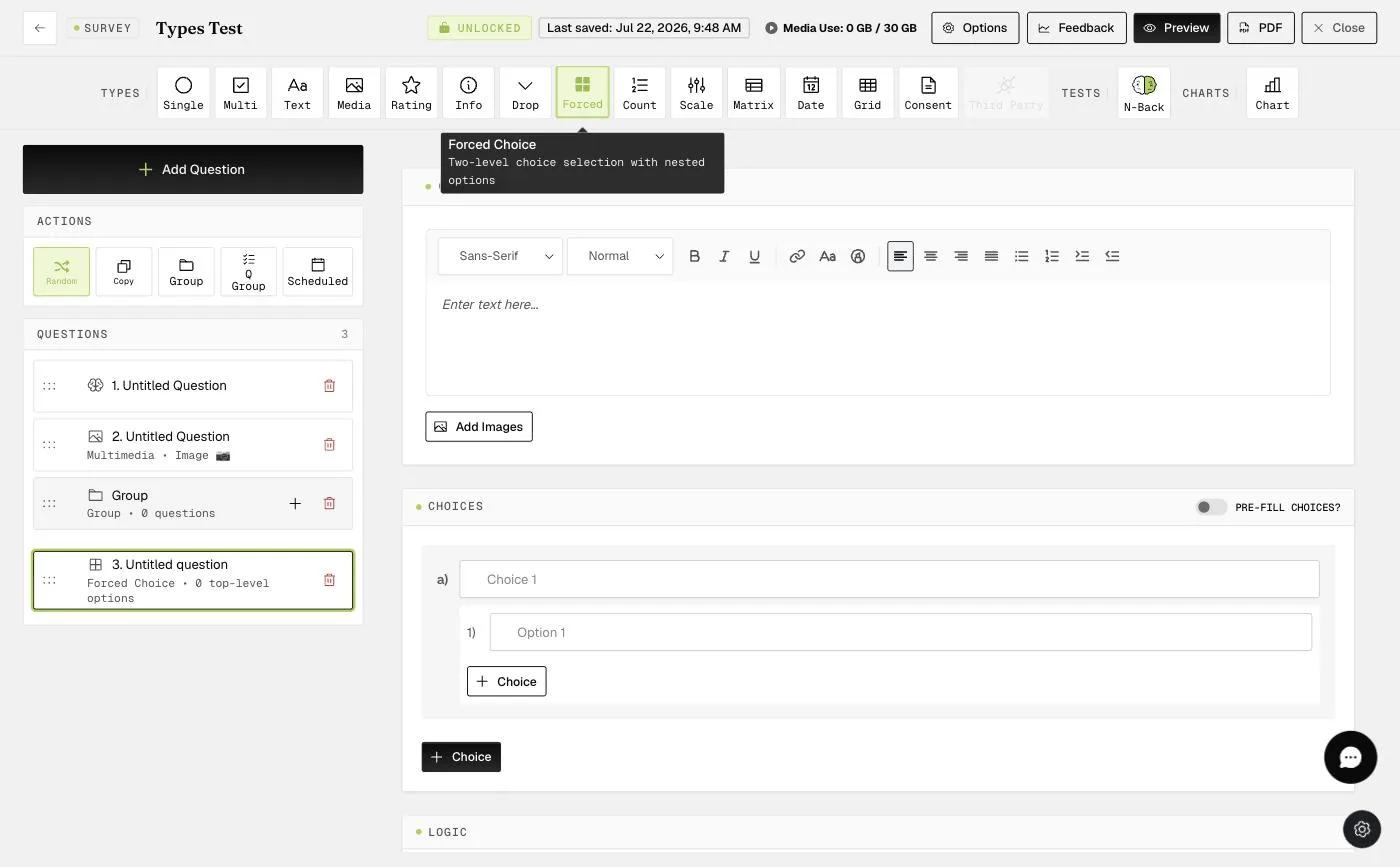
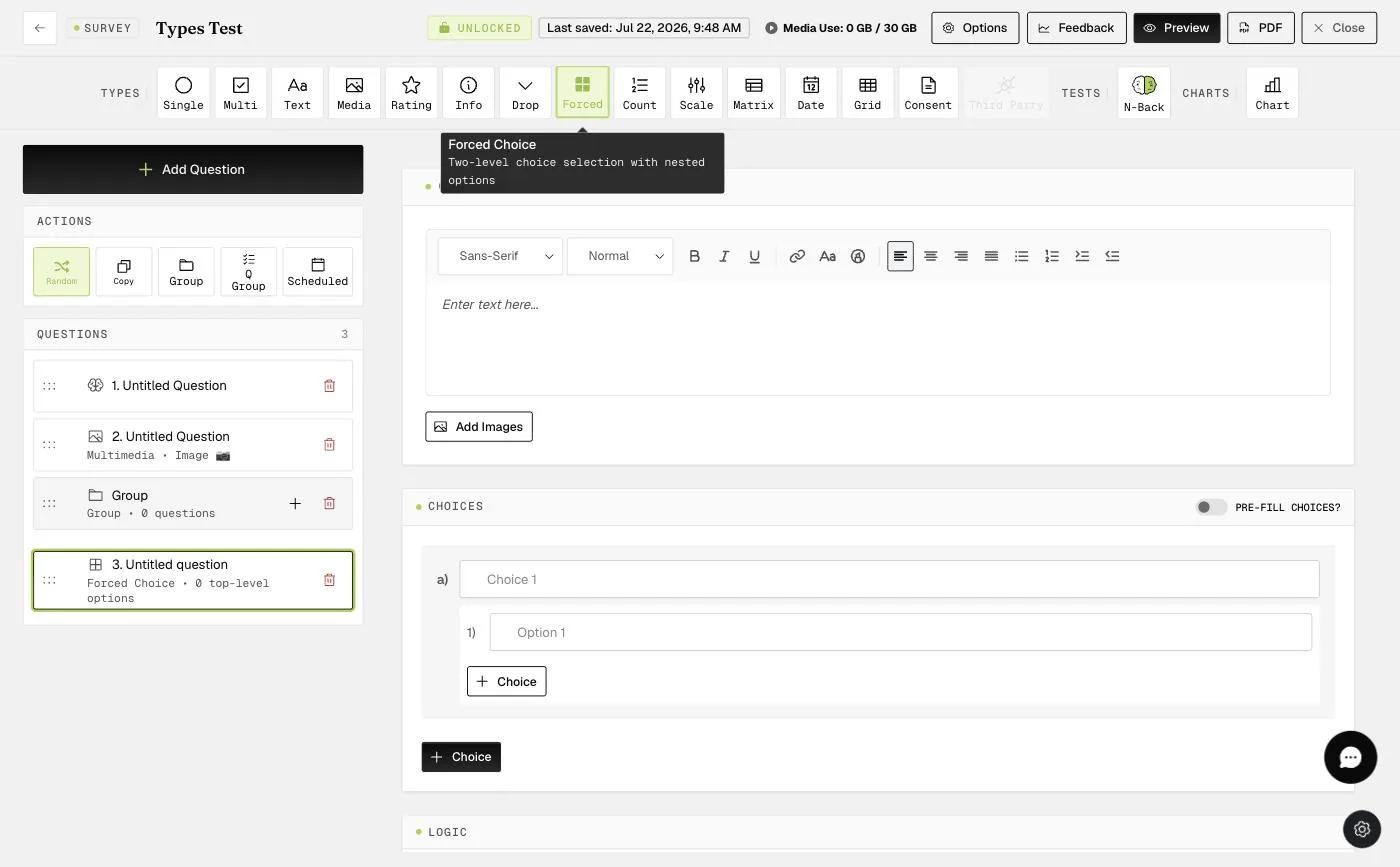
This is a more complicated question type; it allows researchers to enable forced choice responses in a two-step process.
For example:
Step 1. Have participants choose between two statements, such as "I enjoy meeting new people" and "I dislike meeting new people."
Step 2. The statement chosen (e.g., "I enjoy meeting new people") will be presented along with the options "Always" or "Usually."
See video tutorial here
9. Counter Question
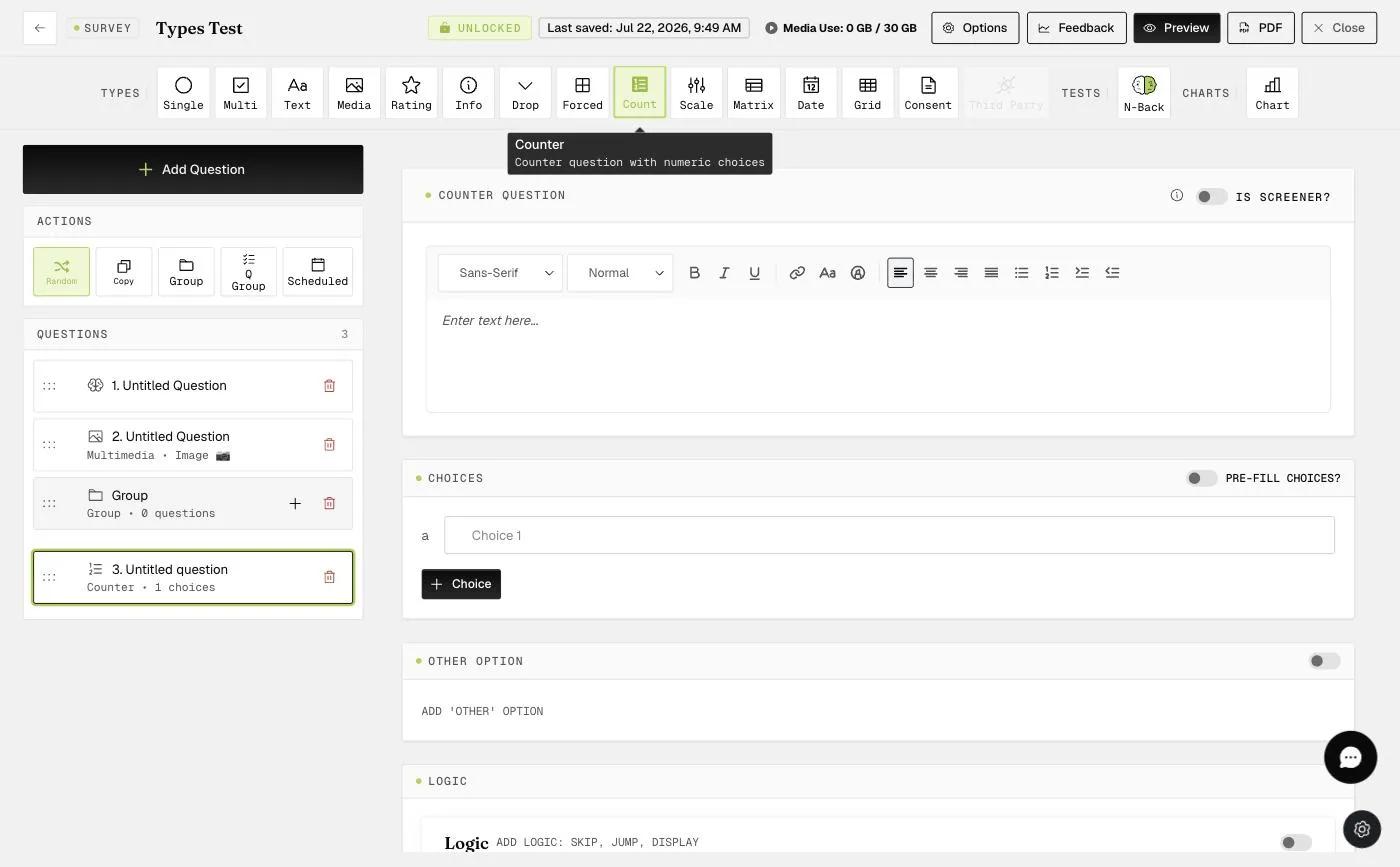
This provides a way for researchers to capture behavioral counts within a specific time period. For example, how often you give your child an instruction and how many times they obey, sampled in a 5-minute window. This is often used by clinicians to have participants keep track of a behavior (e.g., number of cigarettes smoked, number of drinks).
10. Sliding Scale Question
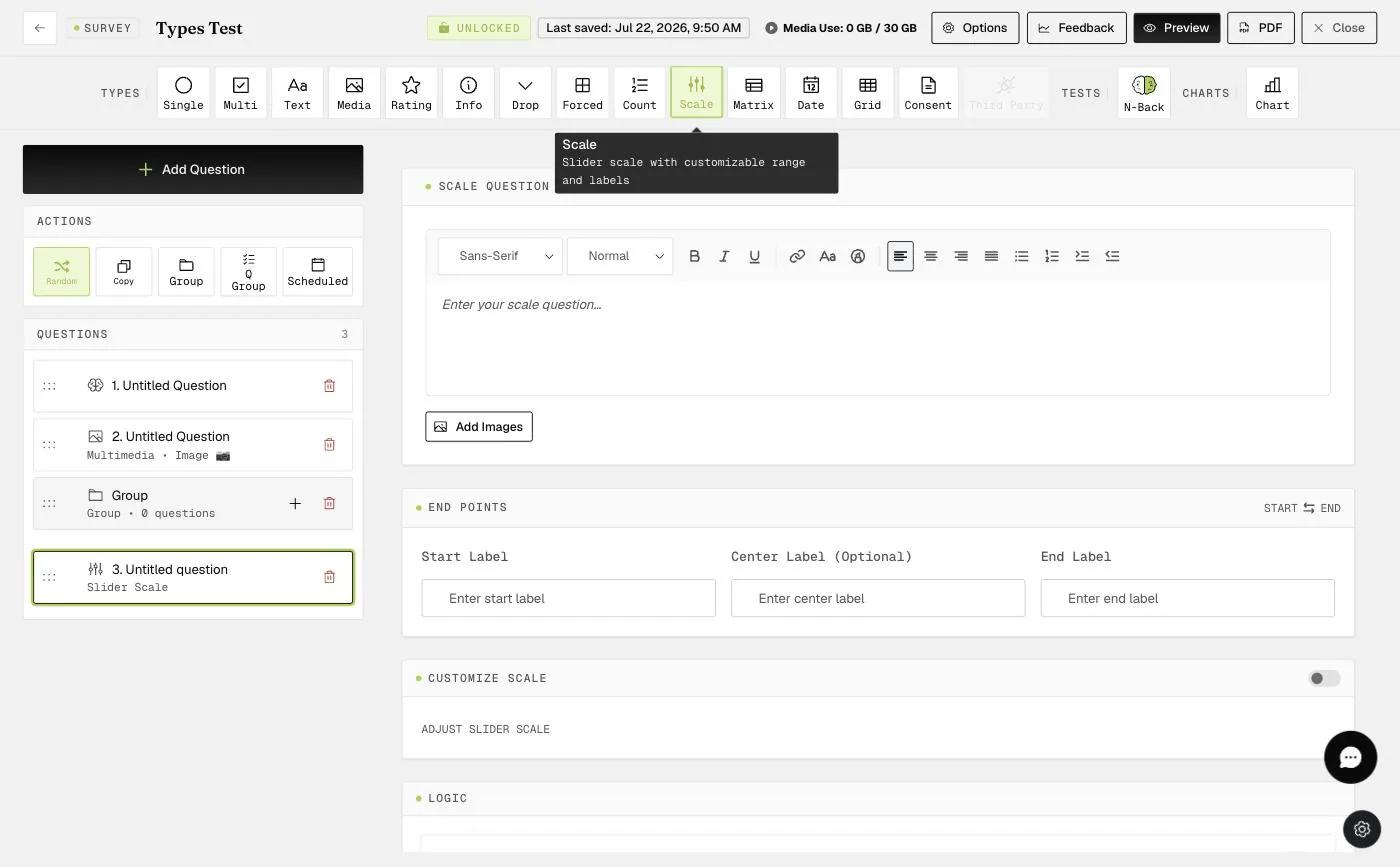
The scale question is used when researchers are interested in a sliding scale format with two end points.
1: This is where you can type in your questions or statements.
2: There will be 2 endpoints with labels, and also an option to put a middle/center label.
3: Toggling this will show options 4, 5, and 6.
4: Option to change the slider number (e.g., 0 to 100, 1 to 5, etc.).
5: Option to change the starting point of the slider (left side, center, right side).
6: Option to hide the slider number.
11. Matrix Question
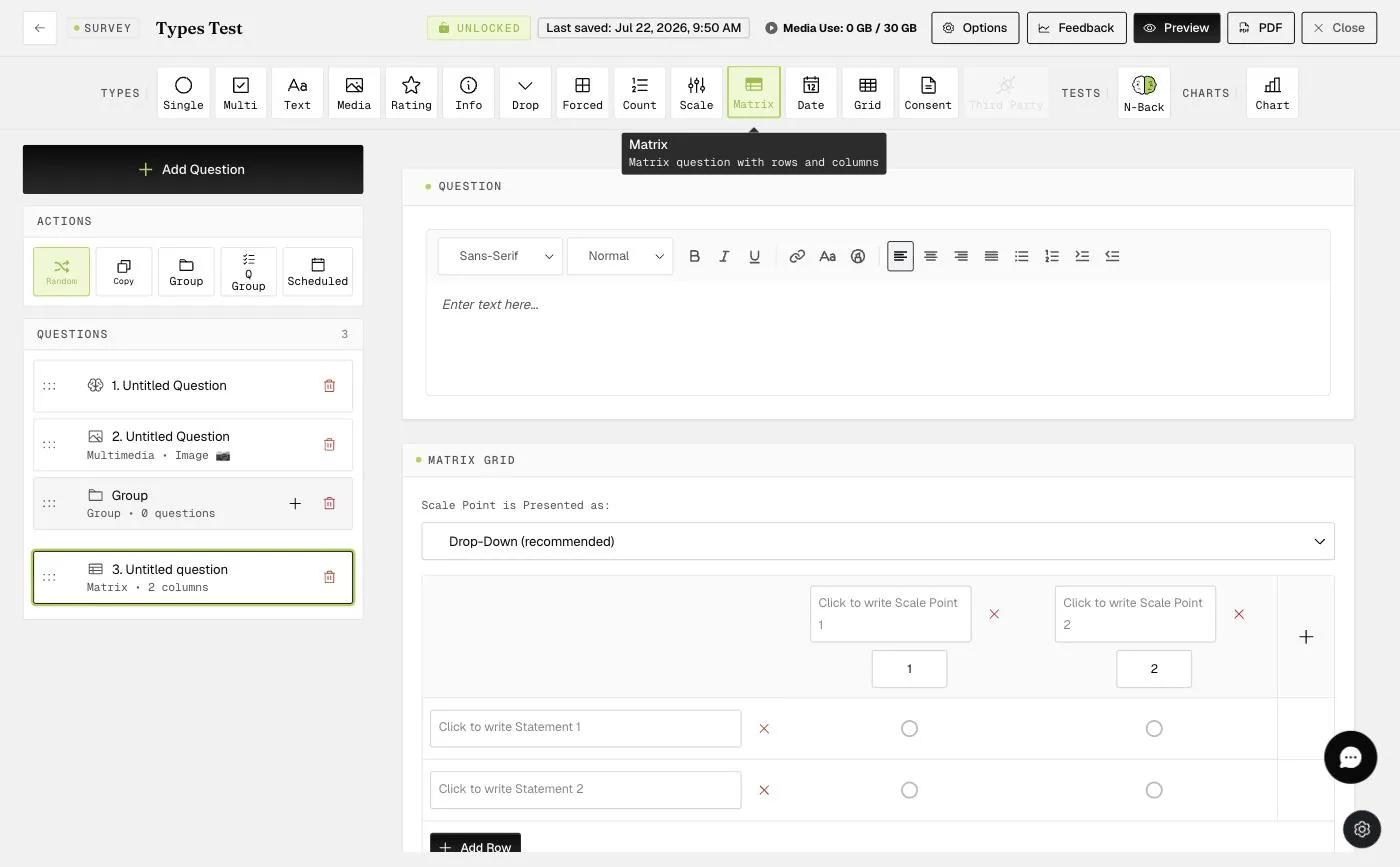
The matrix question type serves as a way to display multiple questions across a scale under the umbrella of the same prompt. This question type helps to streamline the question series into one screen, rather than making separate dropdown or multiple choice options for each question.
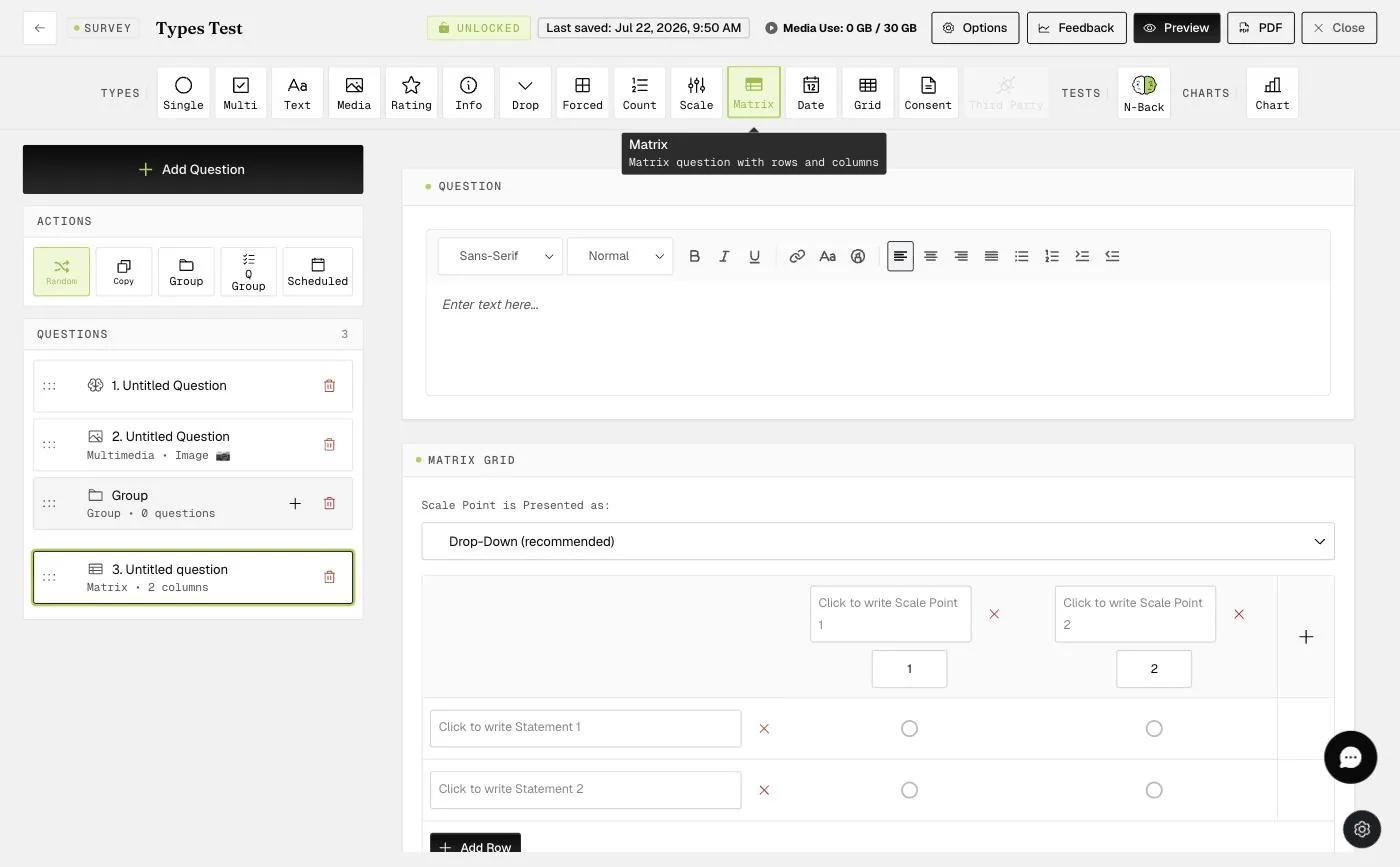
The matrix question type also provides additional customization features:
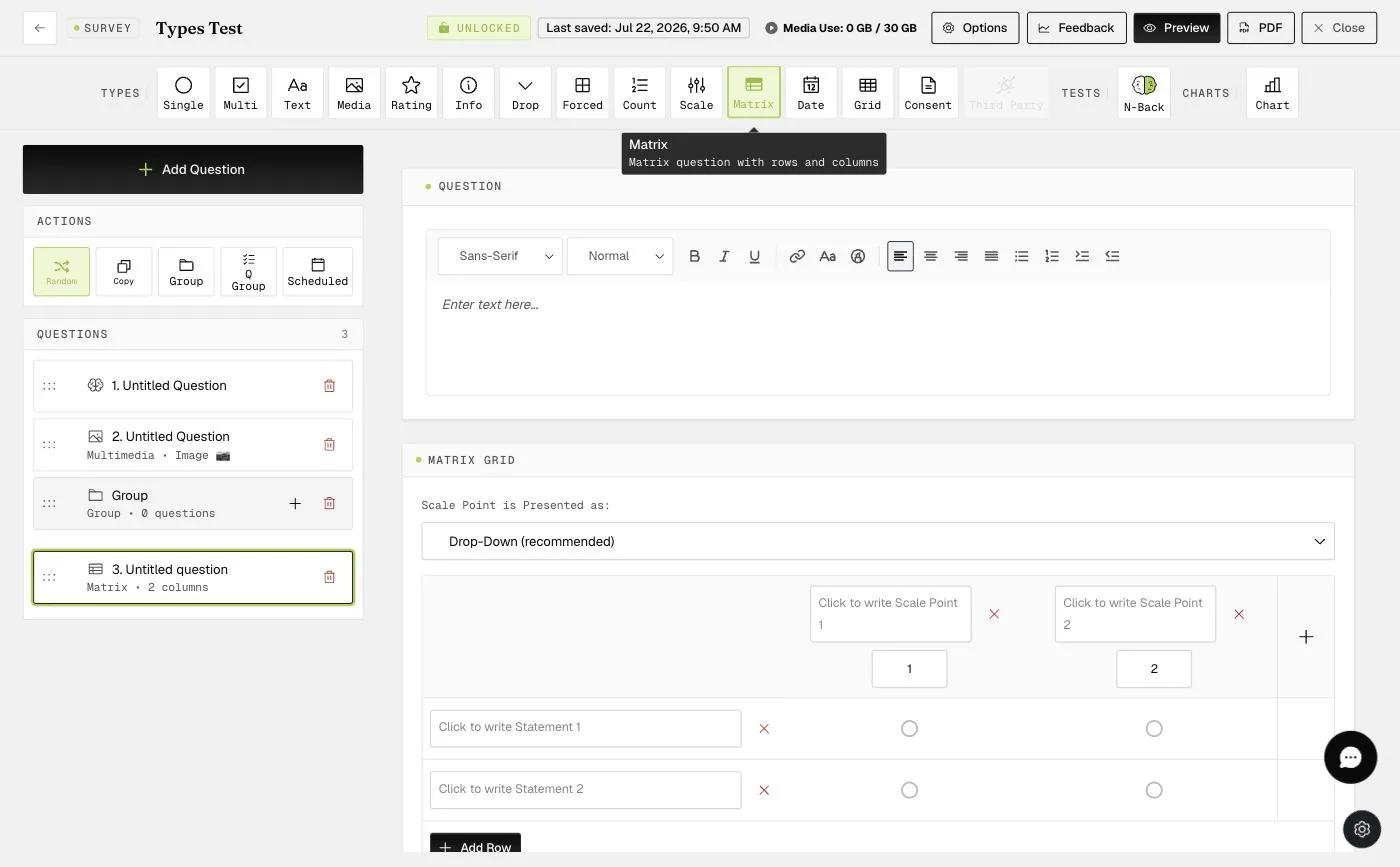
Forced Choice: Restricts the participant to selecting only one answer per column.
Use Weights: Allows researchers to assign values to the question columns; can be used to create a score for the question, which is shown in the downloadable data file.
Require Response: Requires participants to respond to the questions before they can proceed.
Sample CSV file for Matrix Question using numeric values:
The 'Score' in column O above refers to the total score from all the questions within the matrix question (in this example, there are 2 questions).
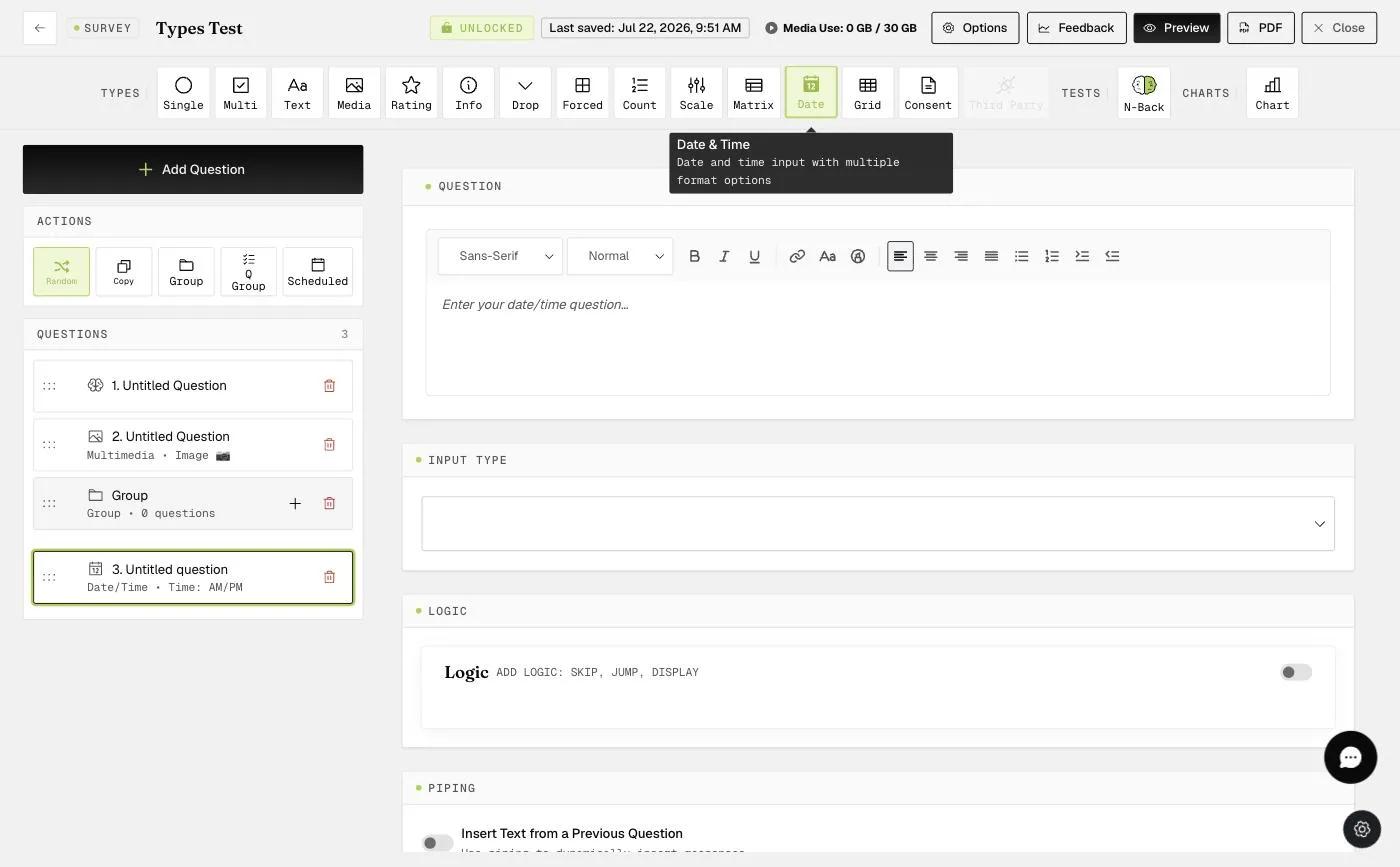
12. Time and Date Question
The time and date question enables participants to enter responses in time and date formats.
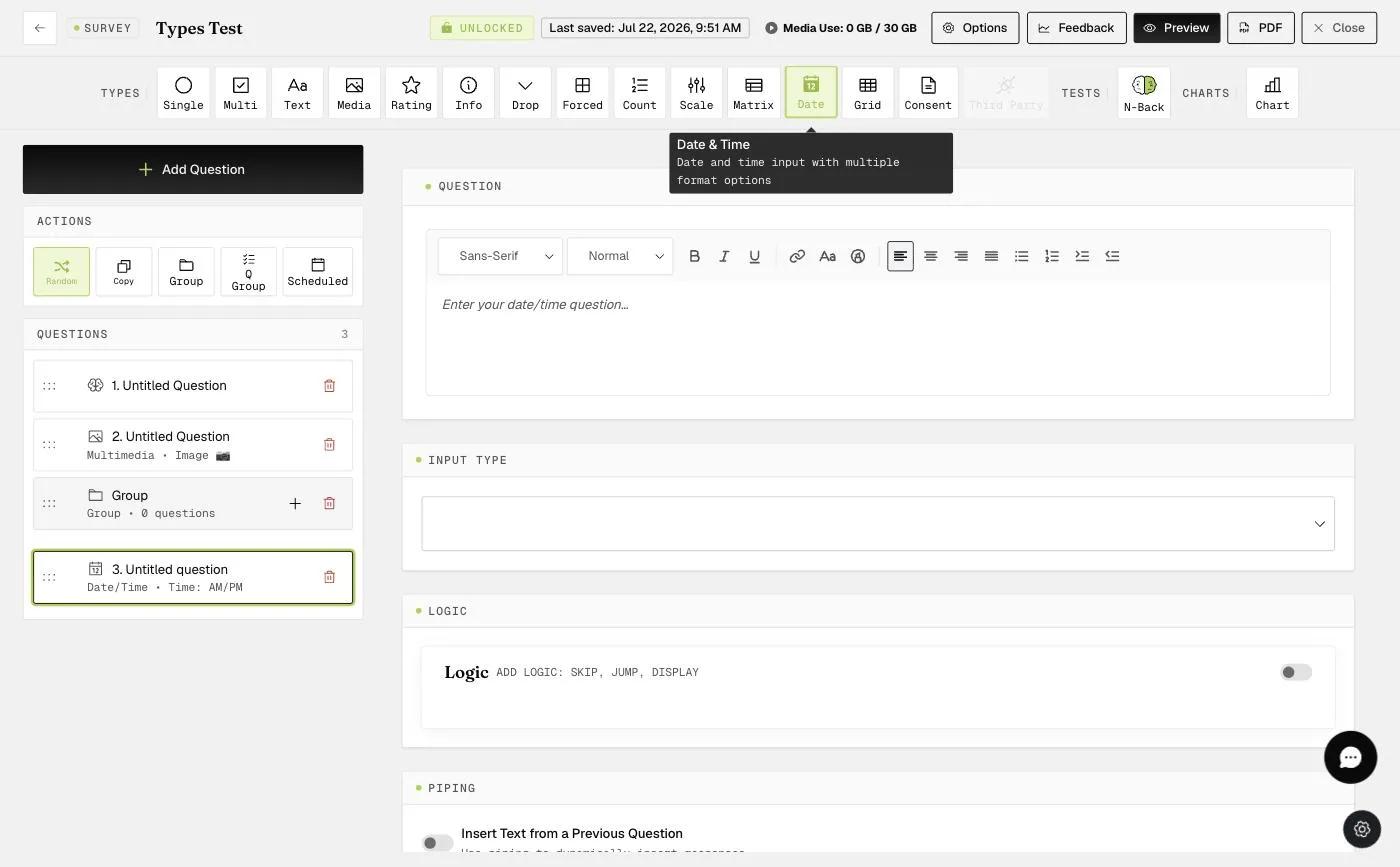
This enables participants to easily select the time (AM/PM or 24-hour), date, or day/month/year.
13. Grid Question
The grid question type enables participants to enter their responses in a 2 x 2 to 10 x 10 grid. This is useful for using a single item to assess two different dimensions. For instance, in psychology, researchers seek to assess where individuals stand on both valence and arousal in the moment (i.e., affect grid).
The grid question will be displayed on the mobile app in this format.
14. E-Consent
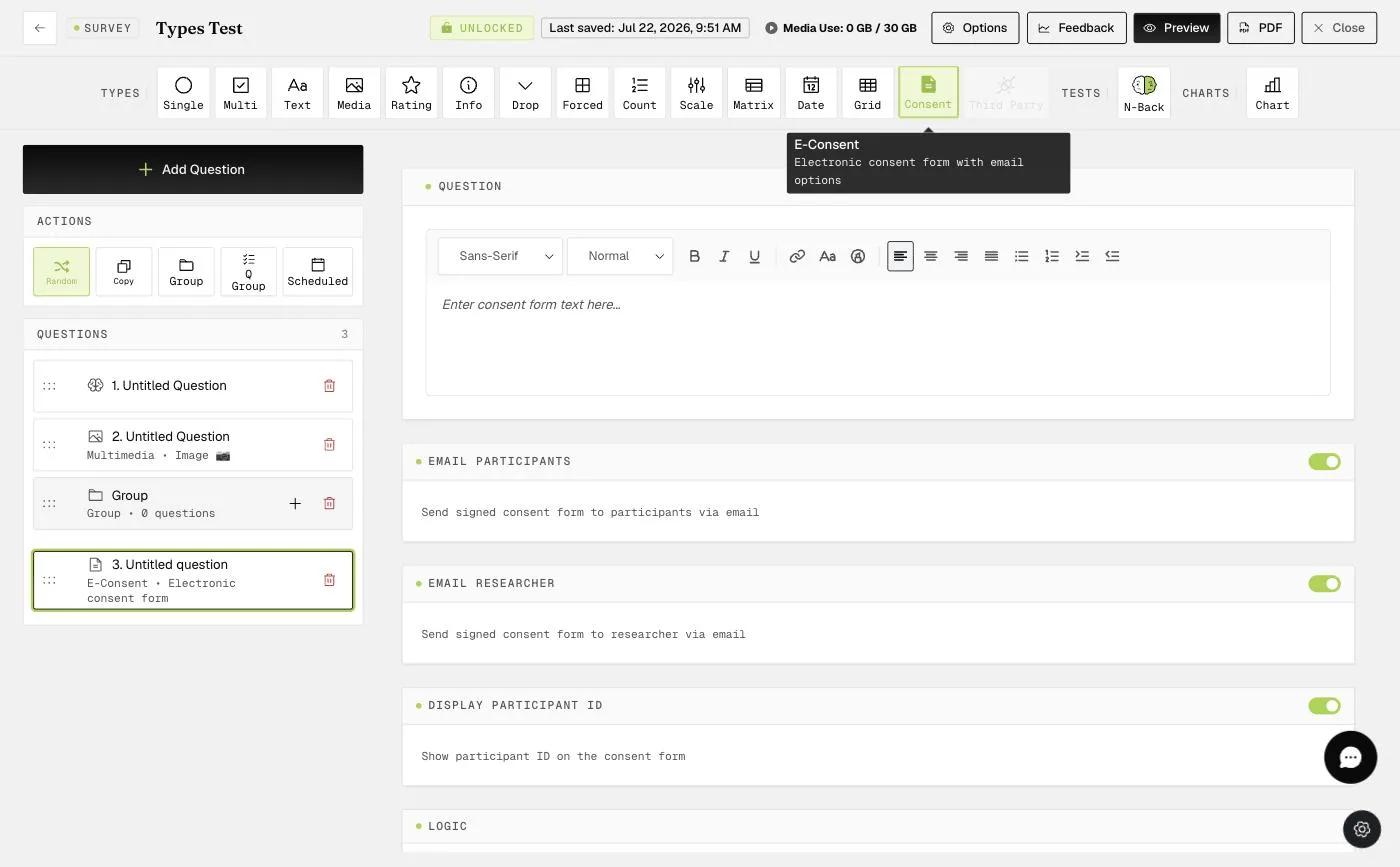
This allows researchers to provide participants with a consent form, which they can sign and/or type their name to indicate consent.
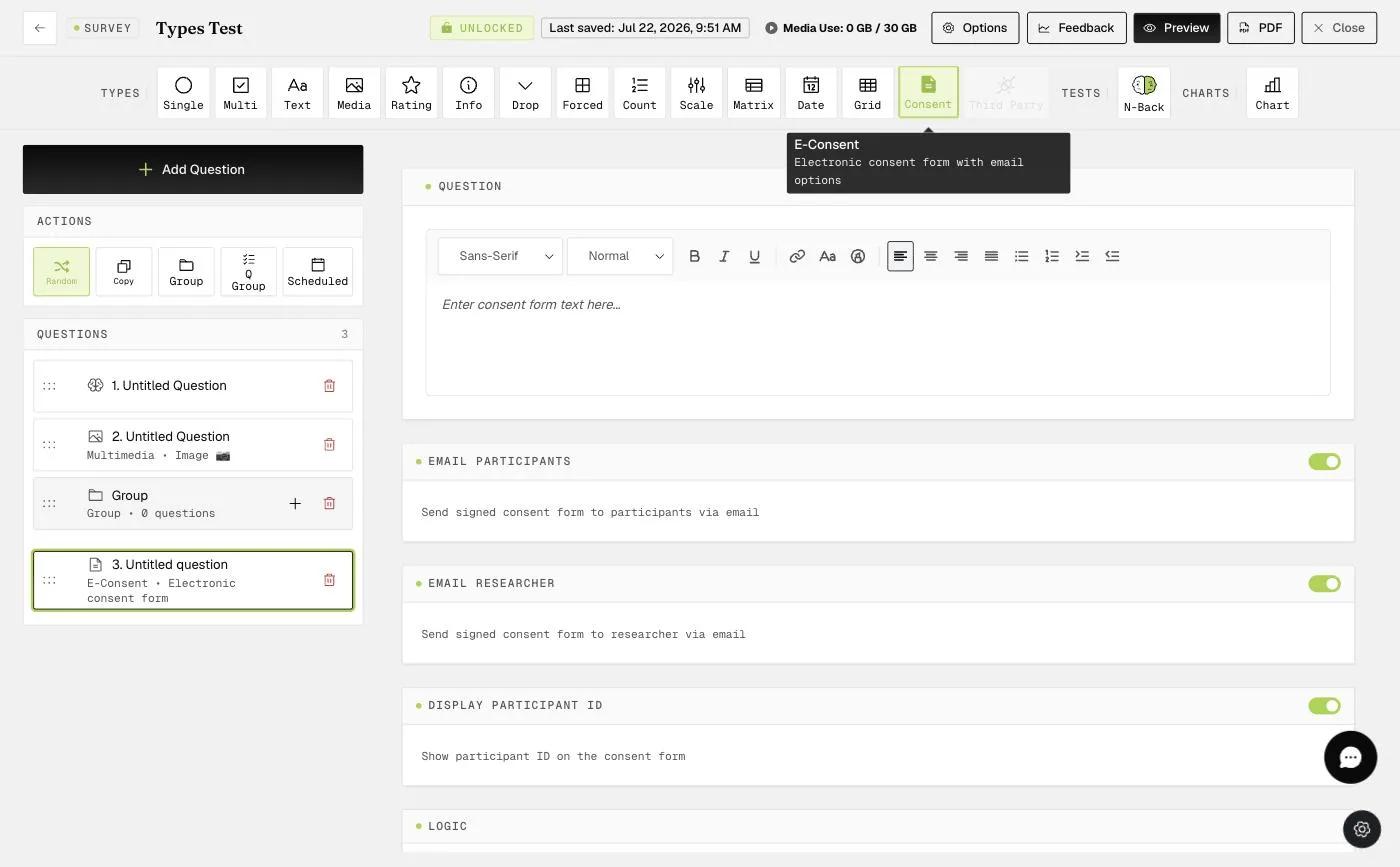
Researchers can enable the 'Signed E-Consent Email Options' to receive a signed copy of the e-consent form via email, which will be sent to individual participants and/or the researchers for record-keeping.
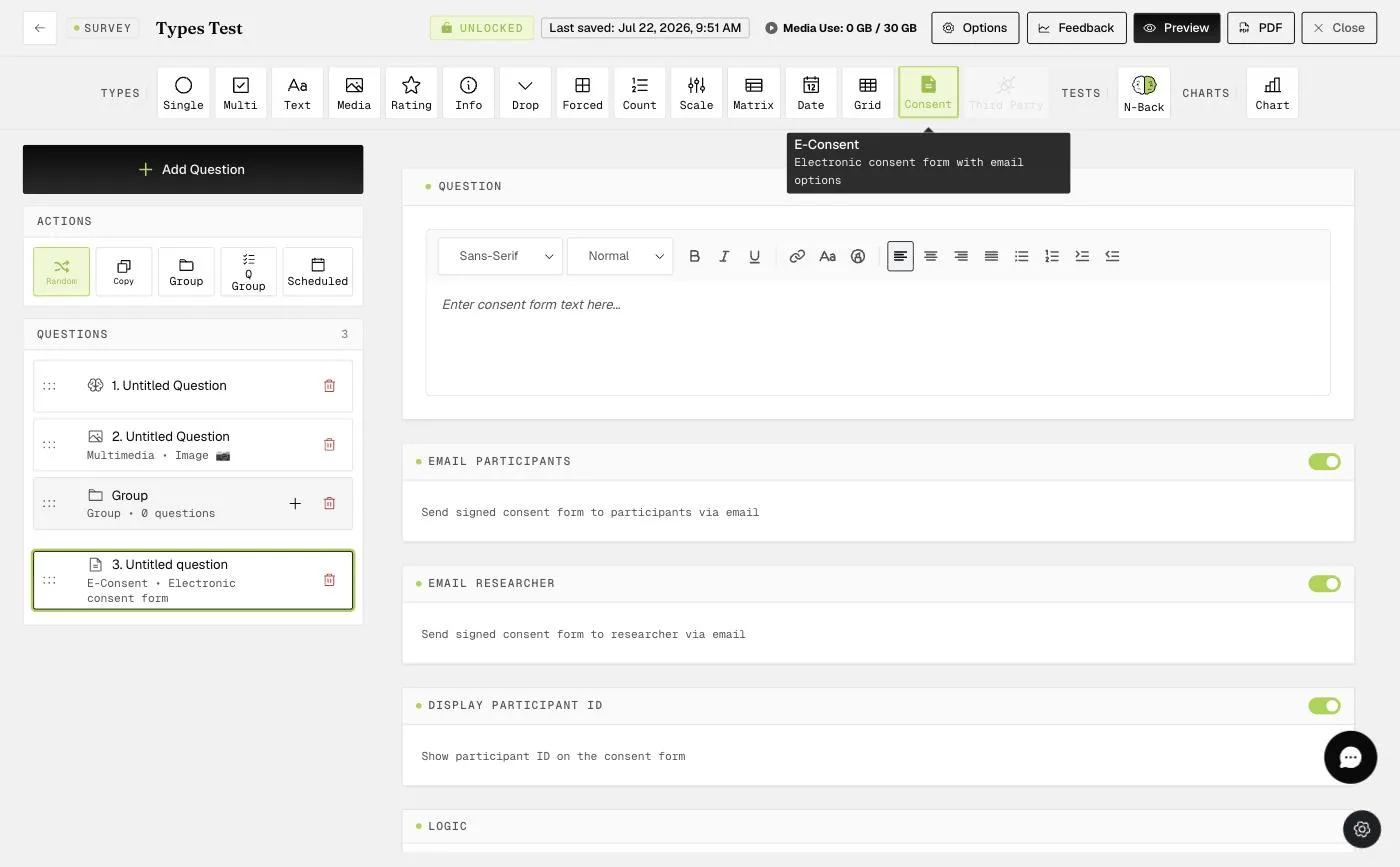
Additionally, researchers can choose whether to display the Participant ID on the signed e-consent form.
On the mobile app, the e-consent form will be presented in a format that allows participants to add their signature using the canvas option and/or type their name to confirm consent.
Note: If 'Force Response' is selected as the question response type, participants must sign on the canvas and enter their name to confirm their consent before proceeding.
Below is an example of a signed e-consent form, including the signature, typed name, and participant ID, which will be emailed to participants and/or researchers.
For further assistance, please contact help@expiwell.com
This walkthrough was recorded in the earlier ExpiWell interface — an updated video for the new dashboard is coming.