Automatic next question
How to Utilize Automatic Next Question
When conducting Ecological Momentary Assessments, or Experience Sampling Research, it is crucial to consider efficiency when your surveys consist of many questions. Long surveys can be very exhausting at times, and by decreasing your participants' effort, you could have a higher completion rate.
With ExpiWell, you can use the "Automatic Next Question" feature, as your participants will save time and reduce their efforts in answering your surveys.
1 - Click the "Options" button in the survey builder.
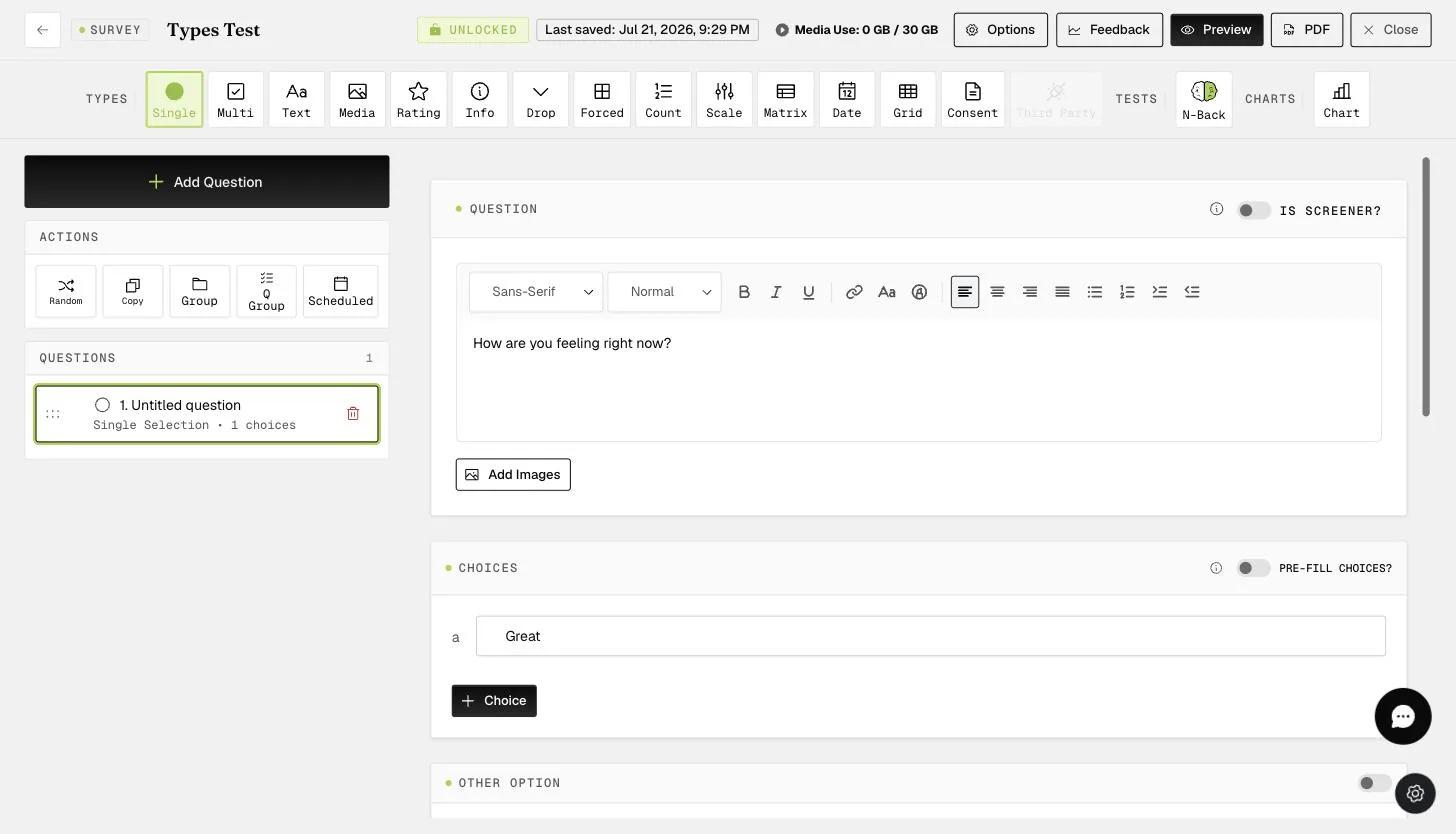
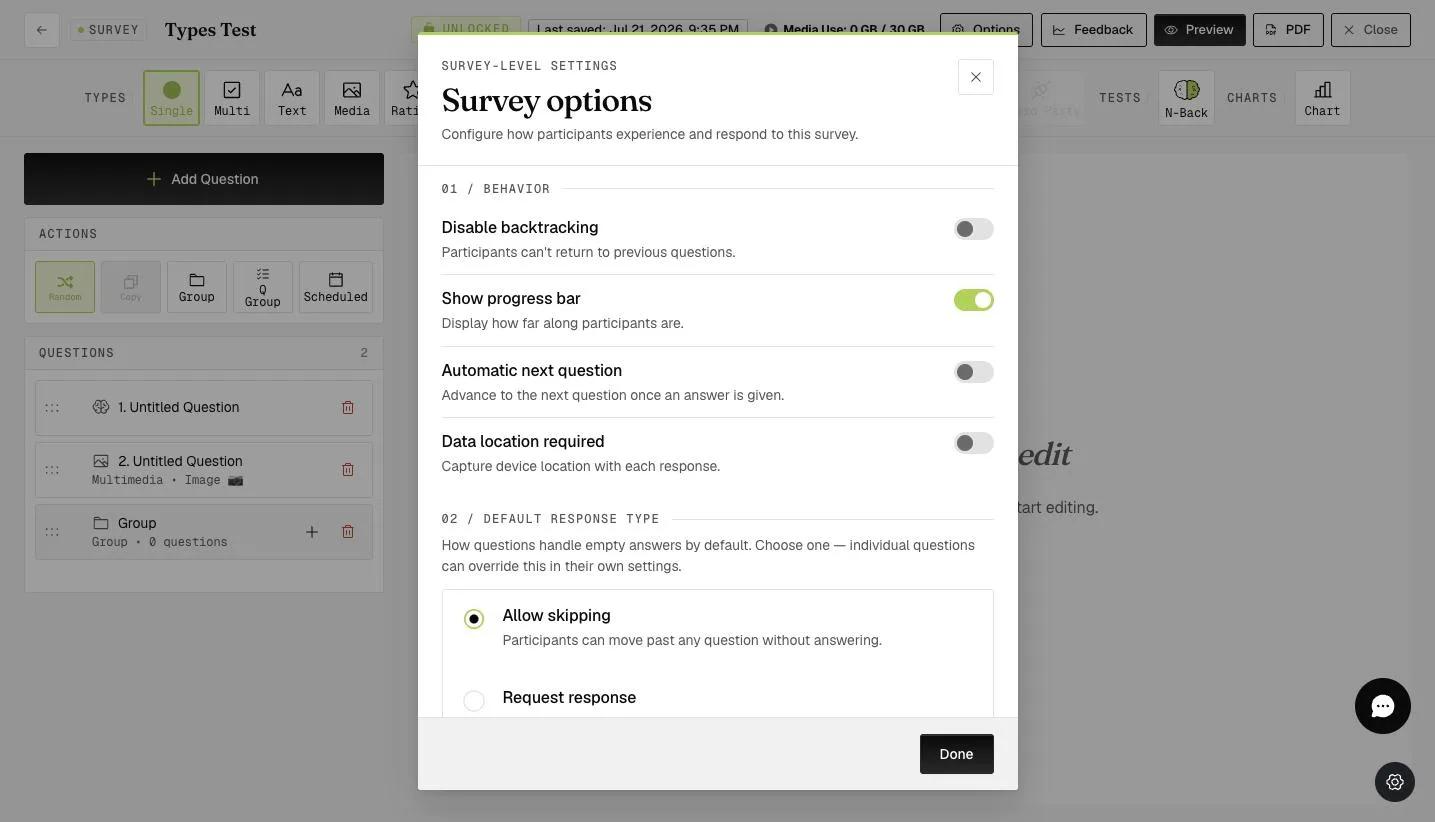
2 - Toggle "Automatic next question".
In the participant's mobile app, they do not need to click the "next" button every time they want to move to the next question. Once they select a response, it will automatically go to the next question.
The cumulative time spent on clicking the "next" button can save a considerable amount of time. This is very helpful if you have a survey with hundreds of questions.
This walkthrough was recorded in the earlier ExpiWell interface — an updated video for the new dashboard is coming.