Answer piping
What is Answer Piping?
Answer Piping allows you to automatically insert (or "pipe") a respondent’s previous answer into a later question. This creates a personalized, conversational flow that makes surveys feel more engaging and relevant to the participant.
Key Capabilities
-
Intra-Survey Piping: Use an answer from Question 1 to customize the text in Question 5 of the same survey.
-
Cross-Survey Piping: Pull responses from a previously completed survey into a brand-new one for the same participant.
Supported Question Types
Answer Piping is compatible with the following question formats:
-
Single Selection
-
Dropdown
-
Text
-
Rating
Example in Practice
-
Question 1: "What is your favorite hobby?" (Respondent types: Rock Climbing)
-
Question 2 (Piped): "How many years have you been practicing Rock Climbing?"
Benefit
Personalizing questions with Answer Piping reduces "survey fatigue" and increases completion rates by making the experience feel like a relevant, one-on-one conversation.
Setting up Answer Piping Within the Same Survey
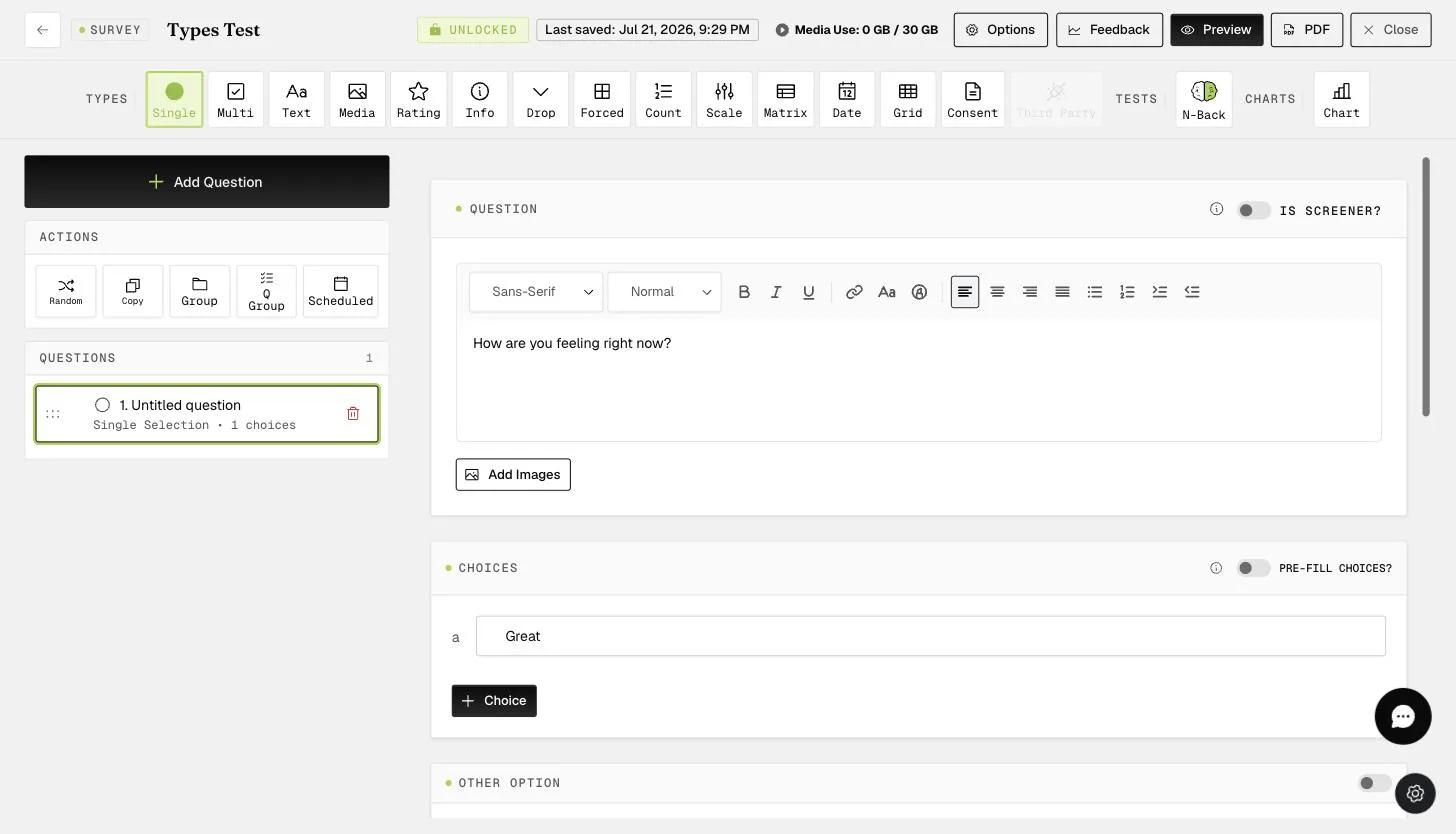
1. Create your source question: Set up a question with predefined options or enable the 'OTHER OPTION' to allow for custom text entries.
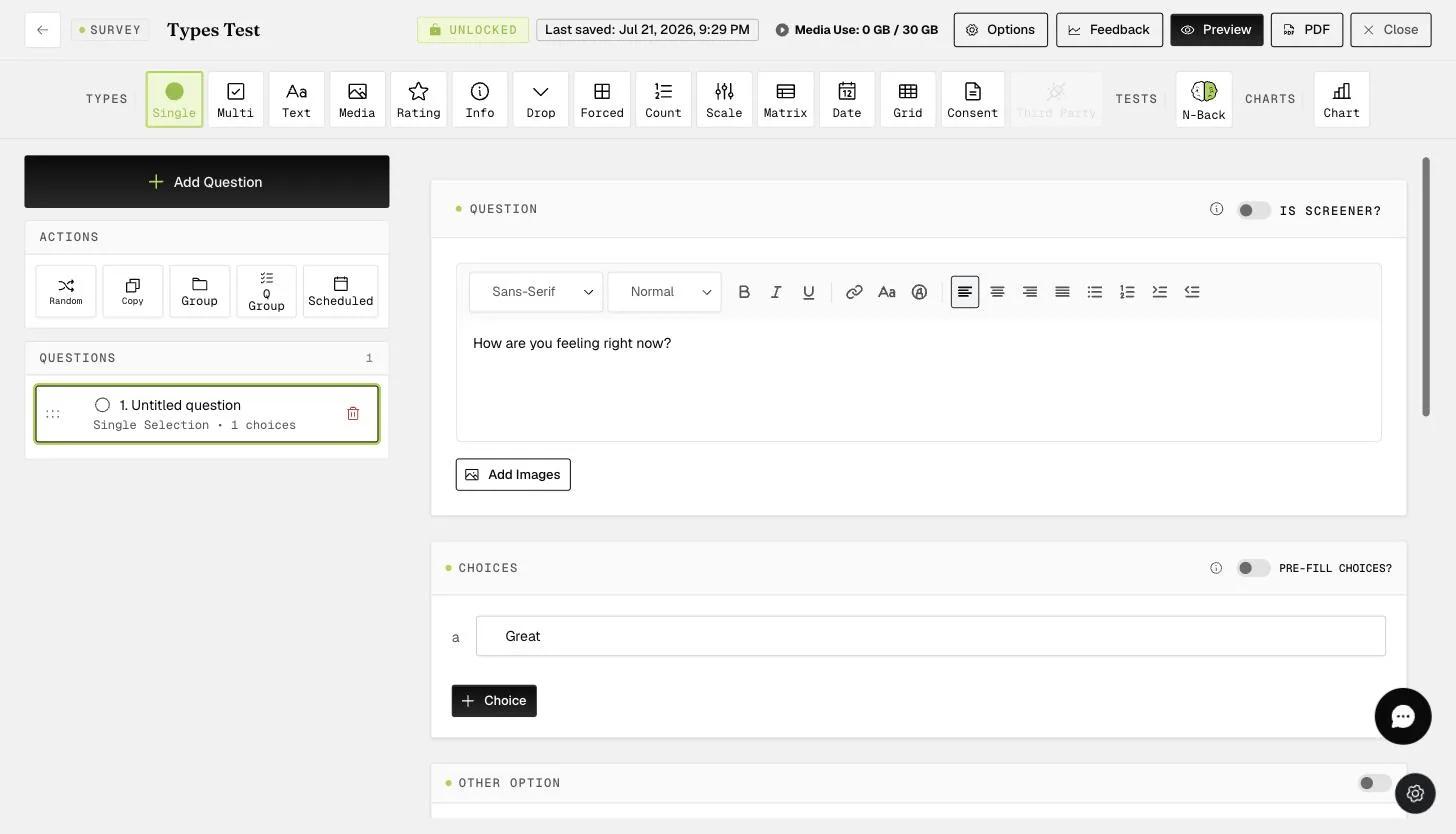
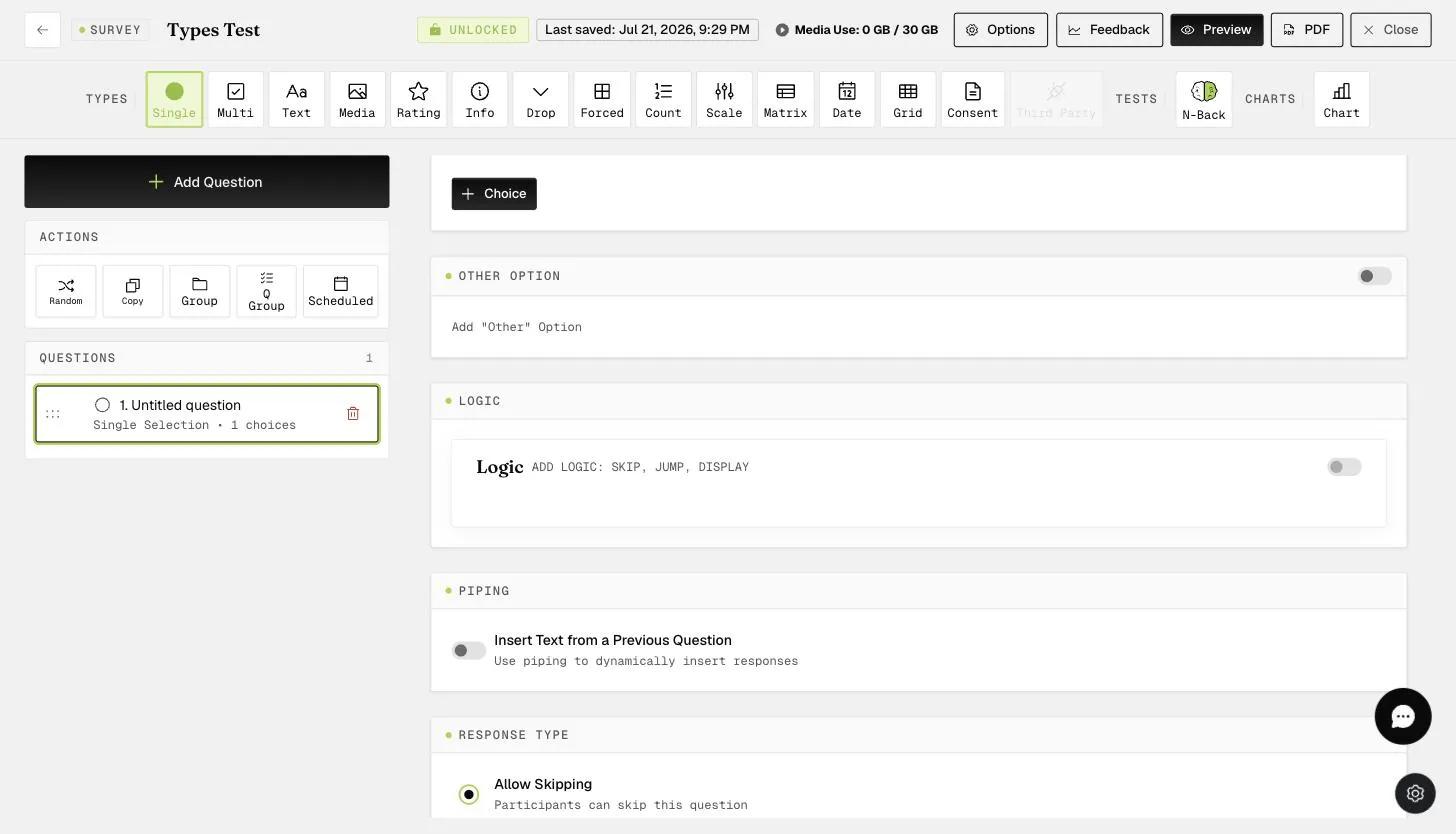
2. Enable Piping: Create the subsequent question where you want the answer to appear. Locate and toggle on the Piping option.
Note: You do not need to leave a manual blank space in your question text for the piped response; the system handles the spacing automatically.
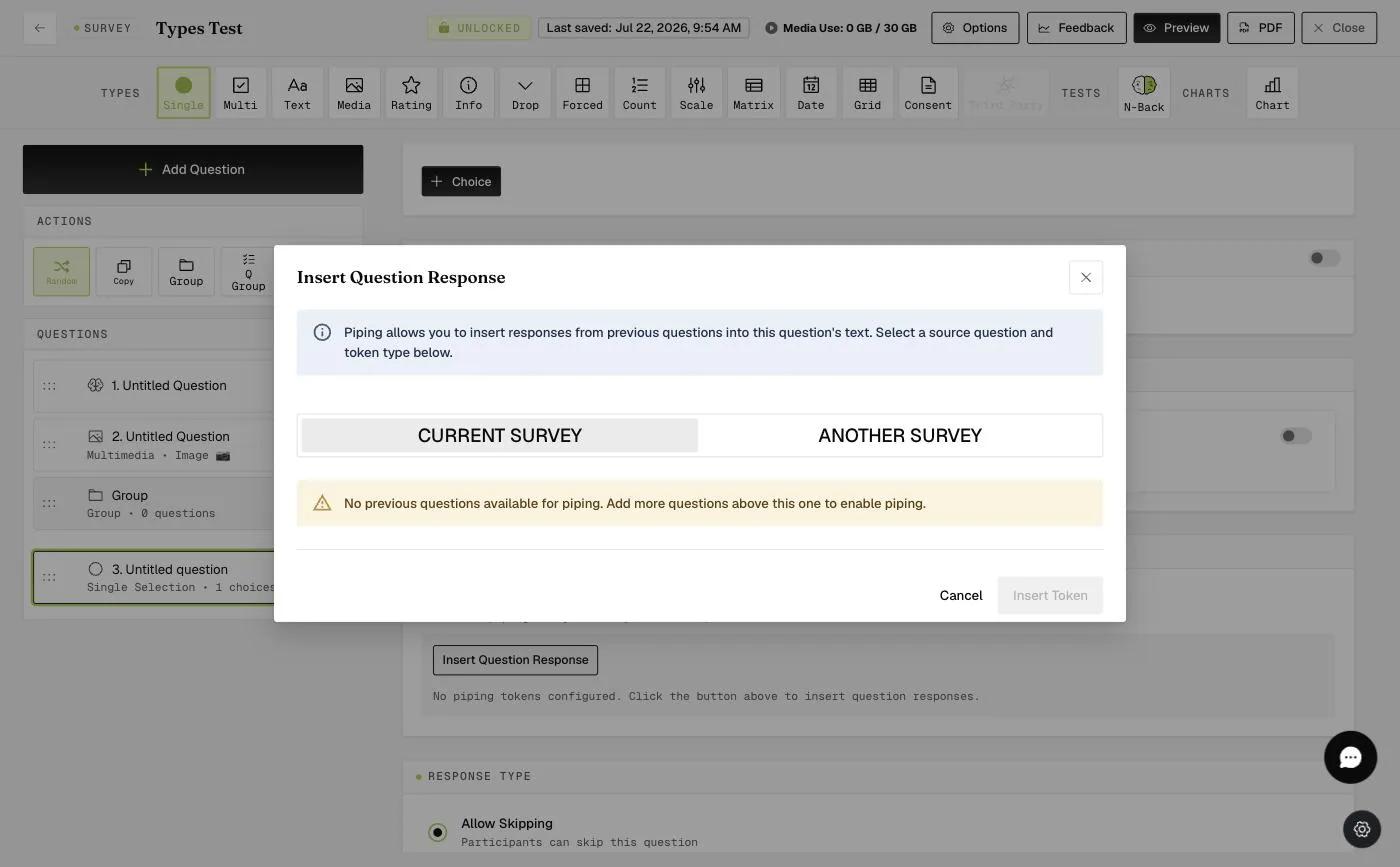
3. Configure the Source: In the Piping modal, select 'Current Survey' and choose the specific question (e.g., Question 2) you wish to pull data from.
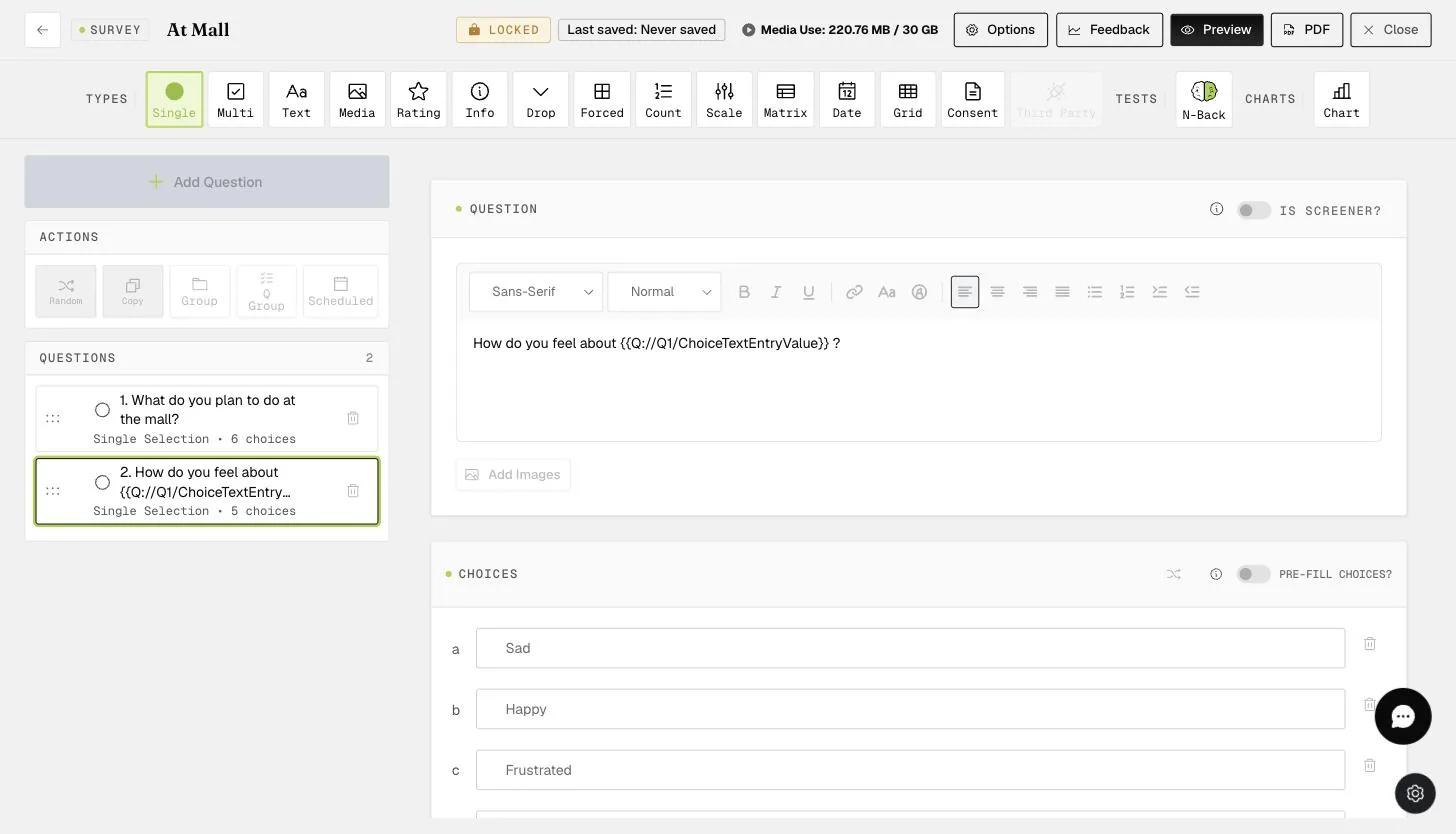
4. Verify the Placeholder: A tag like {{Q://Q2/ChoiceTextEntryValue}} will appear in your question editor. This placeholder will be replaced by the participant's actual answer during the live survey.
Mobile App View
1. Standard Selection: If a participant selects "Strength Training," that specific phrase will appear in the next question.
2. Custom "Other" Input: If a participant types "Mixed strength training," the system will seamlessly pipe that custom text into the follow-up question.
Setting up Answer Piping Across Surveys
1. Identify the Source Survey: Ensure your initial survey question is one of the four compatible question types (Single Selection, Text, Rating, or Dropdown). In this example, it would be a Text question, Question 1 from the 'Monthly Fitness Goal' survey.
2. Enable Cross-Piping: In your second survey (e.g., 'Daily Exercise' survey), create a question and toggle on the Piping feature.
3. Connect the Surveys: In the Piping modal, select 'Another Survey.' Choose the source survey and the specific question you want to reference (e.g., Question 1 of the 'Monthly Fitness Goal' survey).
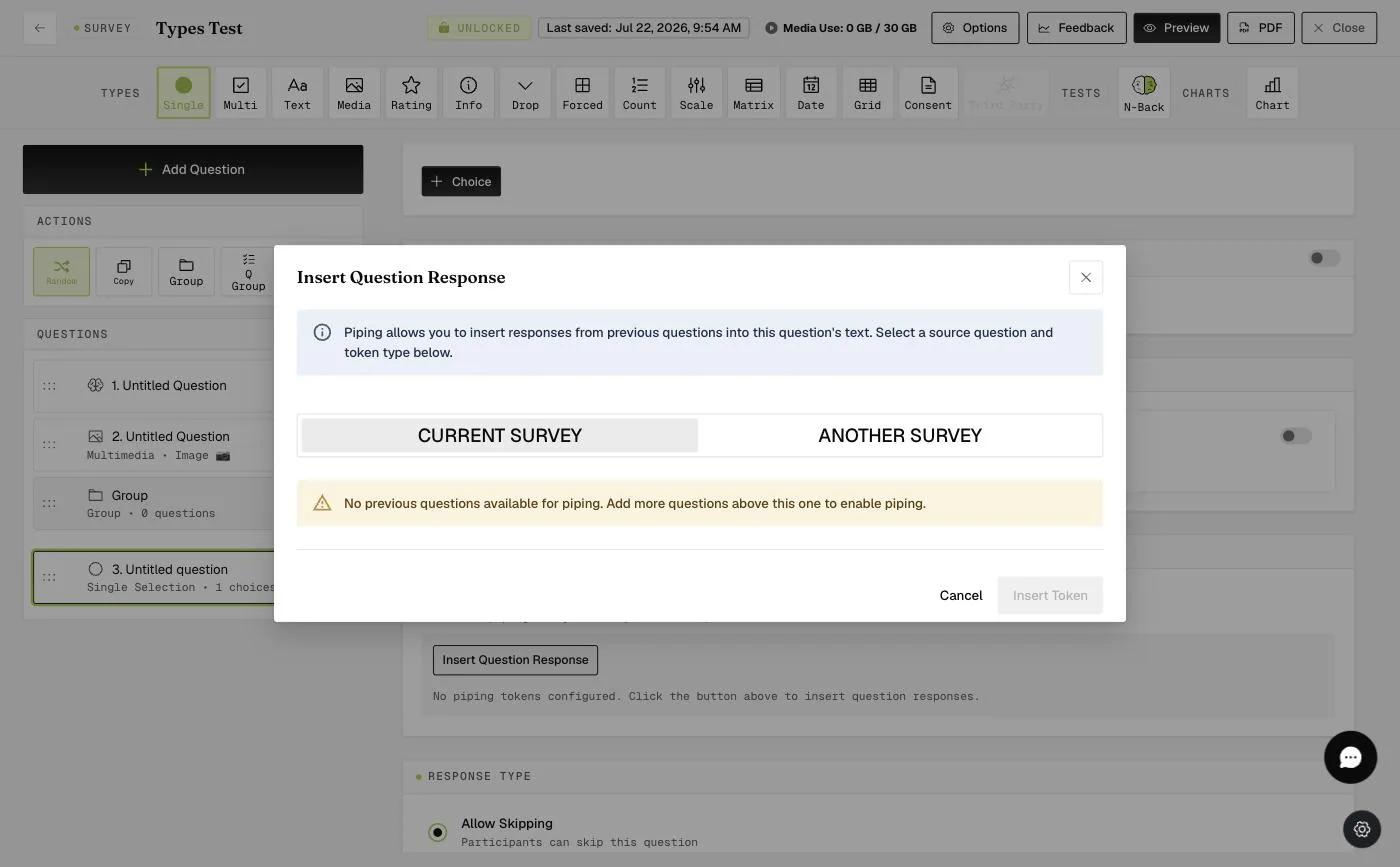
4. Confirm the Connection: The system will insert a placeholder tag. During the survey, the participant’s goal from the first survey will automatically populate here.
Mobile App View
Dynamic Personalization: A goal entered in the 'Monthly Fitness Goal' survey (e.g., "Body recomposition - gain 1kg of muscle and lose 1kg fat") will appear instantly in the 'Daily Exercise' survey to provide context.
Handling Empty Responses: If a participant skips the source question, the piped area will display a default blank line. In the example below, as the participant left Question 1 of the 'Monthly Fitness Goal' survey empty, a default blank line will appear in Question 1 of the 'Daily Exercise' survey.
Application: To ensure a smooth experience and avoid awkward phrasing, consider making your source questions "Force Response" if you plan to pipe those answers later.