Question looping
Our question looping feature enables researchers to present the same set of questions repeatedly until the participant has finished reporting.
One example of how this functionality can be used is food waste research, where participants need to record the type, weight, and other details for every kind of food waste. Researchers can set up a looping question set, allowing participants to answer the same set of questions for each type of food waste until all kinds have been reported.
How to Enable Question Looping
You can enable question looping for a block of questions (either 'question group' or 'group') by clicking the 'Loop' icon indicated by the orange arrow in the screenshot below. Once enabled (the 'Loop' icon turns green), you will need to configure the message and option text on the right side of the screen as shown in the orange box.
Note: Question looping will not be enabled if the message and option text are left empty.
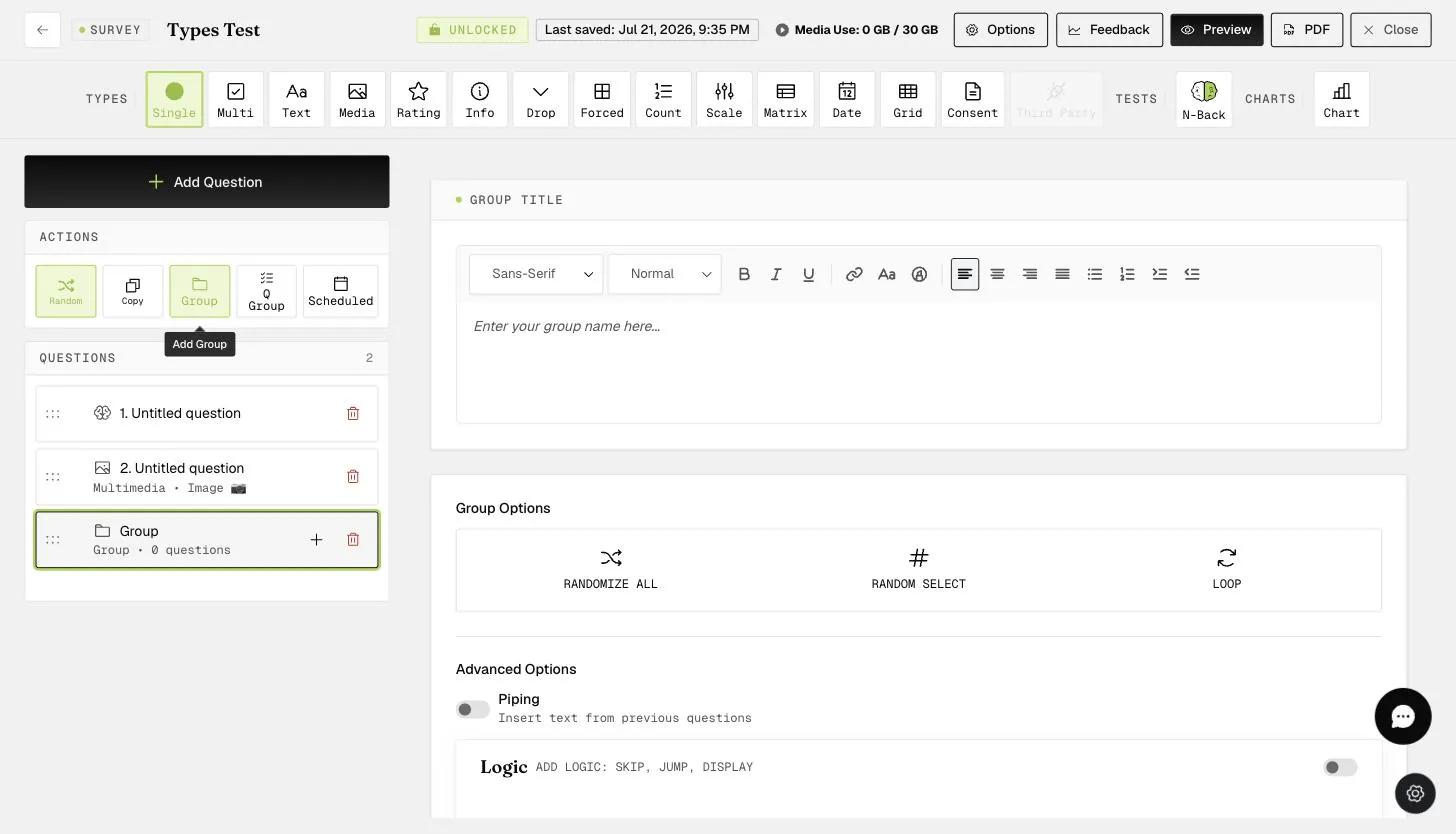
Once you have filled out the message and option text, as shown below, the question looping functionality for this question block will be enabled.
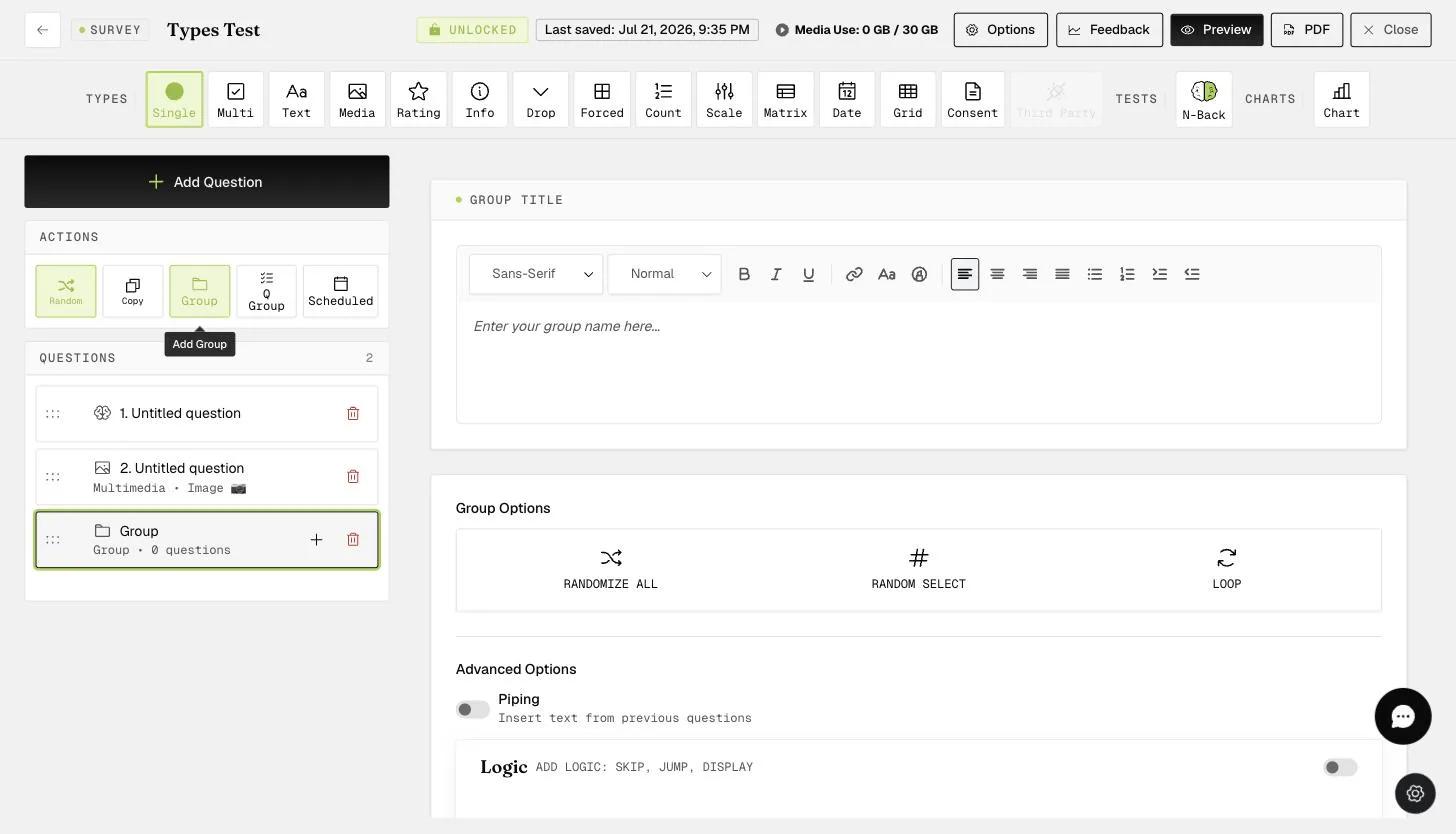
Note: The 'Media' question types (image, audio, video) cannot be included in the looping question block. Attempting to change an existing question to a media type within this block will result in an error message, as shown below.
If you try to drag a media question into an existing looping question block, the same error message will appear, and the media question will be moved to the bottom of the survey.
If you have a media-related question type in your question block and attempt to enable question looping, an error message will appear (as shown below). Question looping can only be enabled after removing these media question types.
Finally, question looping cannot be enabled with any other randomization functionalities. A pop-up will appear if you try to add randomization to a question block where looping is enabled. This pop-up will allow you to confirm the change in group settings, ensuring that only the most recent selection (either looping or randomization) is applied.
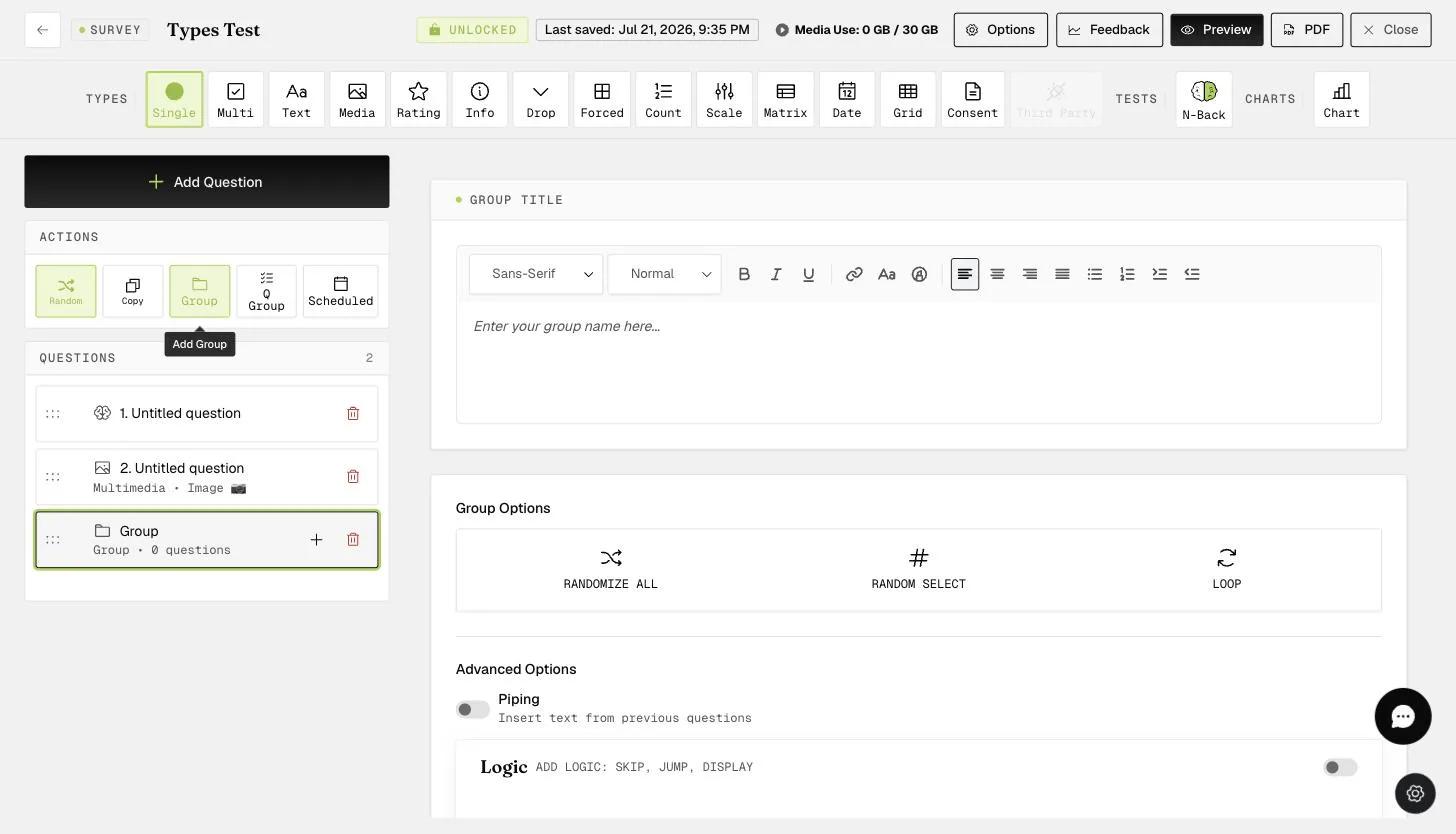
Note: If you try to exit the survey builder without completing the required question looping message and option fields, a reminder will appear. This ensures the looping question block works correctly for mobile participants.
Participant's Mobile View
On the mobile end, the screenshot below shows what participants will see after completing one set of questions. They can either click 'Yes' to continue reporting more and repeat the same set of questions or 'No' to move on to the next part of the survey.
Note: The message and option text can be personalized during the survey setup for question looping.
CSV Download View
The following screenshots are example CSVs for various question types. If a particular question is within the question looping block, the word '(loop)' (as indicated by the red box) will be found at the top row of the CSV. The responses to each looped question are in order, as indicated by the purple box below.
Example CSV for 'Single Selection' (multiple choice) and 'Multiple Selection' (checkbox) question types
Example CSV for 'Text', 'Rating', and 'Dropdown' question types
Example CSV for 'Counter' and 'Scale' question types