Randomize survey questions
Why Randomizing Survey Questions Can Improve Participant Answers
In experience sampling and ecological momentary assessments, randomizing questions can help to reduce response sets. For instance, participants who receive the same order of questions tend to respond in the same way over time in an unthinking way. By randomizing the questions, we change how questions are presented, which can help reduce this problem.
There are two ways of randomizing the survey questions on our platform: Randomized Presentation and Randomized Selection
Randomized Presentation
This method involves presenting questions in a random order, either within the entire survey or specific question blocks.
1. Survey-level Randomization: Questions within the survey can be randomized, meaning they are presented in a random order to participants (indicated by the orange box in the screenshot below).
2. Block-level Randomization: Questions within specific question blocks can also be randomized (indicated by the blue box in the screenshot below). Researchers can toggle the randomization option within a block, which randomizes all the questions inside that block.
Randomized Selection
This method selects a set number of questions randomly from a question block.
3. Question Block Random Selection: Each survey will display only a predetermined number of randomly selected questions from a question block (indicated by the red box in the screenshot below). This ensures diversity in messaging.
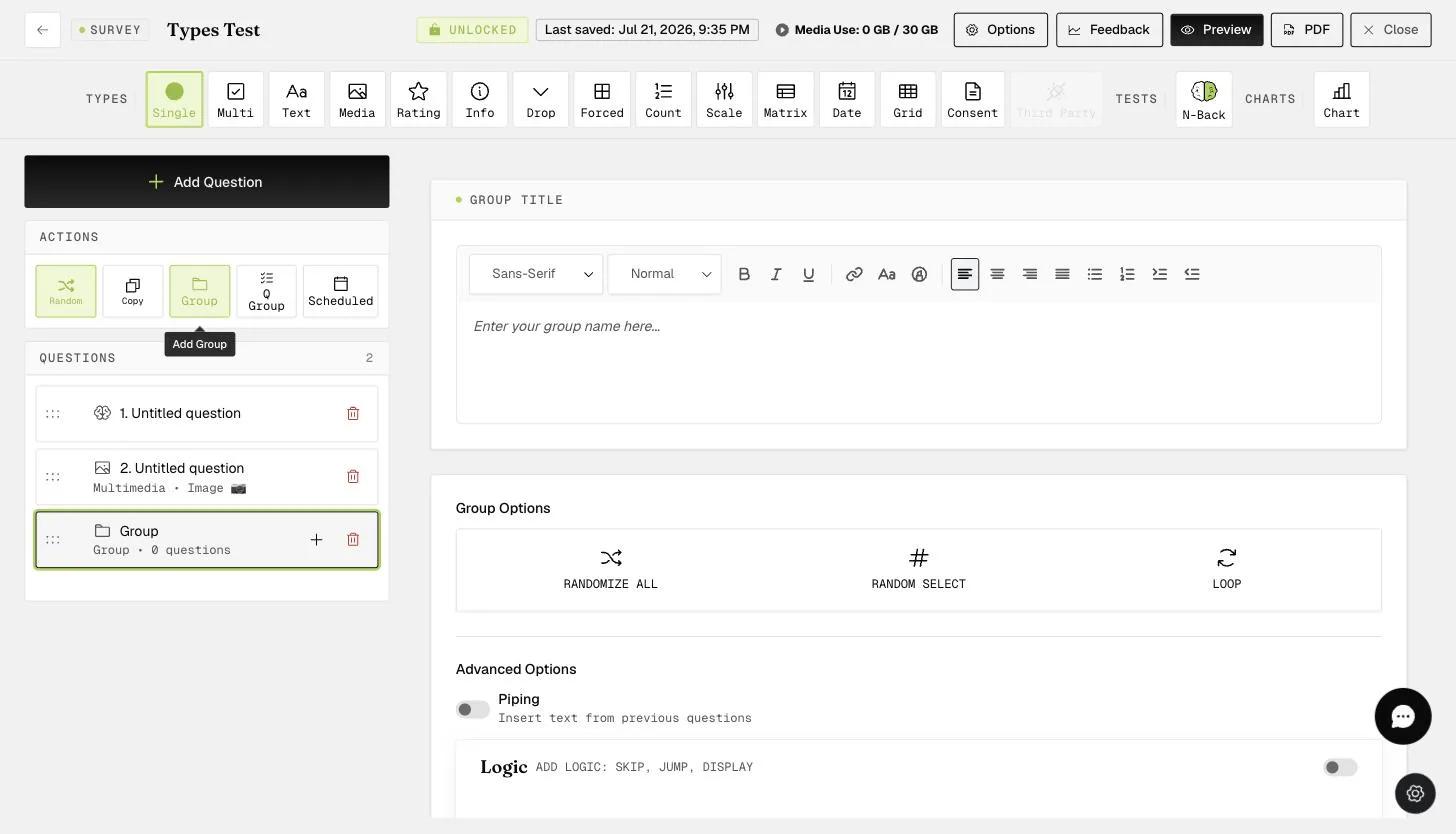
Randomization of questions within the question block (as shown in option 2 above) and choosing a selected number of randomized questions (as shown in option 3 above) cannot be done simultaneously, as shown in the screenshot below.
How to Enable Randomized Presentation
Click on the 'randomize' button according to your survey needs, be it randomizing all the questions in the survey or just randomizing questions within a group. When the randomization option is "on," the button appears green (as shown in the screenshot below). In this example, this selection randomizes all of the questions and question blocks within the survey and the questions shown in the question group.
Utilizing Advanced Randomization Techniques - In addition to basic question randomization, advanced techniques offer further customization.
-
Group Creation
-
Click the "Add Group" button to create multiple groups, each named accordingly.
2. Nested Groups
- Establish a hierarchy by placing a group inside another group (referred to as MAIN GROUP in the screenshots below). This nested structure adds an extra layer of organization.
3. Randomization within groups
-
(1) Randomize the order of groups within the main group, providing a systematic yet varied survey experience.
-
(2) Similarly, randomize the questions within each subgroup, ensuring diverse question sequences.
These advanced randomization techniques not only enhance participant engagement but also offer researchers greater control over the survey experience. By incorporating randomness at multiple levels, surveys become more robust tools for gathering meaningful insights.
How to Enable Randomized Selection
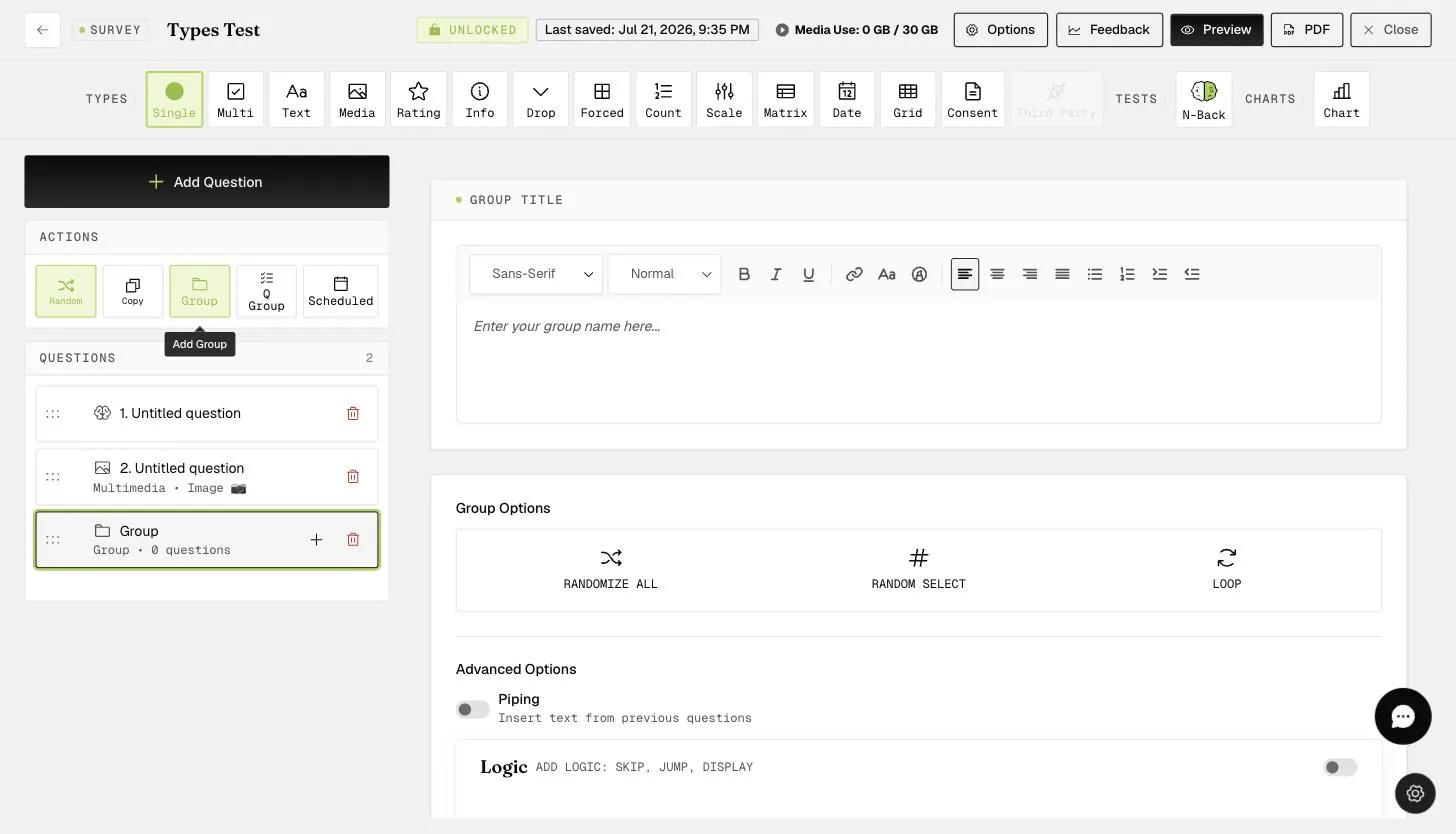
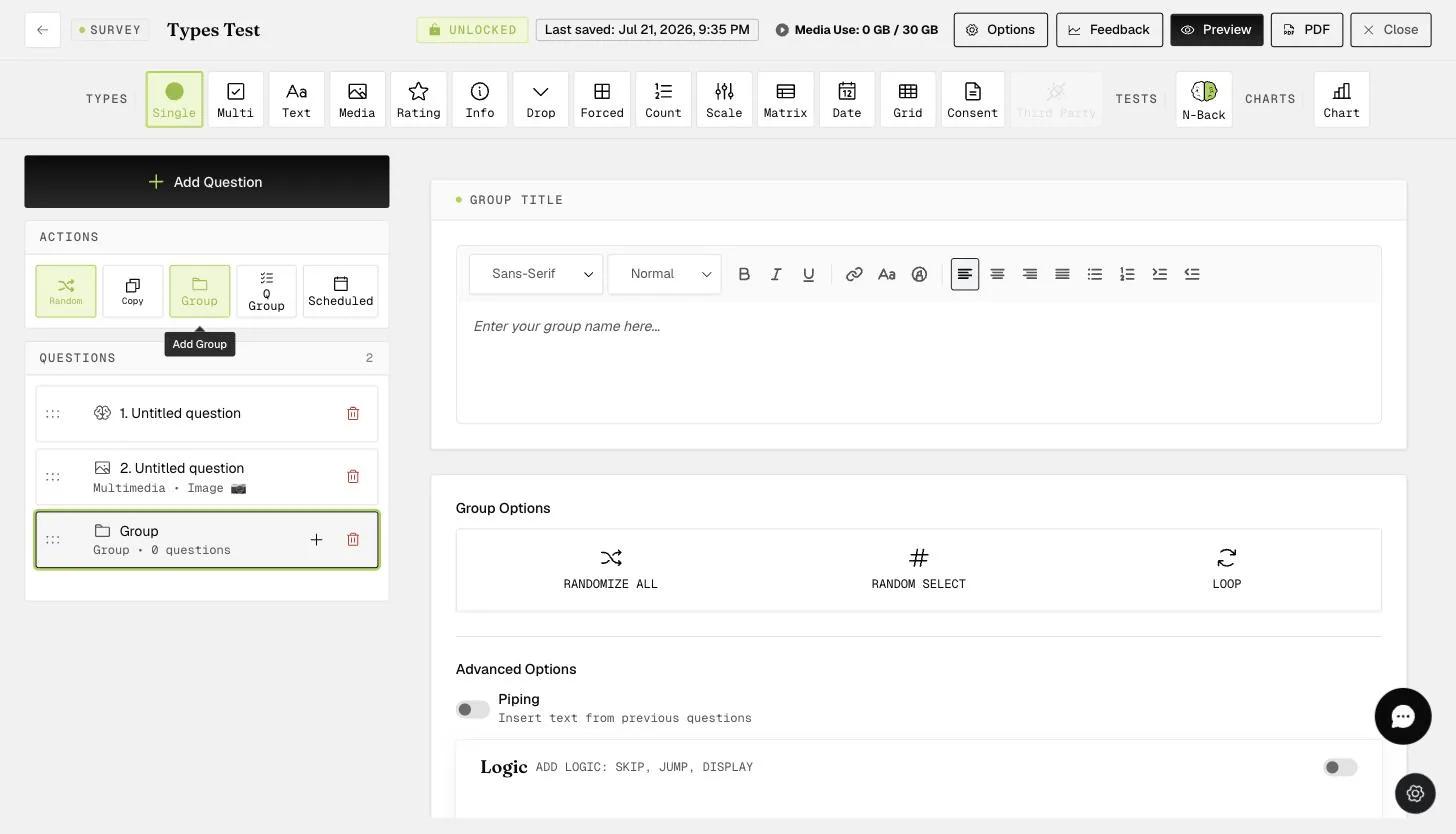
Question Block Random Selection: This option can be applied to either groups or question groups, and the selected number of randomized questions can be entered as shown in the screenshots below. If multiple questions are selected, the questions displayed to participants will be completely randomized. For example, two questions are selected in the screenshot below; question 5 (media question) can be shown first, followed by question 2 (single selection question) to participants.
Two randomly selected questions within this group will be displayed in each survey:
One randomly selected question within this question group will be displayed in each survey:
This walkthrough was recorded in the earlier ExpiWell interface — an updated video for the new dashboard is coming.