Update your email address
Set up · Account Settings
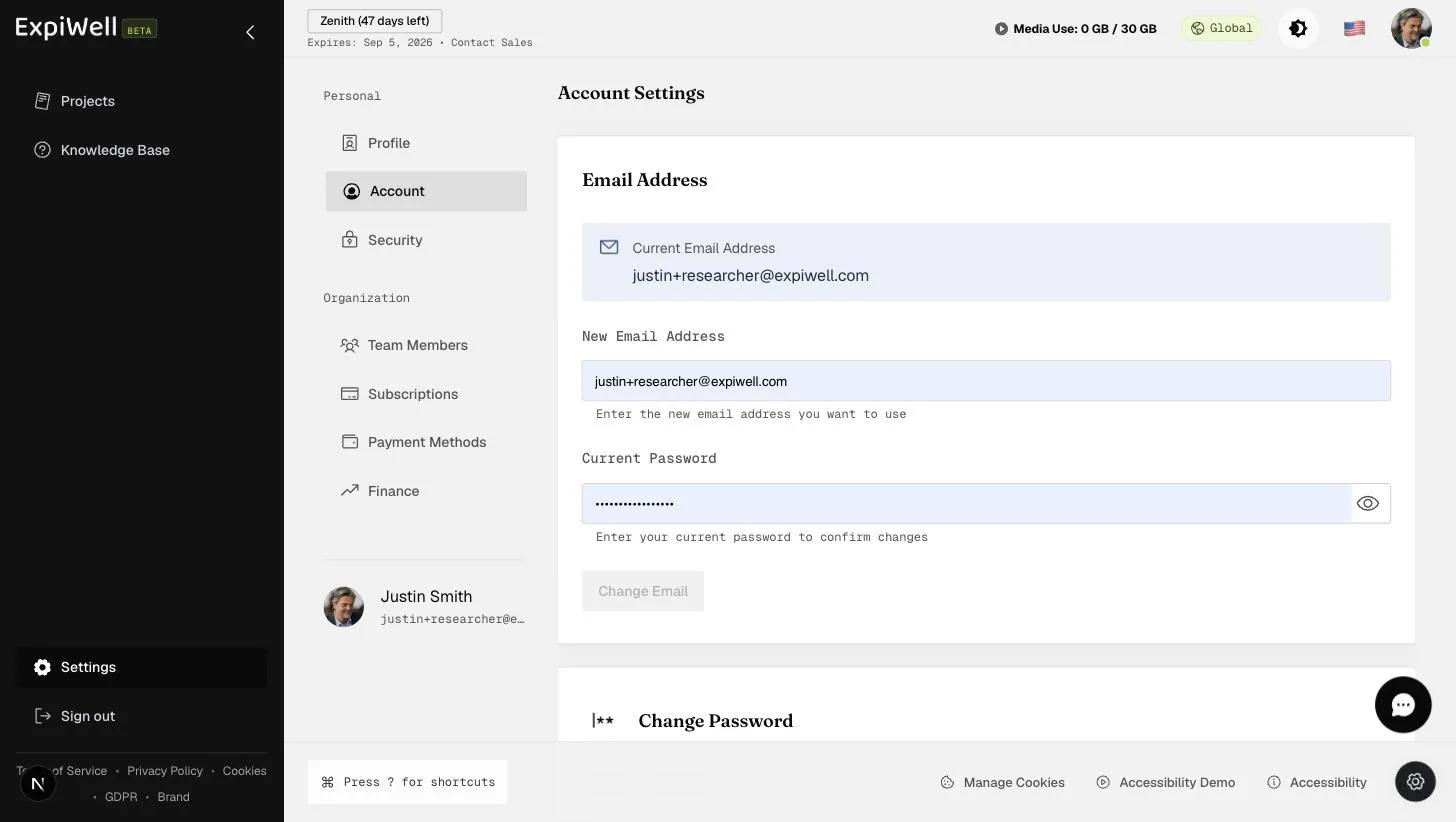
Updated 20 de julio de 2026You can change your account's email address at Settings → Account (under Personal). The change is password-confirmed, so have your current password ready.
Step by step
- Open Settings → Account. The Email Address card shows your current address.
- Enter the New Email Address you want to use.
- Enter your Current Password to confirm the change.
- Click Change Email.
Good to know
- Your login and the address that receives verification codes (if you use email-based 2FA) change together — see Enabling 2FA for your account.
- If you can't complete the change, check that the new address isn't already in use on another ExpiWell account.
Watch it in action
Video demo — Updating your email address (coming soon)
Was this helpful?