Manage trusted devices
Set up · Account Settings
Updated 20 de julio de 2026Device Trust reduces 2FA friction on devices you use regularly: a trusted device won't be asked for two-factor verification for 7 days (24 hours for administrator accounts). The trade-off is that anyone with that unlocked device can sign in without a second factor — so review the list periodically.
Managing the list
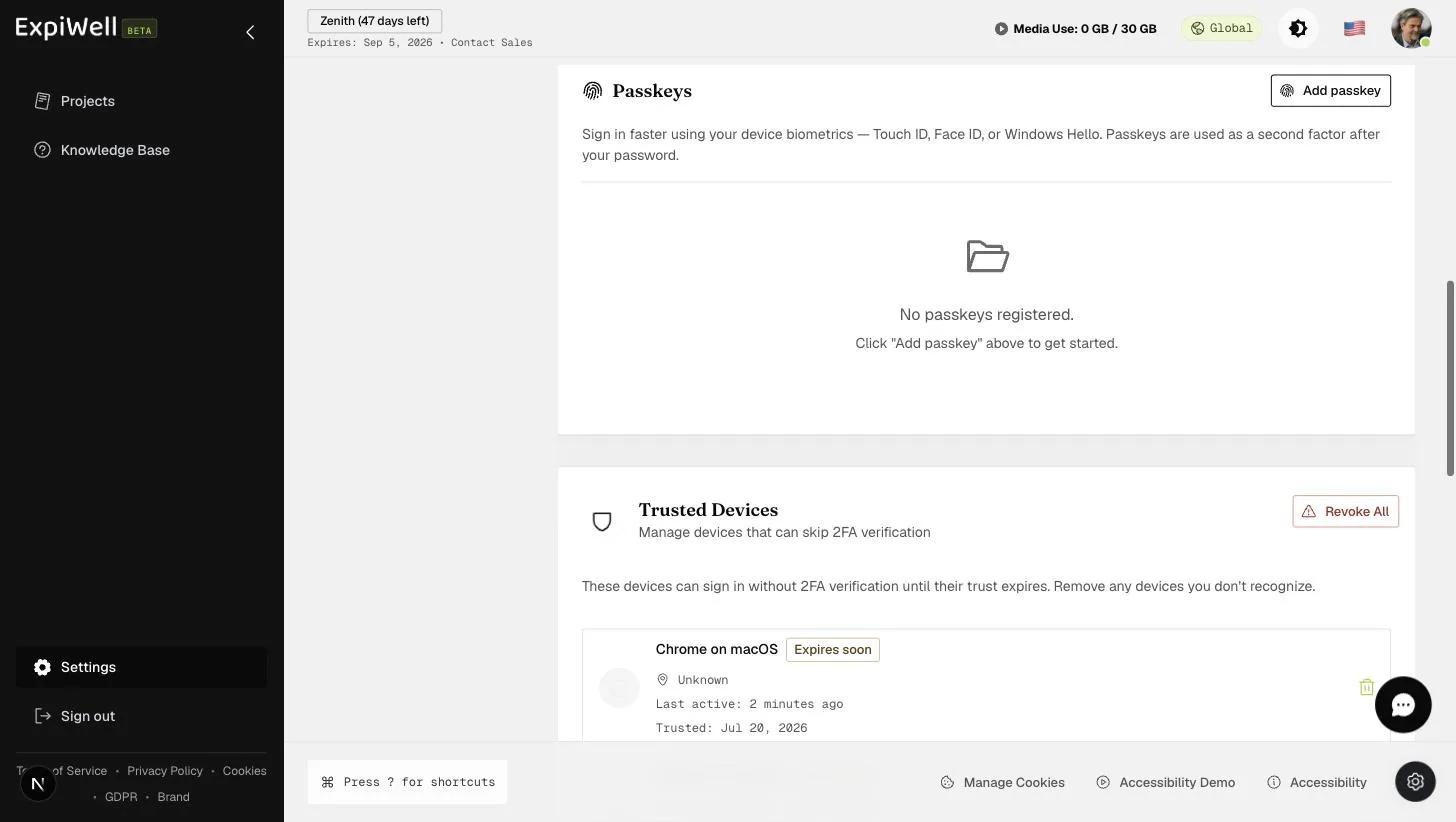
- Open Settings → Security (under Personal) and scroll to Trusted Devices.
- The list shows every device currently allowed to skip 2FA, until its trust expires.
- Remove any device you don't recognize — or use Revoke All to require 2FA everywhere again (do this if a device is lost or stolen).
Watch it in action
Video demo — Managing trusted devices (coming soon)
Related
Was this helpful?