Project screener survey
Create Your Project Screener
When you are recruiting participants from a panel, from a community, or from an online ad, it is important to create a project screener to screen participants for the right attributes.
The Project Screener is a Premium feature — it is available only on Premium licenses.
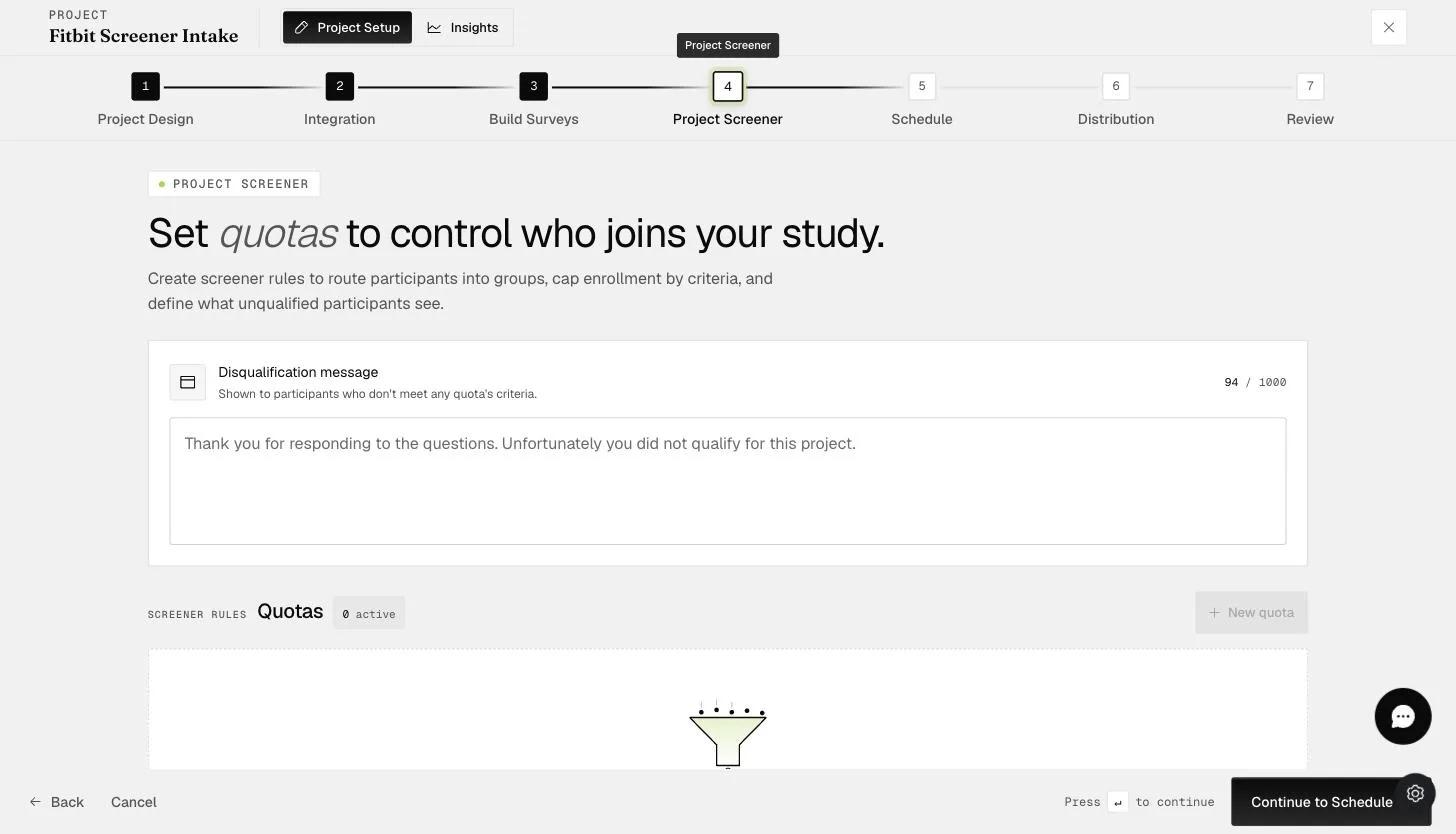
One functionality of the "Project Screener" is to create screener questions that screen participants for specific attributes. Later on, you can also manage the number of participants for those specific attributes. See "Quota".
There can only be one project screener for each project and all participants will have to take the project screener when they join the project before they are allowed to see the project and surveys.
Creating a Project Screener
You start by going to "Build Surveys" > "+ New Survey" > Toggle "Project Screener," entering a title for your screener survey, and clicking "Create."
There are only two question types available on the "Project Screener": Multiple Choice Question and Instruction.
Typically, you can include an instruction question type to introduce the Project Screener to participants and then create your screener questions. Below, we include Age as an example of a screener question.
You can select the "correct" responses by checking the boxes on the right side of the choices. In this example, we may only want to select individuals who are over 40 years old to join the project. Therefore, we select the following as seen below. The "correct" options that participants have to select to join the project will be outlined in green.
You can proceed to add more project screener questions. Participants will need to pass all the project screener questions to be able to start the project. As shown below, you can add a question about which country the participant is living in and only select participants who live in the United States.
Adding an Existing Project Screener
To add an existing screener survey from another project, go to "Build Surveys" > "+ New Survey" > Toggle "Project Screener," enter the name of your project screener survey, and click "Add Existing".
A list of existing screener surveys will appear. Select the desired screener survey to add it.
Participants' Data on Logs
For projects with a screener survey, participants who failed the screener before the end of April 2025 will be marked as 'Failed Screener' under the Logs status column, as shown below.
Starting from the end of April 2025, only participants who pass the screener will appear in the Logs. This change is designed to streamline the management of participants who have successfully passed the screener and are eligible for the study. Data for participants who fail the screener will still be included in the response files for the screener survey.
In the example below, Participant 1 did not pass the screener. Consequently, the first participant appearing in the Logs is Participant 2, who successfully passed the screener.
This walkthrough was recorded in the earlier ExpiWell interface — an updated video for the new dashboard is coming.