Project overview
Mobile app · Experiences
Updated 21 de julio de 2026Each study you've joined has an overview — open it to see the surveys inside the study, how far along you are, and what's available to do right now.
Opening a study
On the Current tab, tap a study's card. Each card shows the study name, the number of experiences it contains, and your completion percentage.
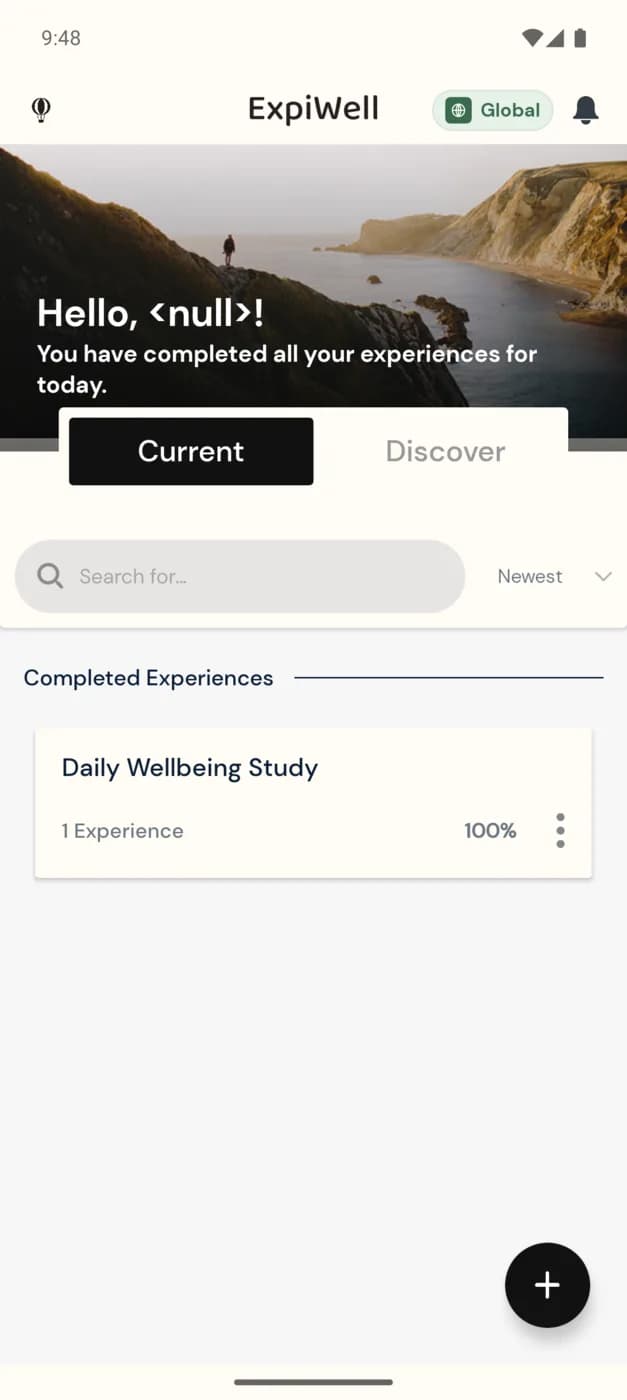
Inside the overview
Opening a study shows its surveys and their status:
- Available surveys — ones you can take right now, inside their open window.
- Upcoming surveys — scheduled for later; they become available when their window opens.
- Completed surveys — ones you've already submitted.
- Progress — your completion across the study, matching the percentage on the card.
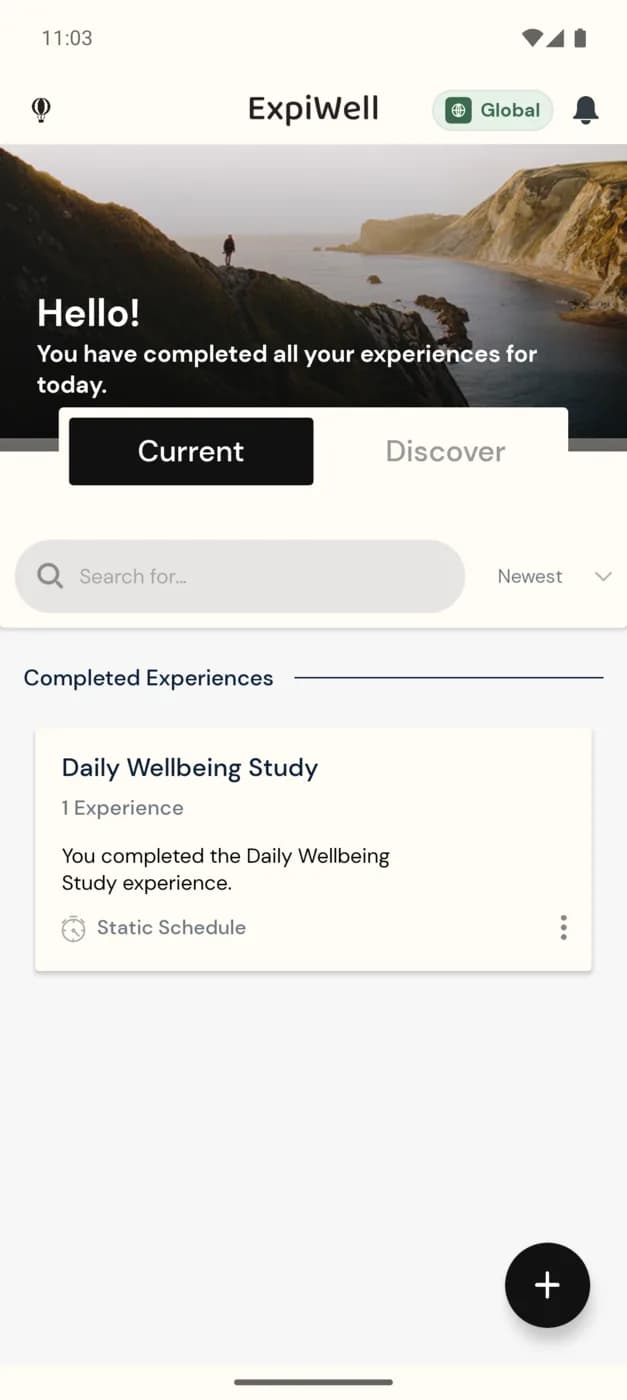
From the overview you tap an available survey to begin. Surveys you've finished are marked complete, and the study reaches 100% once all of them are done — see Available & completed experiences.
Nothing available to take?
If a study shows no available surveys, you're likely between windows — the next survey will appear when its scheduled time arrives. You'll also get a notification when it's ready.
Was this helpful?