Available & completed experiences
Your home screen — the Current tab — is where all the studies you've joined live. It shows what you still have to do today and tracks your progress through each study, so nothing gets missed.
Reading your home screen
At the top, a greeting tells you whether you have surveys waiting or have completed all your experiences for today. Below that, two tabs switch your view:
- Current — the studies you're taking part in.
- Discover — studies you've been invited to but haven't joined yet; see New experiences.
Your experiences are grouped by status. Each card shows the study name, how many experiences it contains, and a completion percentage. A study reaches 100% once you've finished all of its scheduled surveys.
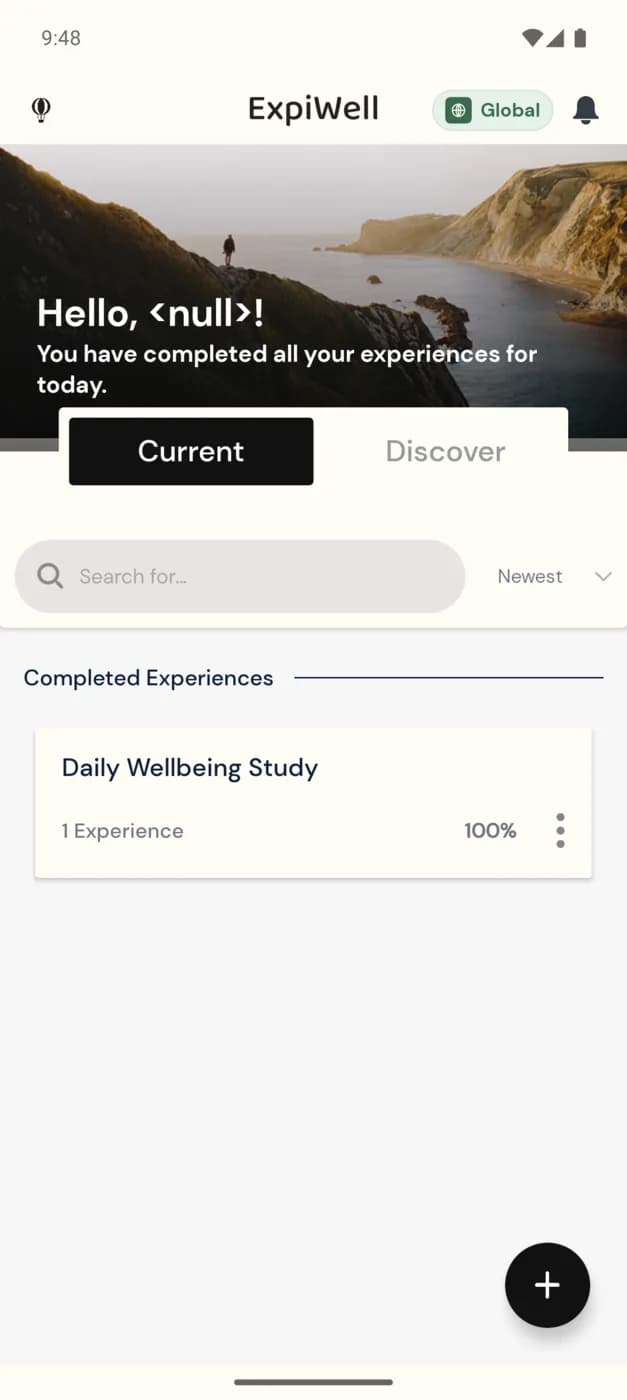
Use the search box and the Newest sort control to find a specific study when you're taking part in several at once.
Progress and availability
- Surveys become available only inside the window your research team set — outside that window they aren't shown, which is normal.
- Tap a study card to open its Project overview and see the surveys within it.
- The + button lets you add another experience at any time.
A completed study stays on your home screen for reference. If a study is scheduled to send more surveys on later days, it will show as available again when the next window opens.