Making changes to an active project
A Guide to Editing Surveys & Deactivating a Project for Changes
Researchers may sometimes need to edit their surveys or update project settings after launching their study. To edit your surveys, you will not need to deactivate your project. However, the project must be deactivated, updated, and reactivated to edit schedules or other settings. Several critical considerations should be kept in mind, and they are detailed below.
Editing a Survey
You can edit surveys without deactivating your project. However, any changes made to the survey will only become visible to participants the next time they access it. Additionally, survey edits may affect the CSV files associated with the project. To avoid data loss, ensure you download the required CSV files before making any edits.
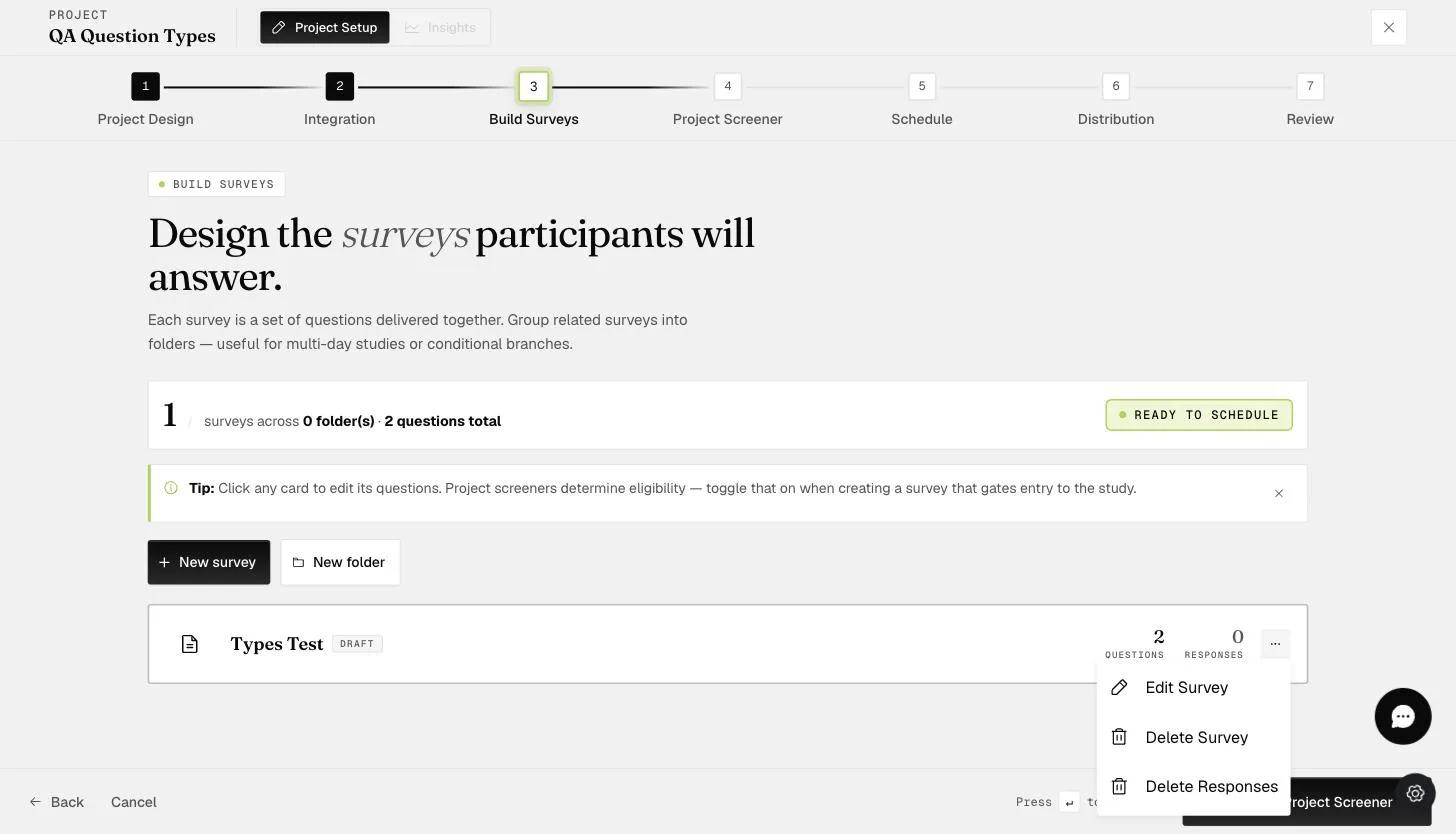
To edit a survey, go to the 'Build Surveys' tab, click on the three dots to the right of the survey you wish to edit, and select the 'Edit Survey' option.
Click the 'Unlock' button at the top right of the survey, as indicated by the red arrow below.
A popup reminder will appear if the project is currently activated, has data collected, or has participants added. Click 'Yes' if you would like to proceed.
Another reminder to download any required CSV data before changes are made will appear.
The survey will be 'Unlocked' as shown below, and you can go ahead and make the necessary edits.
Deactivating a Project for Schedule or Distribution Changes
Researchers will need to deactivate the project to make changes to the Schedule and Distribution tabs. These include changes to survey scheduling, event triggering, reminders, and edits or deletions of temporary participant accounts or participants invited by email.
Adjustments to the Schedule settings may disrupt participants currently engaged in the project. To reflect these changes, participants must remove the project and re-add it through their mobile app, causing their progress to reset and restart from day one. In such situations, it might be better to introduce a new project with the updated settings rather than modifying the existing one.
While the project is deactivated, participants cannot join it. Therefore, edits should be made when participants are not expected to join the project.
To avoid complications, thoroughly pilot your project before launching to ensure all settings and schedules align with your study requirements.
How to Deactivate and Reactivate Your Project
To deactivate or reactivate a project, the creator must click on the project and go to the Review tab.
To DEACTIVATE, click the 'Deactivate' button under 'Review your project' in the Review tab, as shown below.
The green bar will show that the project has been successfully deactivated, and the 'Deactivate' button will change to 'Activate'. A note will also be displayed in the top left corner of the project to remind you that your project has not been activated, as shown in the screenshot below.
To REACTIVATE, click the 'Activate' button once you have made the necessary edits. The green bar will show that the project has been successfully activated, and the 'Activate' button will change to 'Deactivate', as shown in the screenshot below. A note will also be displayed in the top left corner of the project to remind you to deactivate your project if you need to make edits.