Creating an EMA & ESM project
How to Create Your EMA and ESM Project
Begin by logging into your ExpiWell account on the web. Once logged in, click on the '+ New' button to initiate the project creation process.
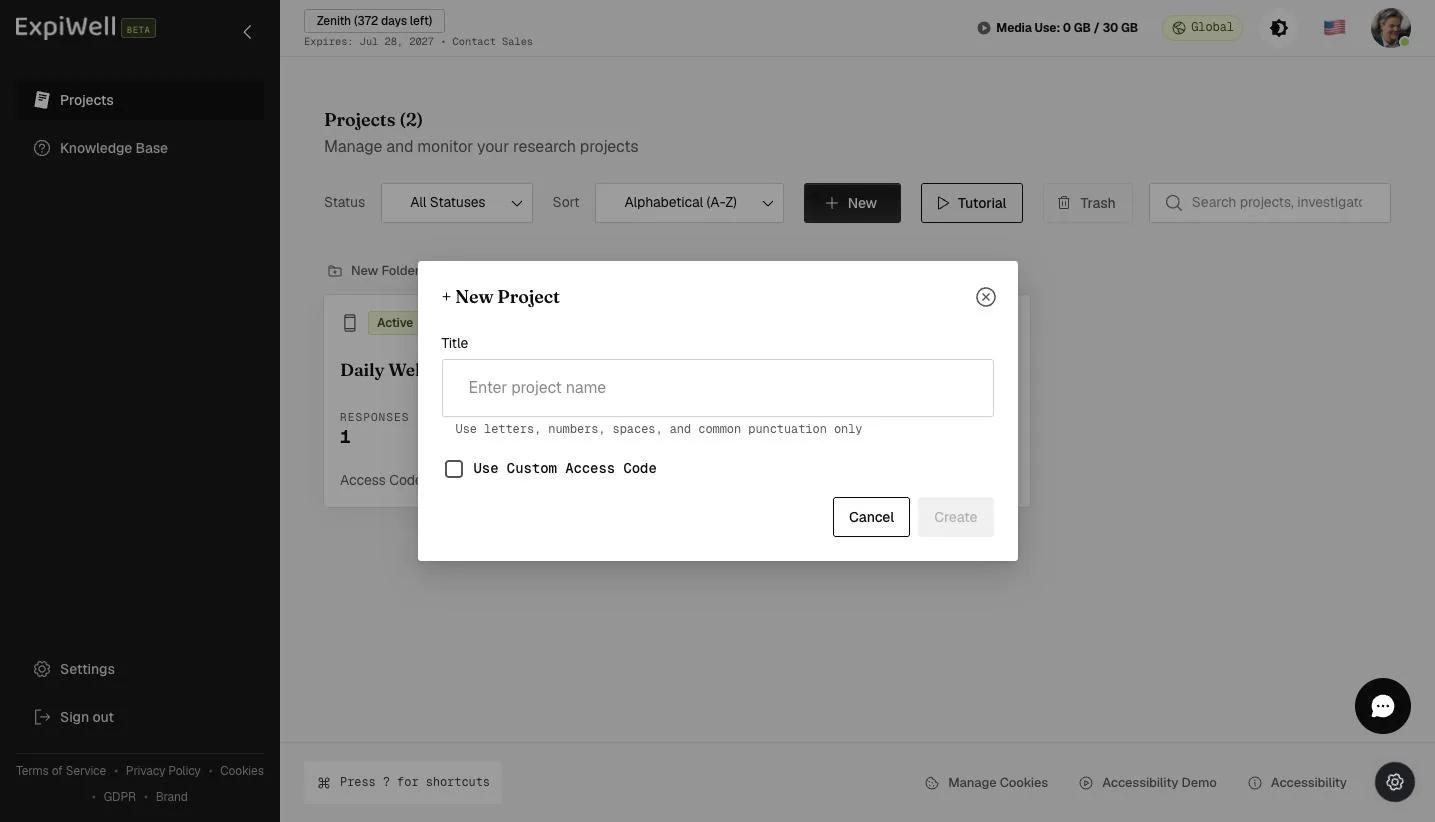
Enter the title of your project and customize the access code if desired.
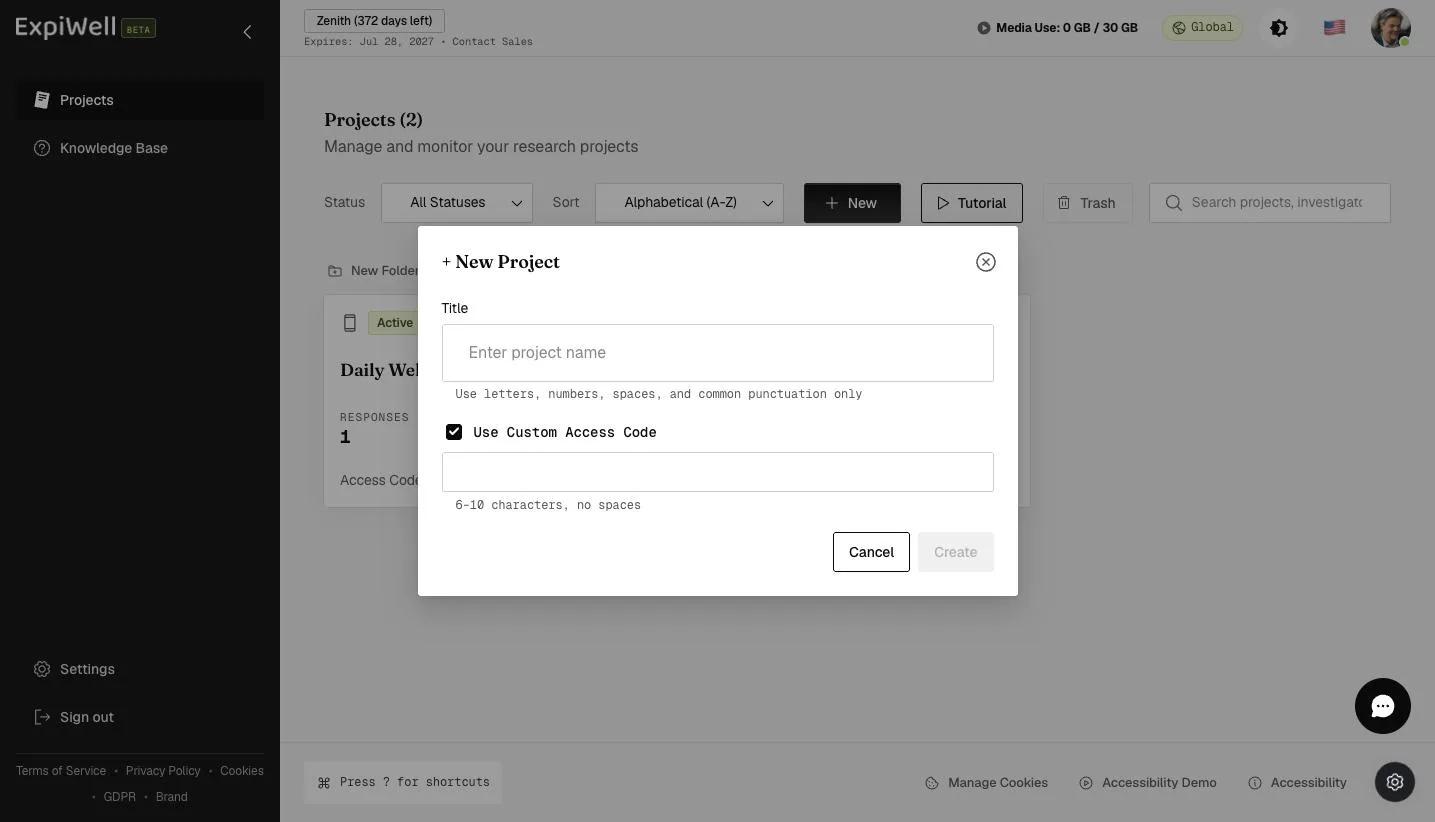
This access code will be used by participants to access the project on their ExpiWell mobile app. You have the option to use a custom access code or allow the system to generate one automatically.
It's important to note that occasionally, custom access codes may already be in use by other projects, resulting in an error message.
Upon project creation, you'll be directed to the essential steps, such as choosing to gather data from individuals or from a group, survey building, screener creation, schedule setting, distribution settings, and activating your project in the Review tab.
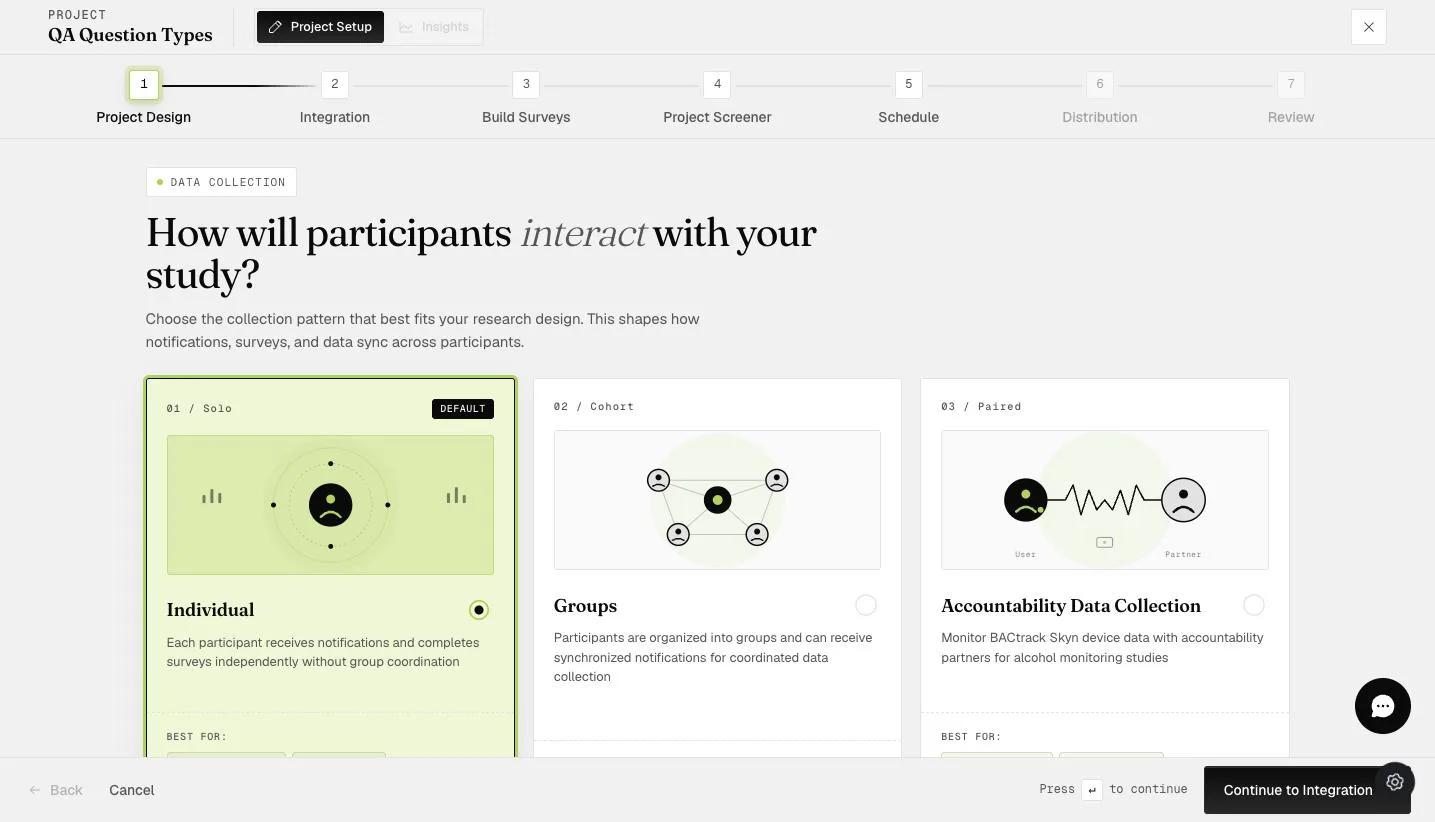
The project creation process is designed to be intuitive, efficient, and adaptable to various research needs. By allowing customization of access codes, researchers can create a unique identity for their projects, facilitating easy and secure participant access.
It also offers a flexible framework for diverse study designs, simplifying the initial setup of your project. For the next steps on creating a survey, go to Survey Creation.
FAQs
Can I modify the access code after creating a project?
Unfortunately, once a project is created, the access code cannot be altered. However, you have the option to change the project's name. If you require a different access code, you can either delete the existing project and create a new one, or you can simply duplicate the project and assign your preferred access code to the duplicate.
What is the maximum length of an access code?
Access codes must be 6 to 10 characters in length with no spaces, and can comprise letters, numbers, and special characters.
If you have any questions, please reach out to help@expiwell.com