Calendar schedule
Scheduling the EMA and ESM Surveys
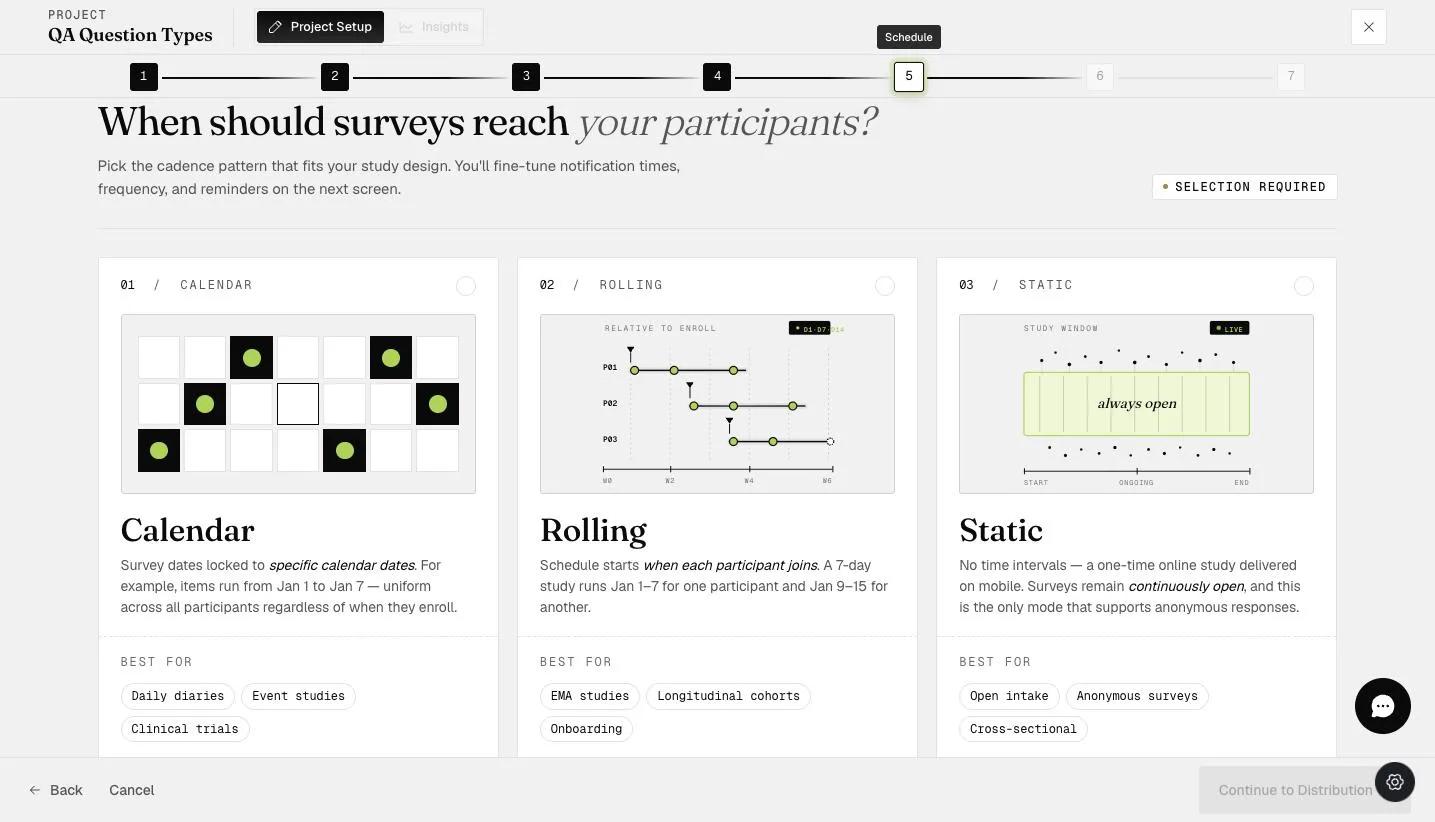
The calendar schedule allows you to schedule your ecological momentary assessment (EMA) and experience sampling method (ESM) surveys based on calendar dates.
Scheduling
When you have selected the calendar schedule, you will see the calendar layout below.
You can find your surveys on the left side and drag the survey to a specific date. In this case, drag the "Student Check-In" survey to Friday, November 3rd, 2023.
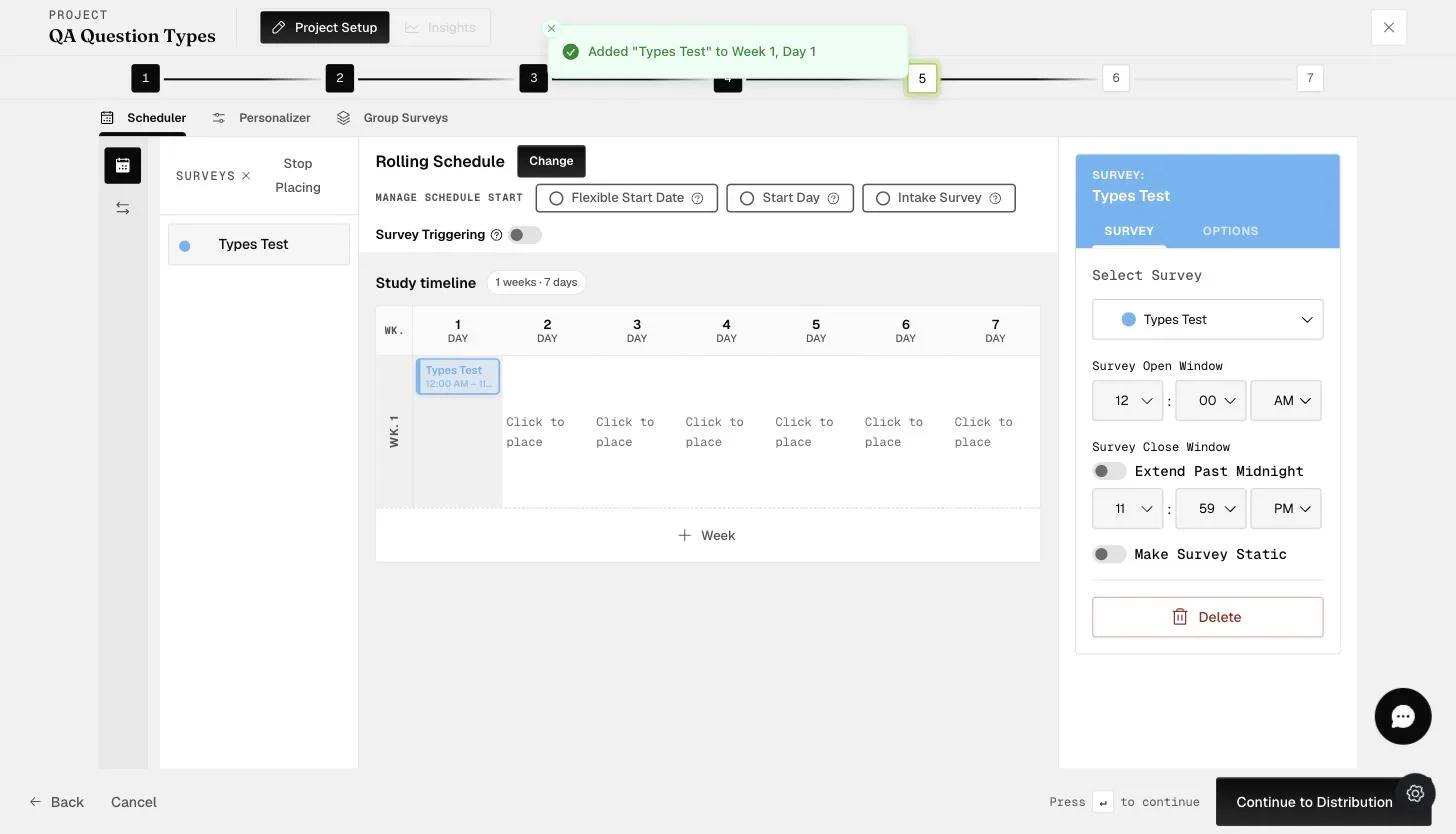
Survey Open/Close Window Timings
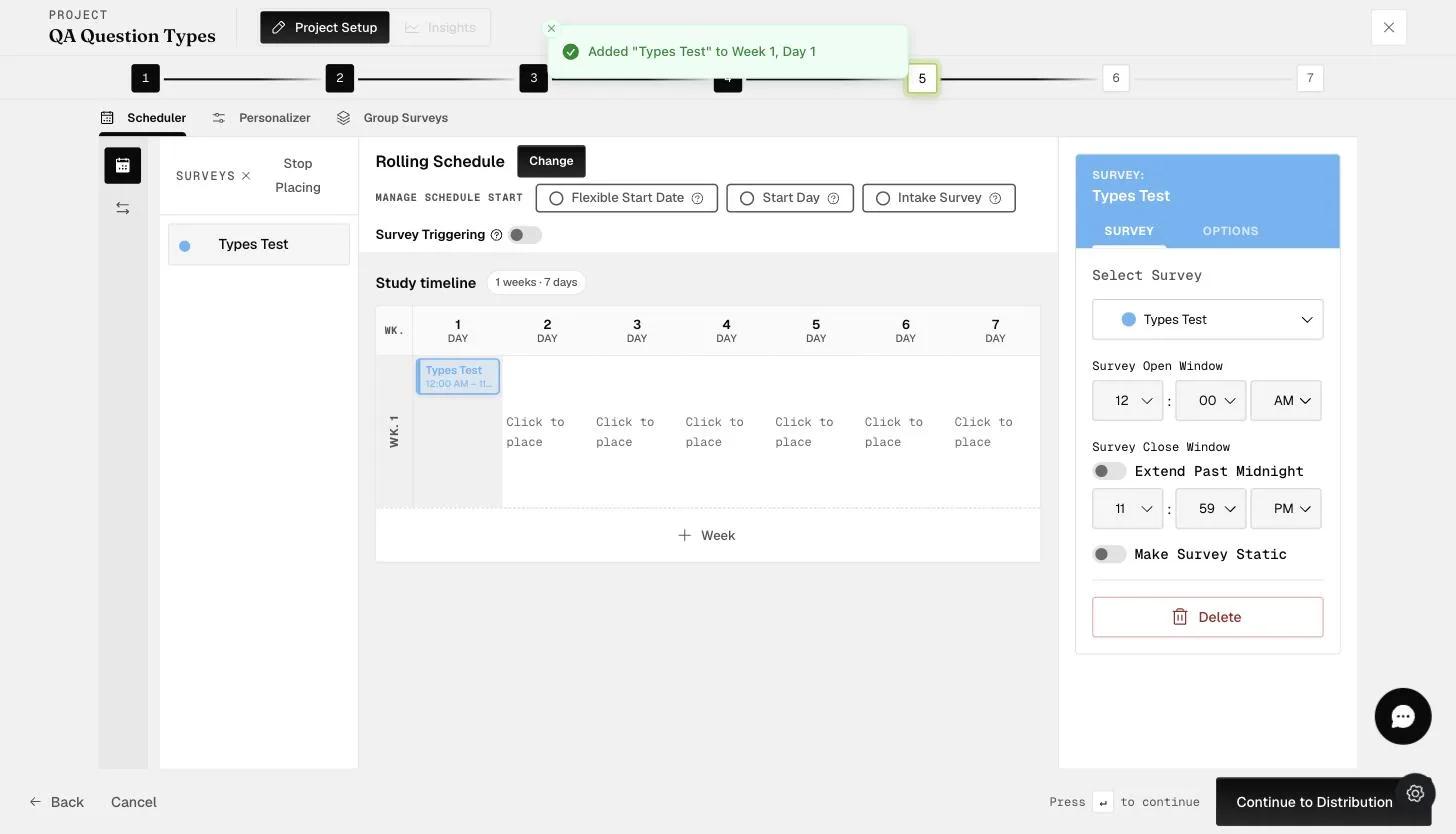
You can edit the survey's open and close window timings. The example below is set to 12 A.M. - 11:59 P.M.
This will automatically send a mobile app notification to participants at 12 A.M. to inform them that the "Survey" is available for them to take. The survey will be available until 11:59 P.M., after which participants will not be able to take it.
Static Surveys
If you'd like to schedule static surveys, drag the survey to the first day you want it to be available and toggle the 'Make Survey Static' button (shown in the red box). This survey will then be available for a specified number of days, which you can set as shown below.
In this example, the static survey is available daily from May 19th to 23rd, 2025. You also have the option to let participants respond one time or multiple times (indicated by the red box in the screenshot below).
This is helpful as researchers may also seek to schedule one-time surveys (e.g., a demographic survey) or event-triggered or event-based surveys (e.g., filling in a survey immediately after a participant talks with a friend).
If 'Multiple' is selected, you can choose one or multiple submissions per day.
Single Survey Extended over Days
If you'd like to schedule a single survey available to participants at any point over an extended period, you can simply drag the survey to the first day you'd like the survey to be available (for example, November 7 in the example screenshot below). You can edit the survey open window, but for this example, we will leave it as 12 A.M. After this, you will need to edit the survey close window (indicated by the red box). In this example, we will schedule this survey over three days, which will be until November 9. On the calendar, you will then see the survey being extended across the three days. This makes that one survey available anytime during those three days and only allows one submission during that entire window.
Multiple Surveys Repeated within a Day
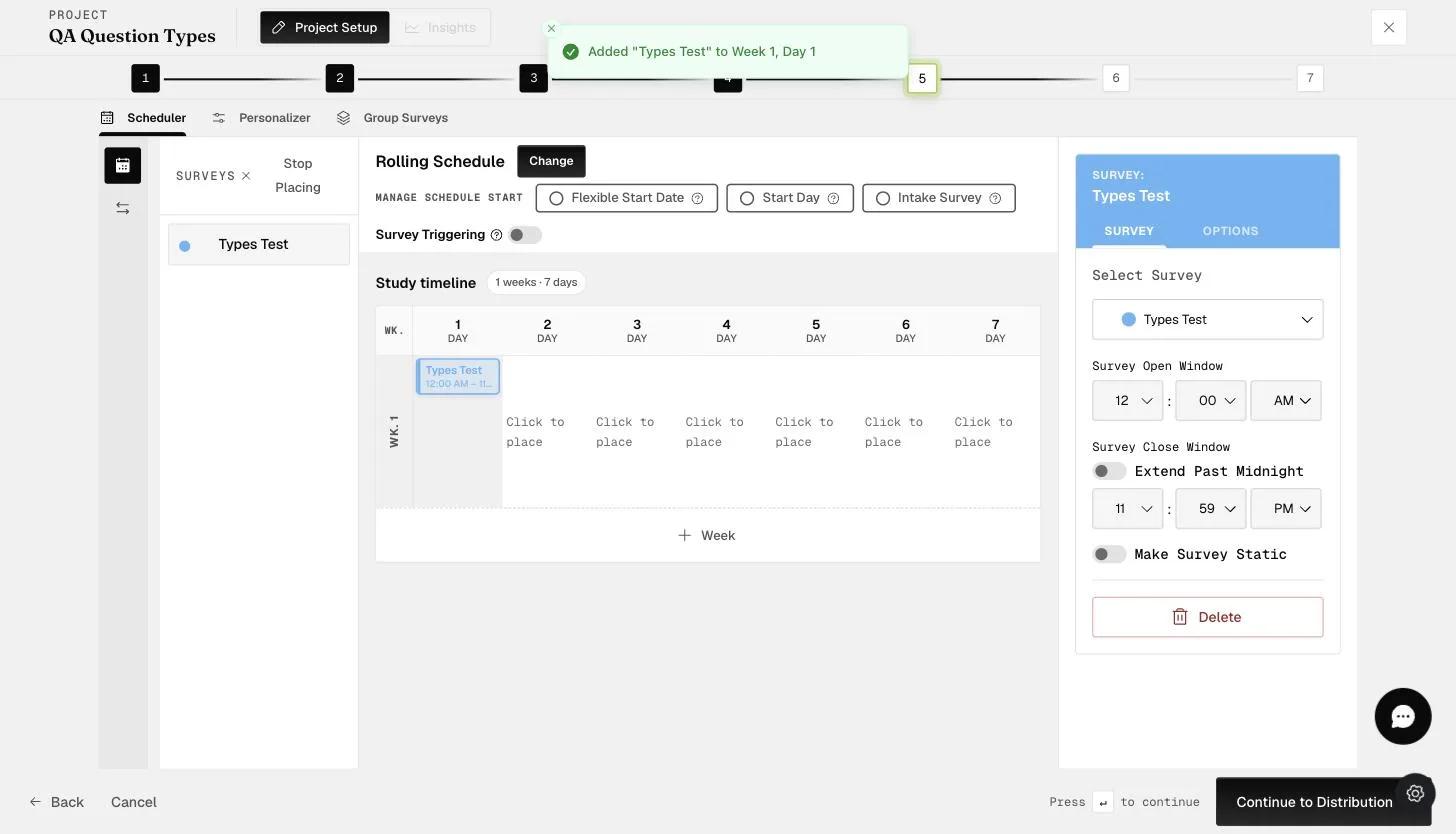
If you'd like to have the same survey repeated within a single day, you can drag the surveys repeatedly to the date and adjust the open and close timings to set the appropriate time slot for each survey.
Multiple Submissions for Scheduled Survey
If you'd like to allow multiple submissions for a scheduled survey, select the desired survey and enable the 'Multiple Submissions' function under Options. If the survey is part of a repeated series, a pop-up will appear asking whether you’d like to apply the changes to 'This and all following' surveys or 'All events in series'.
Survey Schedule Options
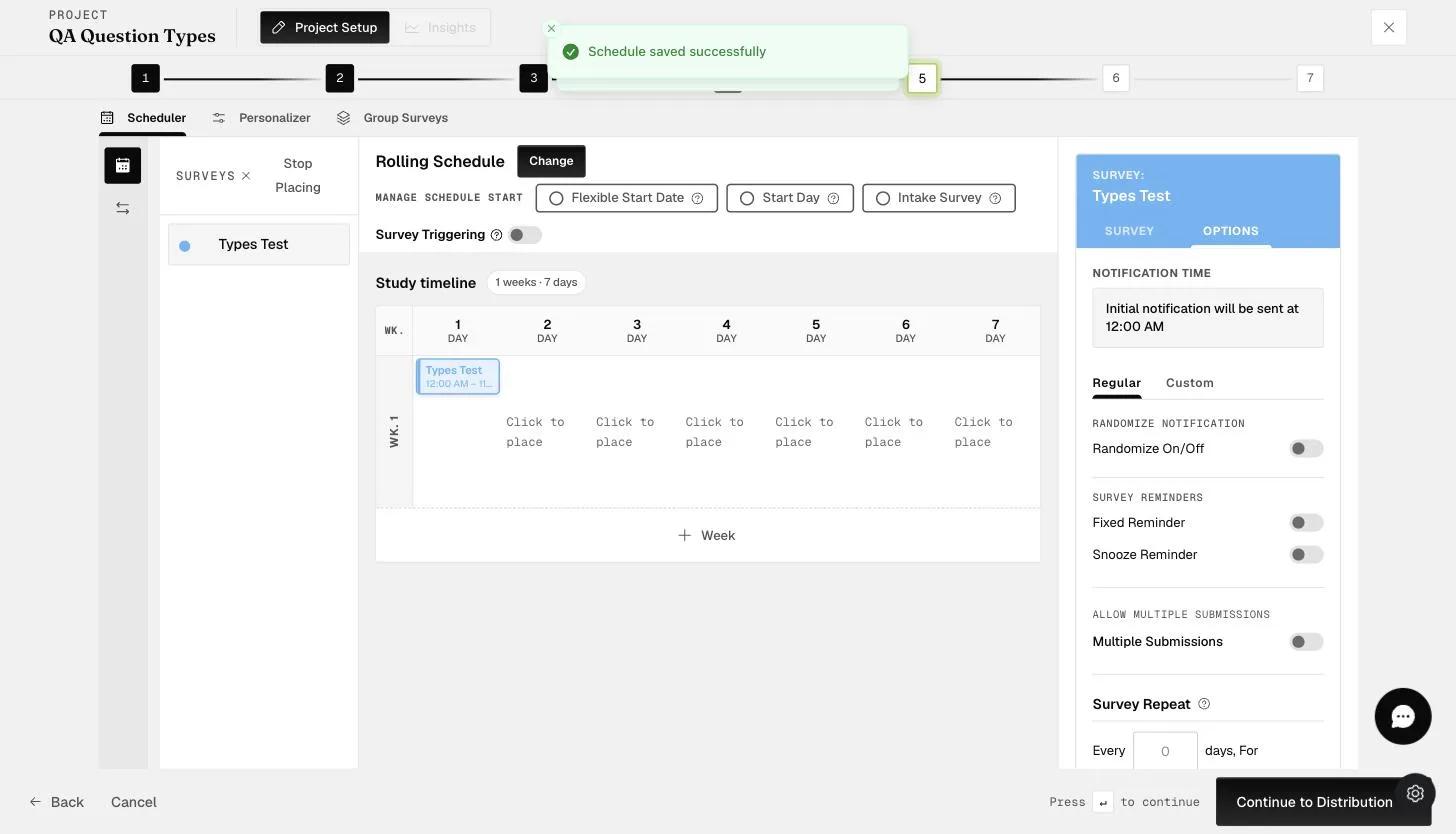
Besides scheduling the surveys, our platform offers various survey schedule options, as shown below.
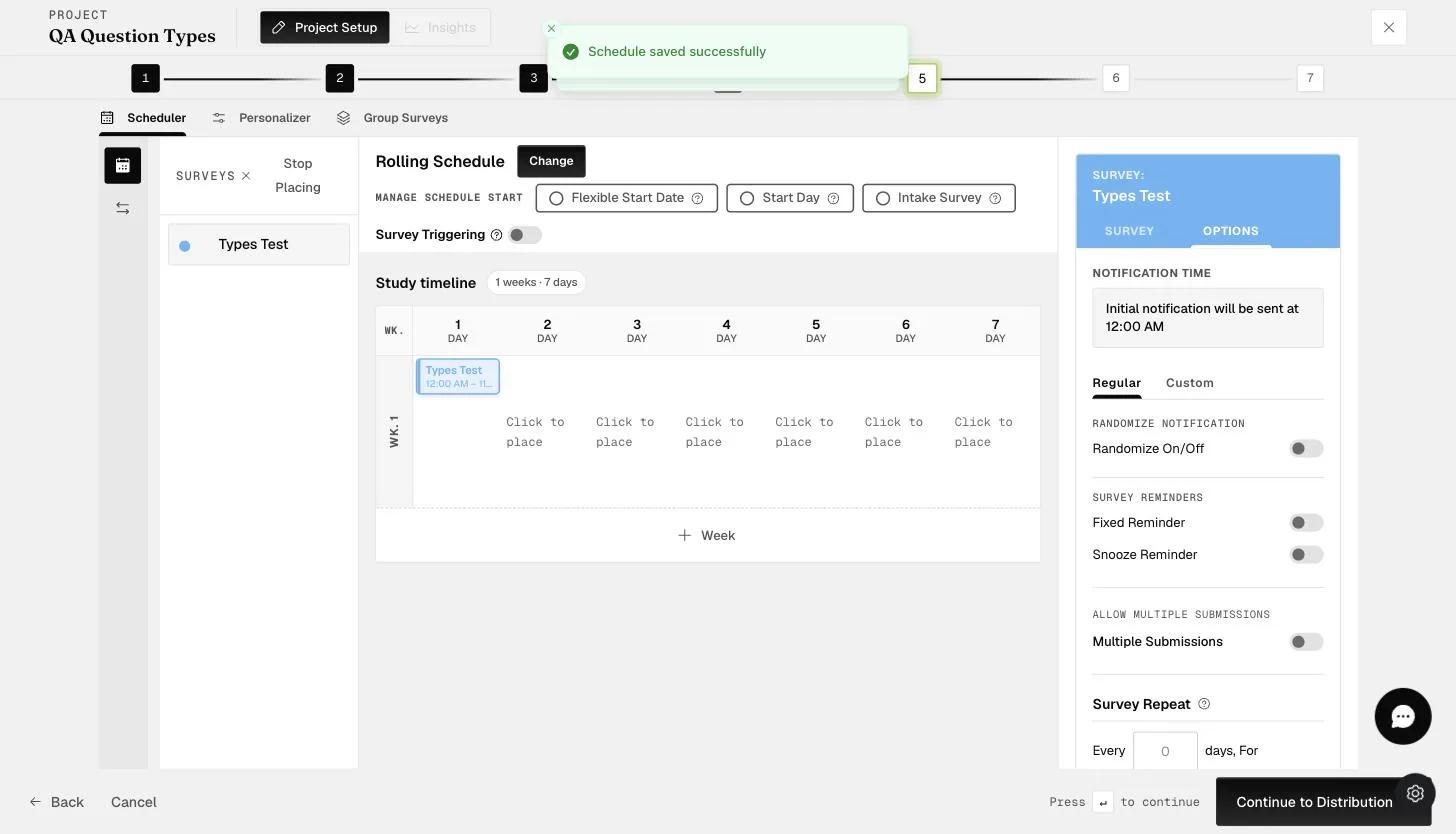
Notification Time: The time at which participants will receive the initial notification when the survey window opens.
Regular Notification Settings
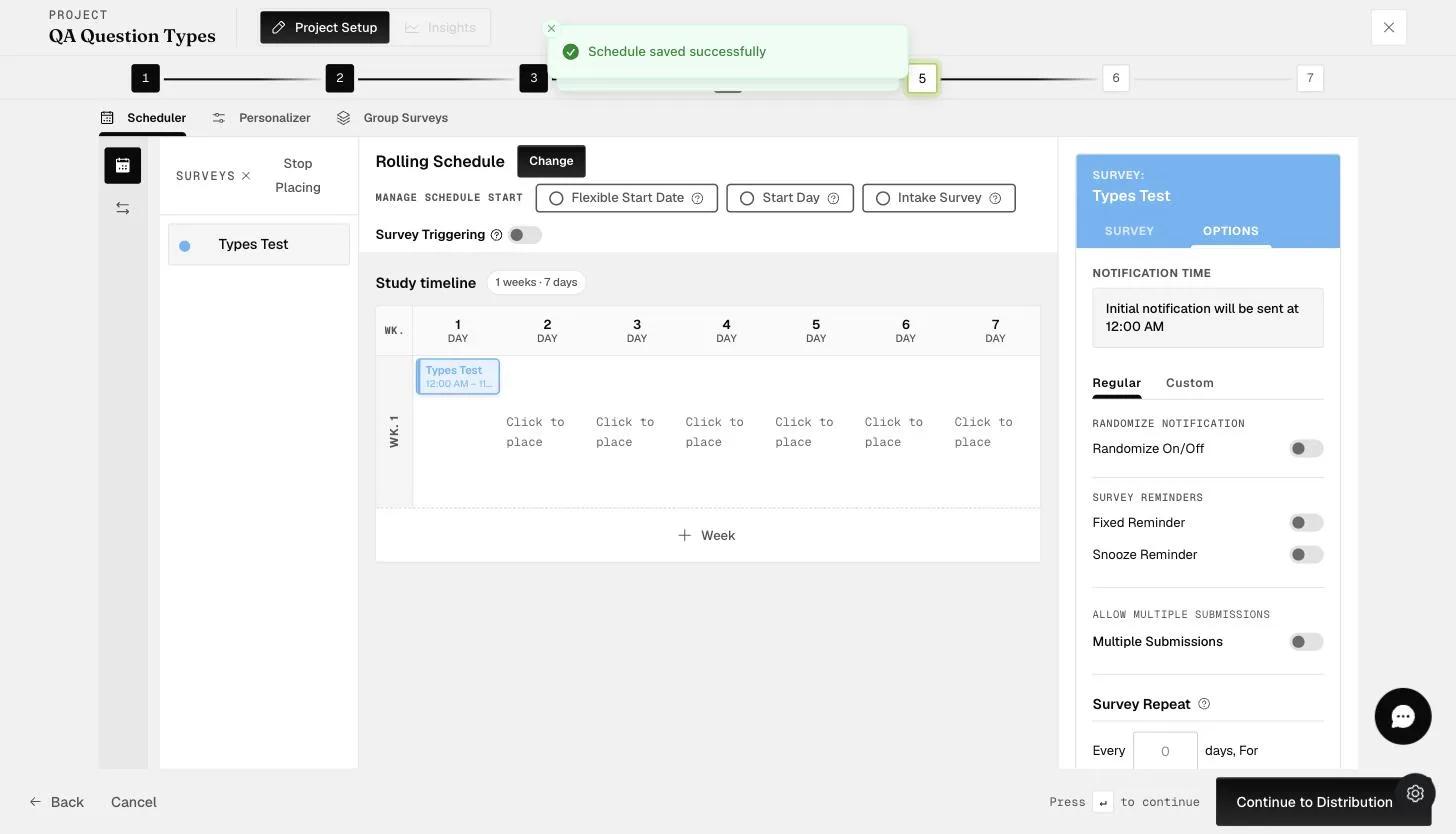
1) Randomize Notification: The default setting is that mobile app notifications will always be sent out at the beginning of the time slot. Toggling the 'randomize notification' option does three things:
-
Randomizes the notification within the time slot. The randomization is also individualized across all participants.
-
Closes the survey from when the notification is sent (default is 5 minutes but can be adjusted; e.g., 20 minutes)
-
Shows that the initial notification will be sent between the open and close window times, minus the minutes you allowed your participants to respond.
2) Survey Reminders:
a. Fixed reminder: Toggling this option sends a reminder notification to the participant if they have not yet responded to the survey. You can customize response time for this one-time reminder.
b. Snooze reminder: This works like an alarm clock, and participants can re-snooze at a later time (the available options for re-snooze are 15 and 30 minutes).
Custom Notification Settings
Customized Notifications: Toggling the 'customized notification' option allows you to set a custom message to be sent to participants at selected set timings within the survey window.
Note: Regular and Custom Notification settings cannot be enabled simultaneously.
Allow Multiple Submissions: Toggling this option will allow multiple submissions for the selected survey.
Survey Repeat: You can create repeats of your survey across days by keying in the frequency of the repeat until a specified date (indicated by the red arrow) and clicking 'Apply.' The survey will repeat until that specified date is reached.
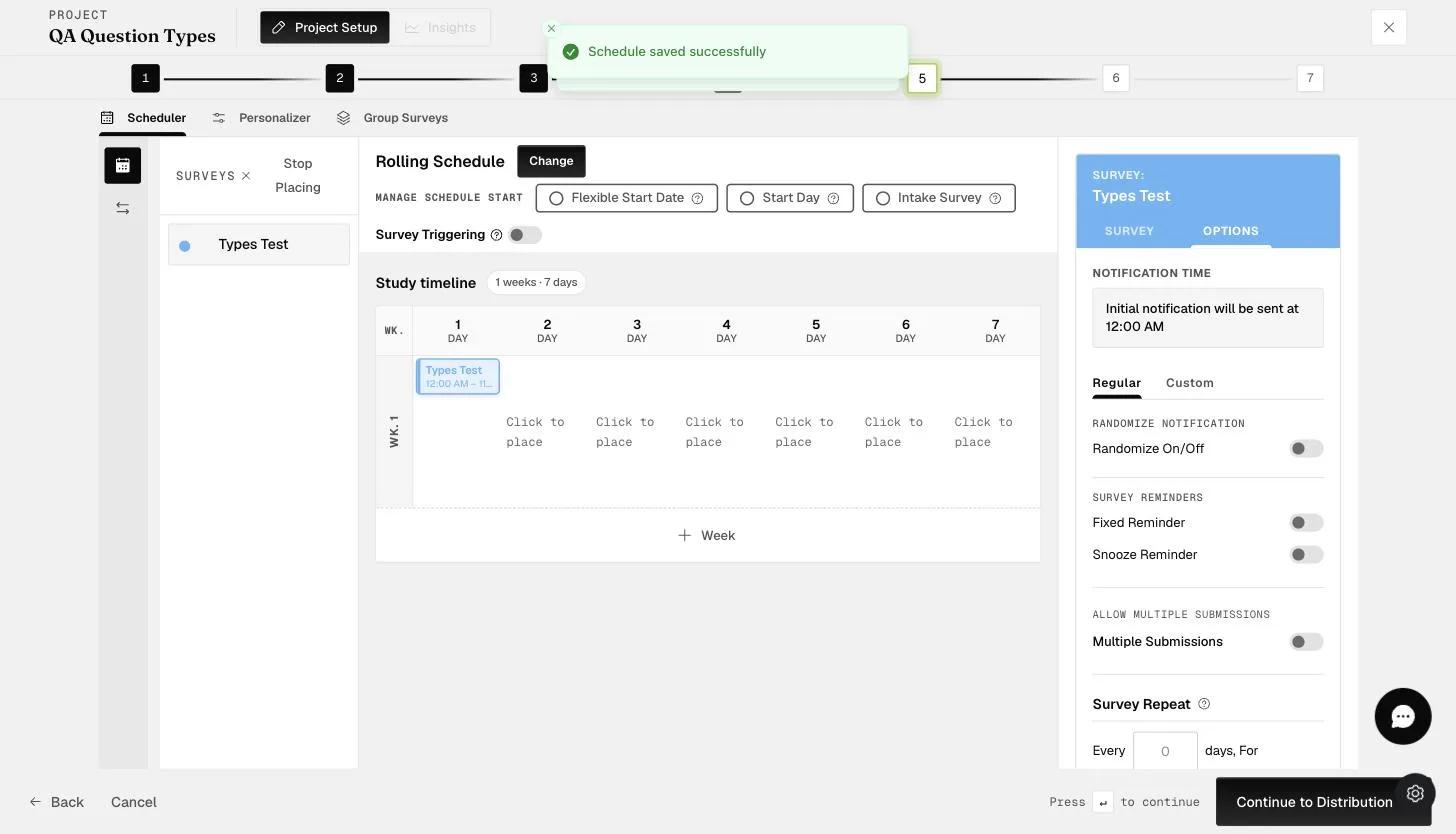
In this example, the survey will be repeated every 1 day from May 19th to 31st, 2025.