Making changes to a survey
A Guide to Editing Surveys & Duplicating Surveys
Researchers may occasionally need to modify their surveys or create copies with minor adjustments for use in another project—or even within the same project. To edit your surveys, you will not need to deactivate your project. However, any changes made to the survey will only become visible to participants the next time they access it. Additionally, survey edits may affect the CSV files associated with the project. To avoid data loss, ensure you download the required CSV files before making any edits.
Editing Survey Name
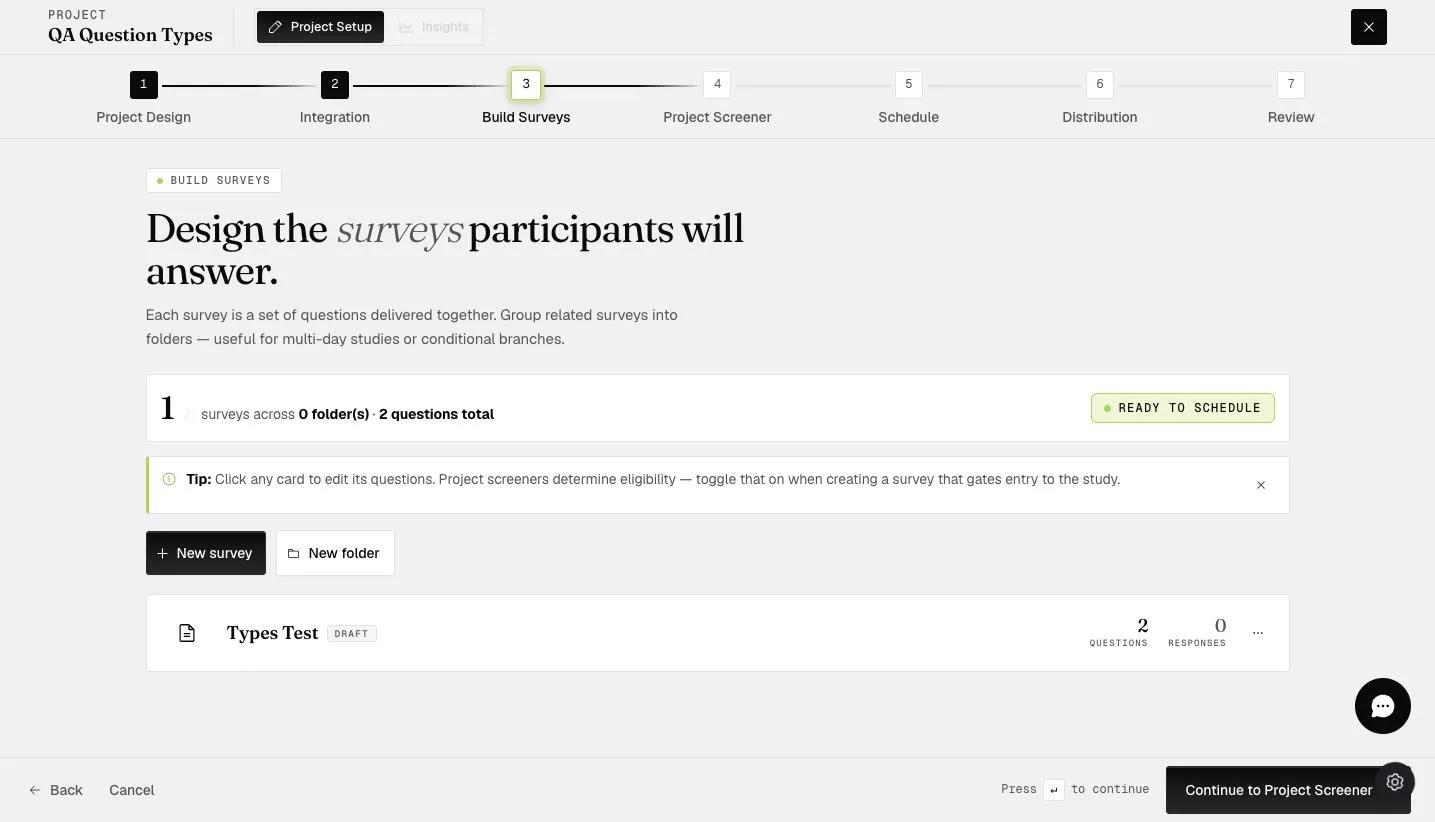
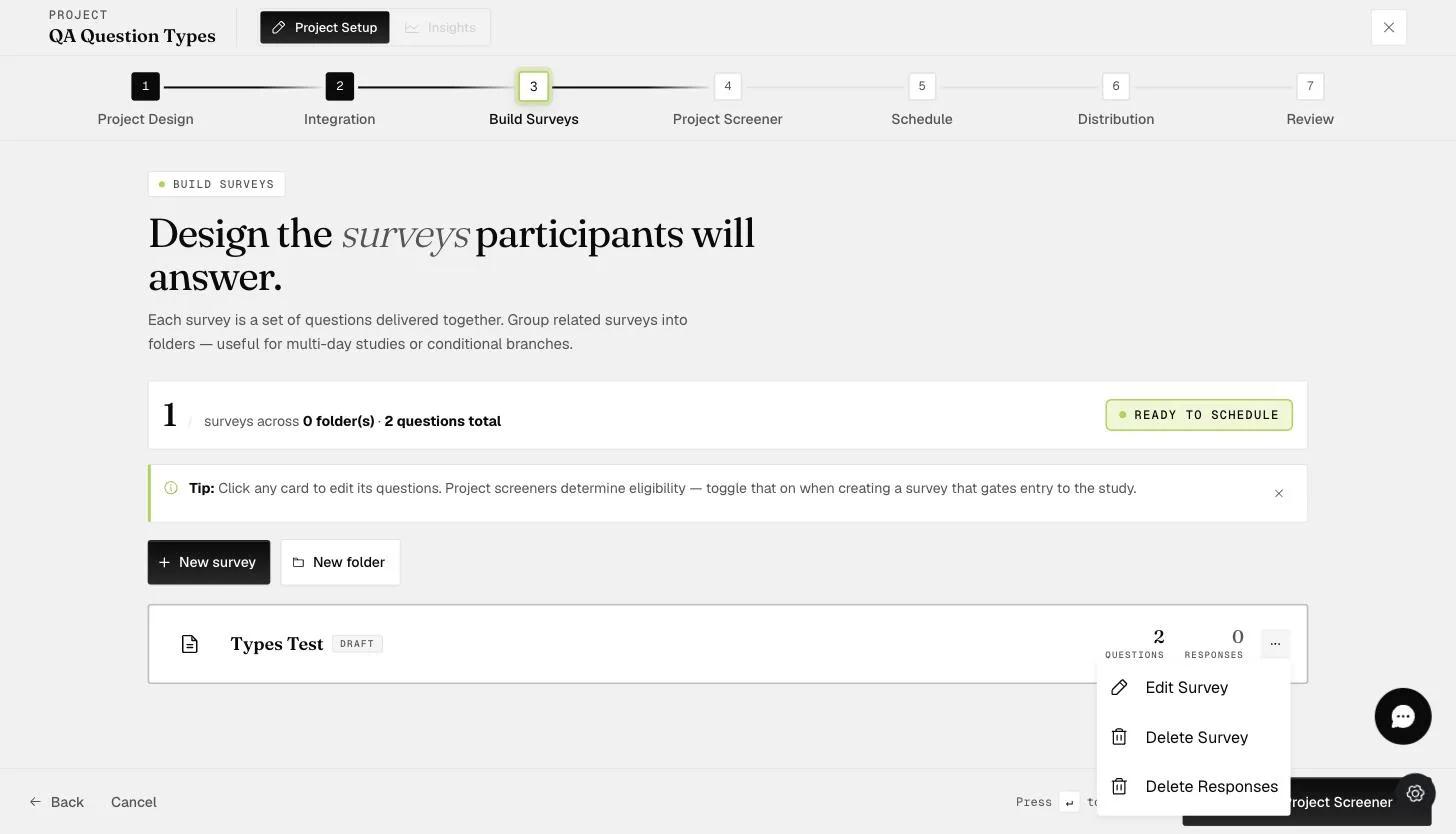
To edit the survey name, go to the 'Build Surveys' tab, click on the three dots on the survey you'd like to edit, and select 'Edit Survey'.
Click on the survey name on the top left corner of the survey to edit the name.
Make the required changes to the survey name.
The new survey name will be reflected on the 'Build Surveys' tab.
Duplicating a Survey
To duplicate an existing survey, go to the 'Build Surveys' tab, click on the '+ New Survey' button, and select 'Add Existing'.
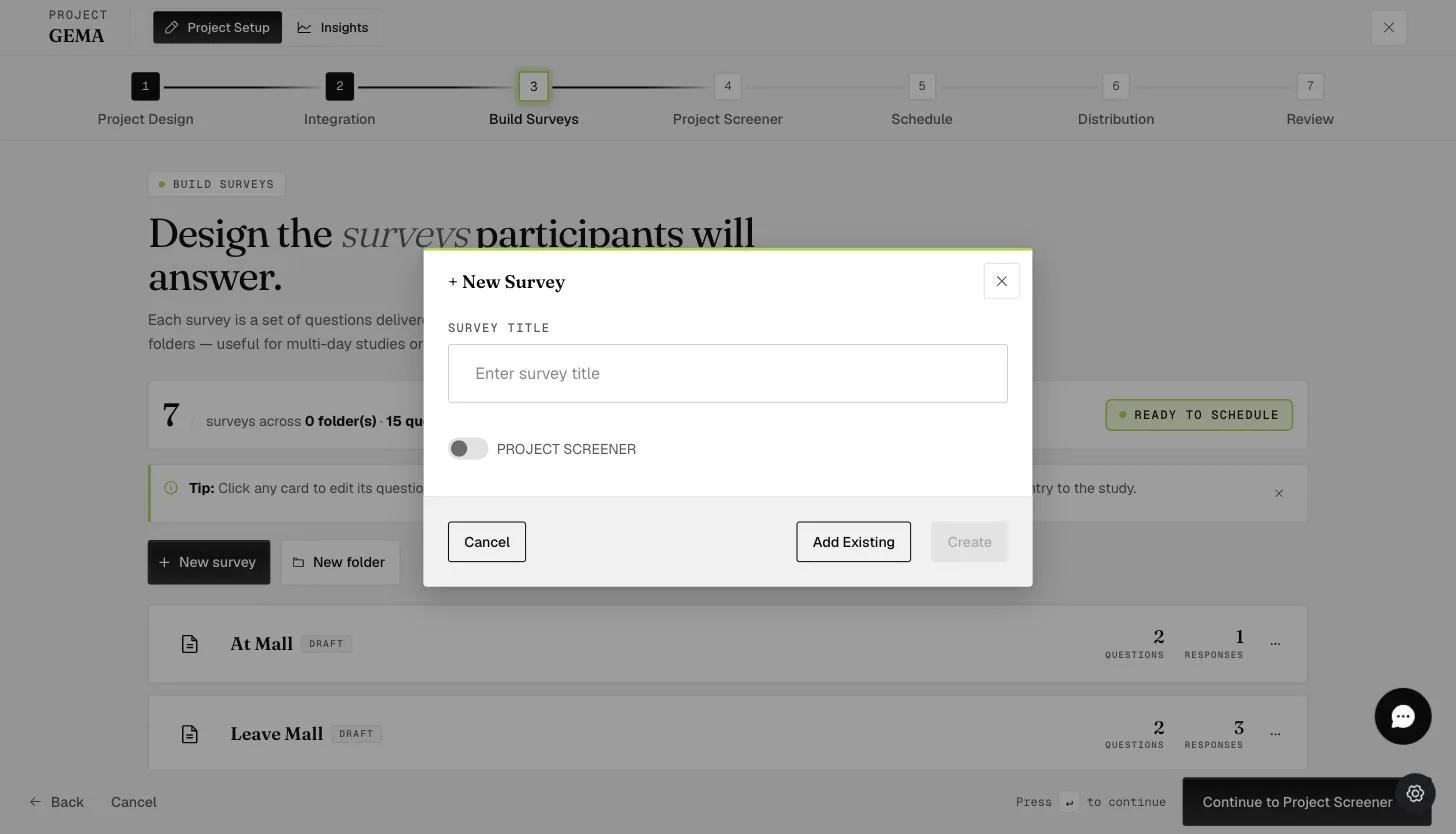
Select the survey you would like to duplicate and click 'Add'.
The survey will be added to your project. In the example below, the same 'Day 1 survey' was added to the project as the content for the survey presented on Day 2 will be exactly the same.
This approach enables surveys to be swiftly duplicated within the same project or across different projects and adjusted to meet specific research needs. In the example below, the duplicated survey's name was edited to create the 'Day 2 survey'.
Editing Survey Content
To edit the survey content, go to the 'Build Surveys' tab, click on the three dots on the survey you'd like to edit, and select 'Edit Survey'.
If your project is not activated or has no participants, the survey will remain unlocked, as shown in the screenshot below. This means you can make changes to the survey content freely without any concerns.
If your project is currently activated or already has participants joined, the survey will need to be unlocked by clicking on the 'Unlock' button indicated below before any changes can be made.
A popup reminder will appear if the project is currently activated, has data collected, or has participants added. Click 'Yes' if you would like to proceed.
Another reminder to download any required CSV data before changes are made will appear.
The survey will be 'Unlocked' as shown below, and you can go ahead and make the necessary edits.