Invite by user account email
How to Invite Participants Through Email
When Invitations are Useful
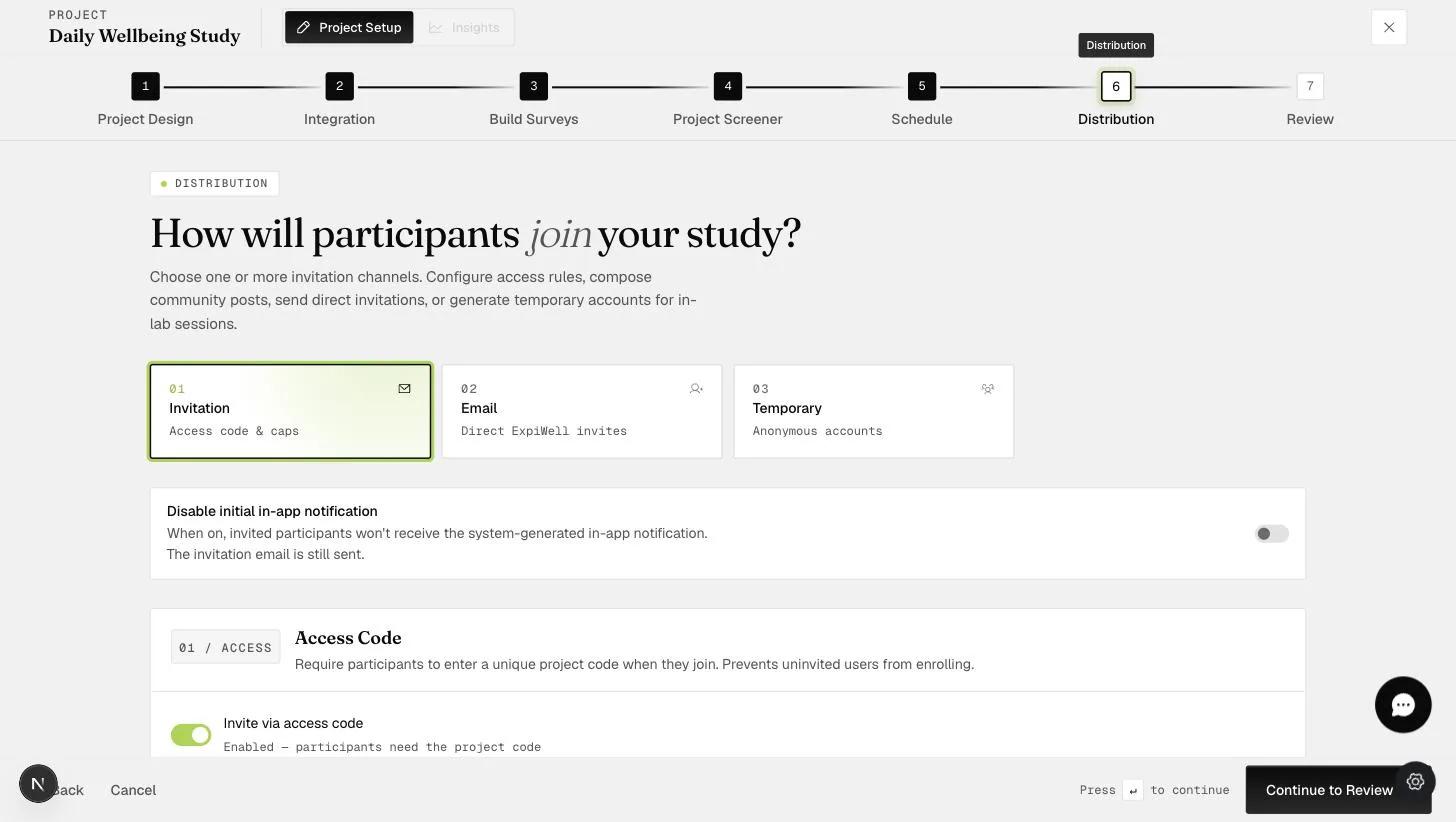
For projects where you already have a pre-existing list of participants and their contact emails, you may want to invite ONLY these individuals to your project.
-
Useful when you have participant email contacts
-
Useful for when you only want specific users to join your project
You will not need to send or enable joining by ACCESS CODE. However, you can still enable joining by access code if you wish to have two different groups of individuals join your project. For example, you may want an existing set of users to continue with this project via the invitation, and supplement it with additional individuals joining by access code.
How to invite by User Account Email
Overview. In the Distribution tab, you can type in or upload a CSV of user account emails.
-
Participants with existing accounts on the ExpiWell mobile app that match the added user emails will receive an invitation via email. The project will appear in the 'Discover' section of their ExpiWell app, and participants will also receive a push notification to add the project.
-
Participants without an existing account will receive an email from ExpiWell with a direct link to download the app and access the project. This ensures that only selected participants can add the project.
To enable this, go to the 'Distribution' tab and select the 'Email' tab. You will have an option to also invite via access code at the same time. If you would only want participants who have been invited via email to participate, you can leave the 'Invite via access code' option untoggled.
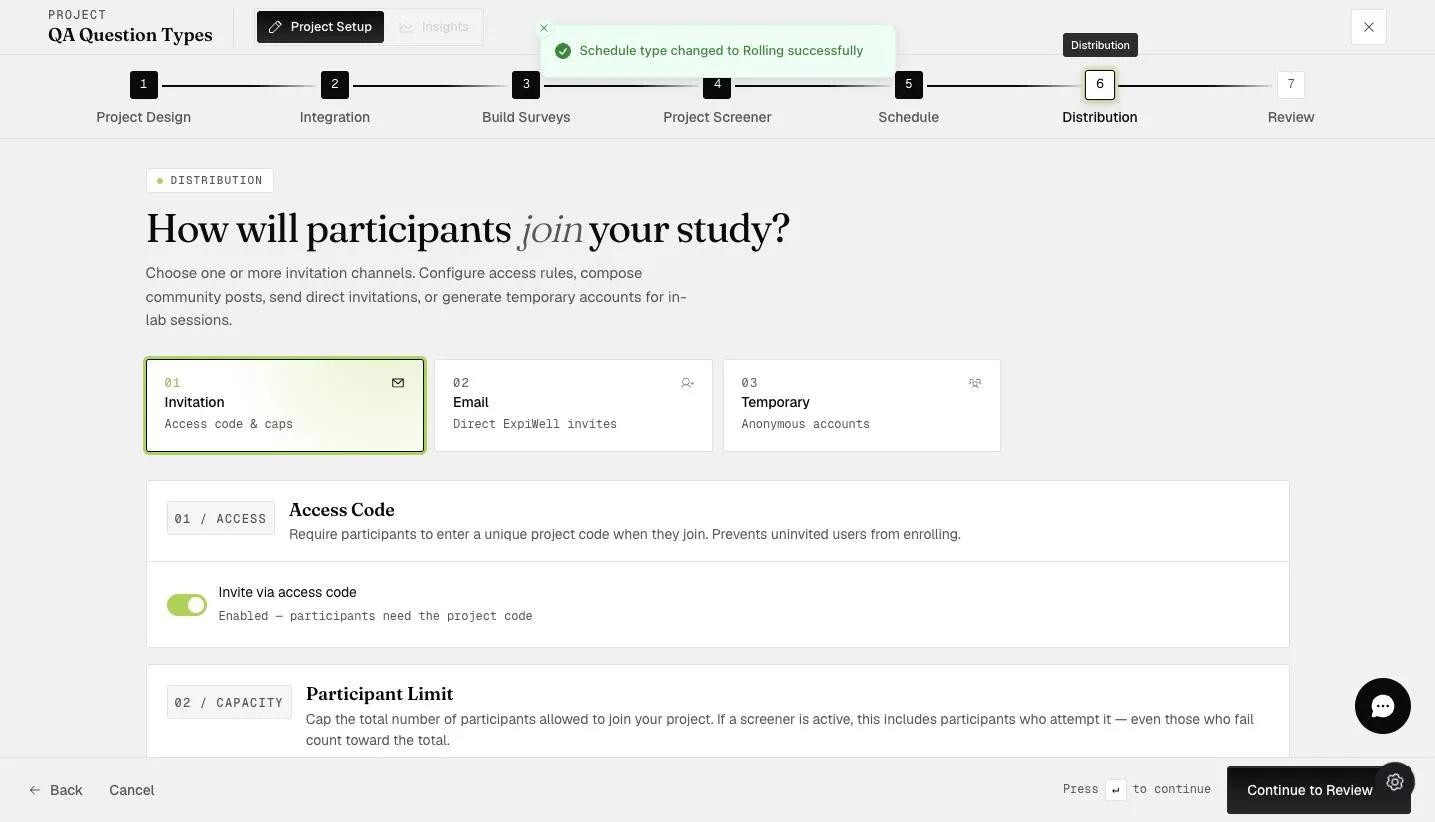
Then, you can type in a single email or upload a CSV file containing your participant's email addresses.
Invitation Status
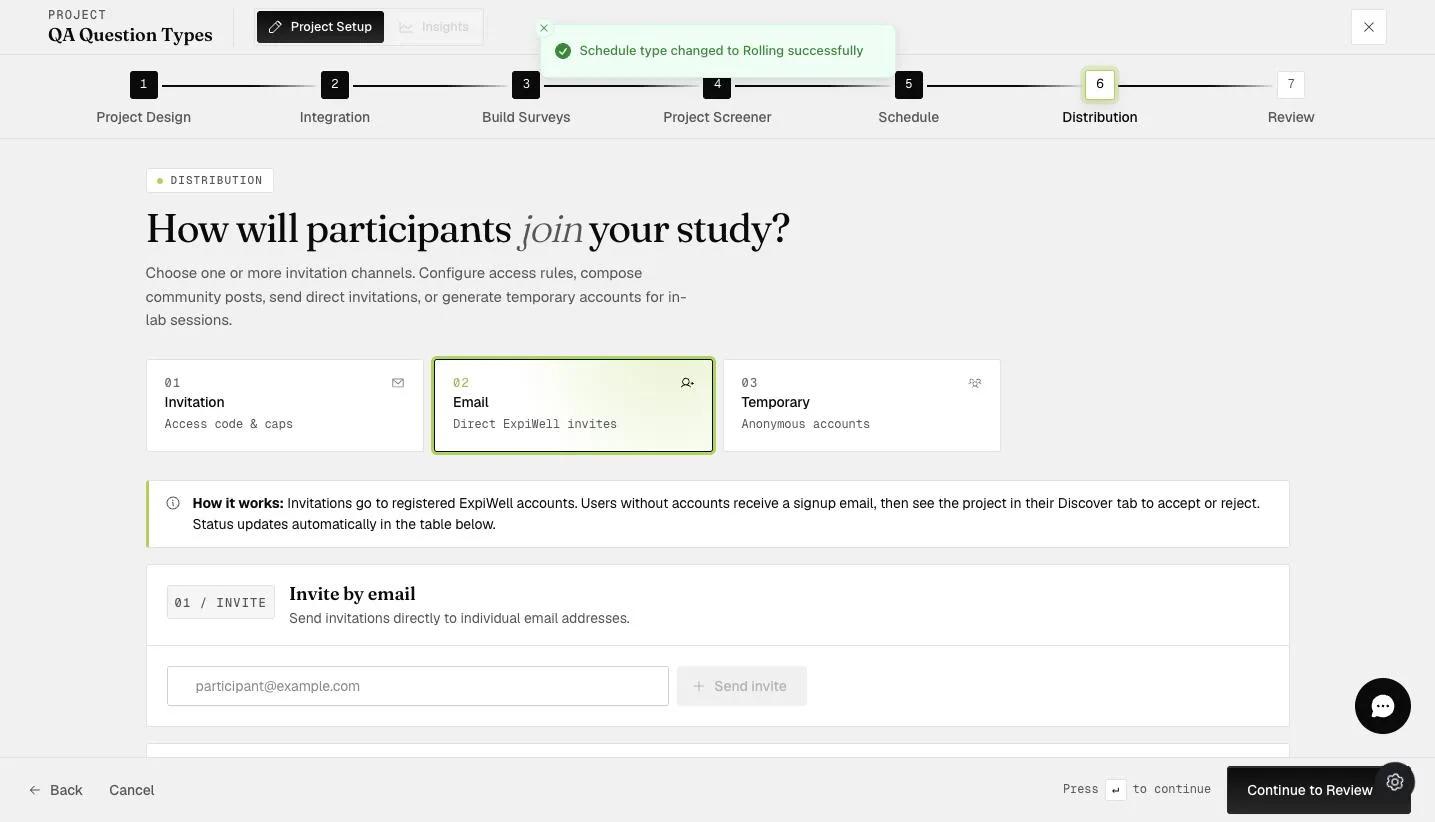
After successfully adding some email addresses, you will see the participants' list and their STATUS.
Awaiting Activation - The project is not activated yet, and this will change to 'Sent' after activating the project.
Awaiting Account Creation - This participant has yet to create an ExpiWell mobile app account, which will change to 'Sent' after creating an account.
Project Activation Process
After activating the project, the status of the users that already have an ExpiWell account will be 'Sent'.
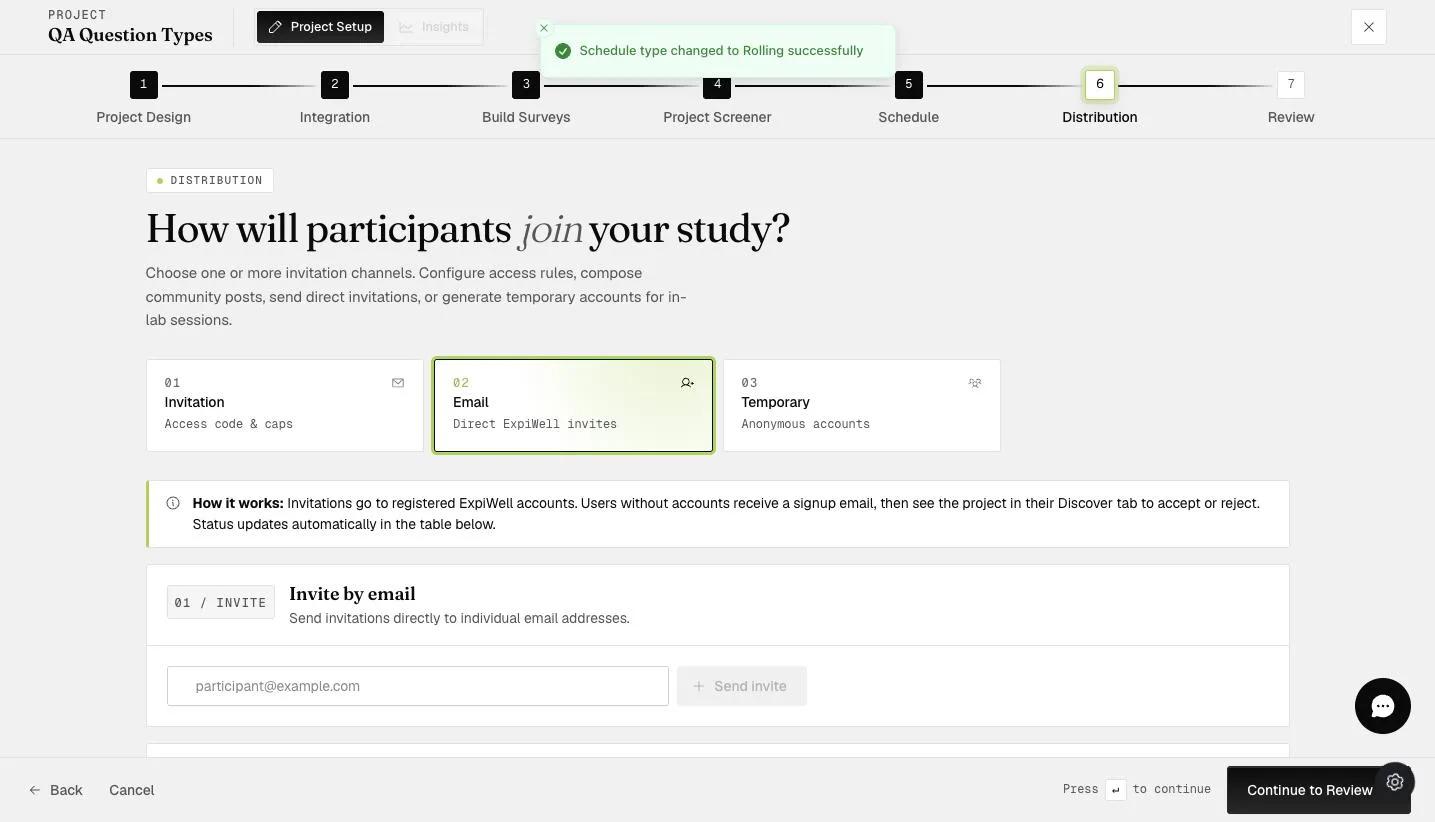
Participants with an existing ExpiWell account will receive the following email and be able to see the project in the Discover tab on their ExpiWell mobile app.
For those participants who have yet to create an account, they will receive this default email from ExpiWell.
They can click 'download', and they will be directed to the Apple App Store or Google Play Store. If they use a computer, they will see this page where they can scan a QR code using their phone.
After downloading and creating an account, they will also see the project on the Discover tab on their ExpiWell mobile app.
Once this new participant has successfully created an account, this will also be reflected in the Distribution tab.
Once they have received the project, they can accept or reject it, which will also be reflected in the Distribution tab.
Using the invite-via-email option will be helpful for researchers to identify participants, as the emails will be displayed on the Logs page.