Creating temporary participant accounts
How to Create Temporary Participant Accounts
With your ecological momentary assessment (EMA) and experience sampling method (ESM) projects, you may want to create temporary participant accounts.
This is useful in several scenarios.
-
Your research uses and owns mobile devices, and you want to add temporary participant accounts to your devices
-
You want to provide participants temporary account information so participants do not need to create their own account on ExpiWell with their email
-
Identifying your participants, as the temporary USERNAME will be displayed in the downloaded file.
System-Generated Temporary Accounts
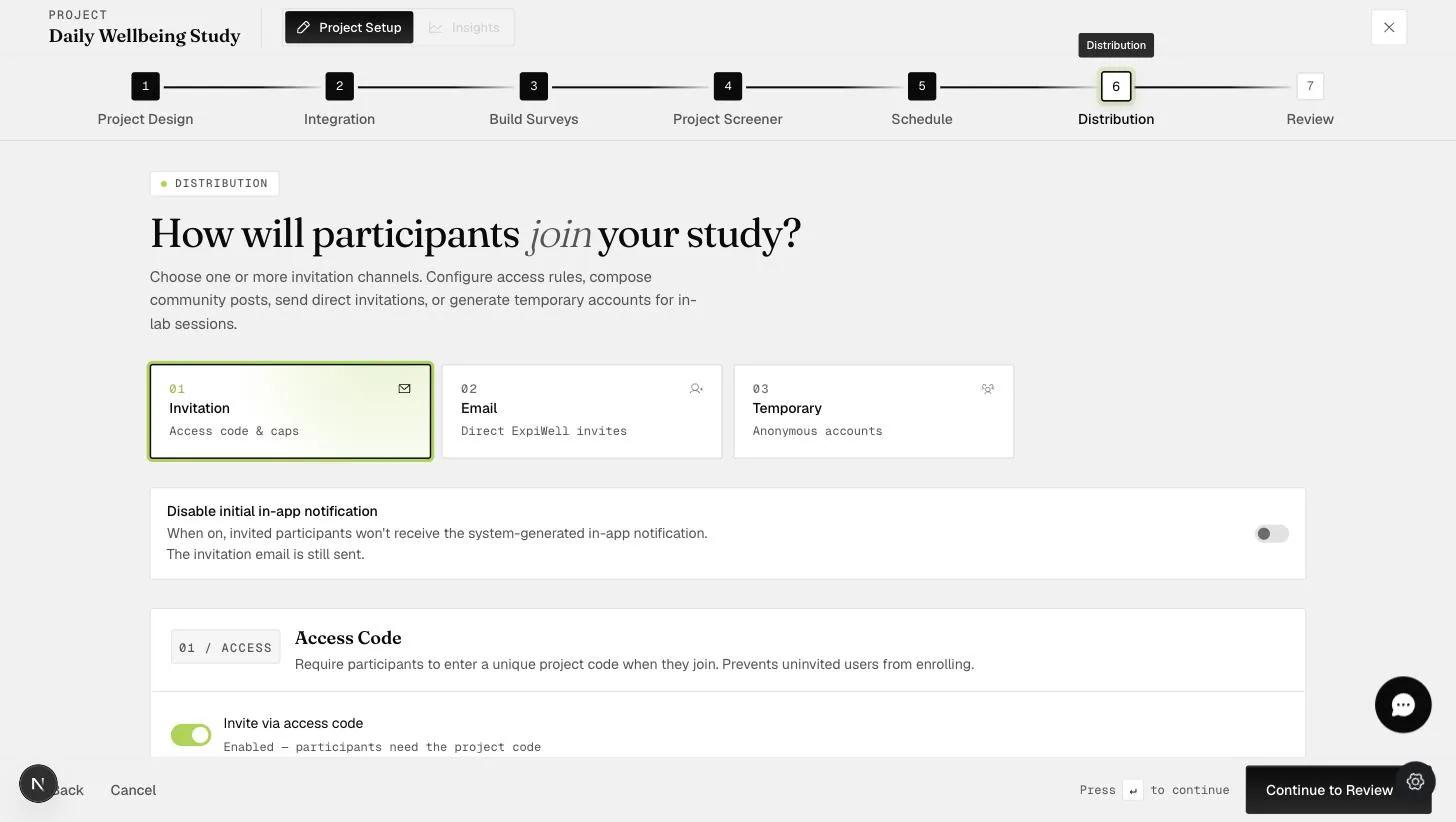
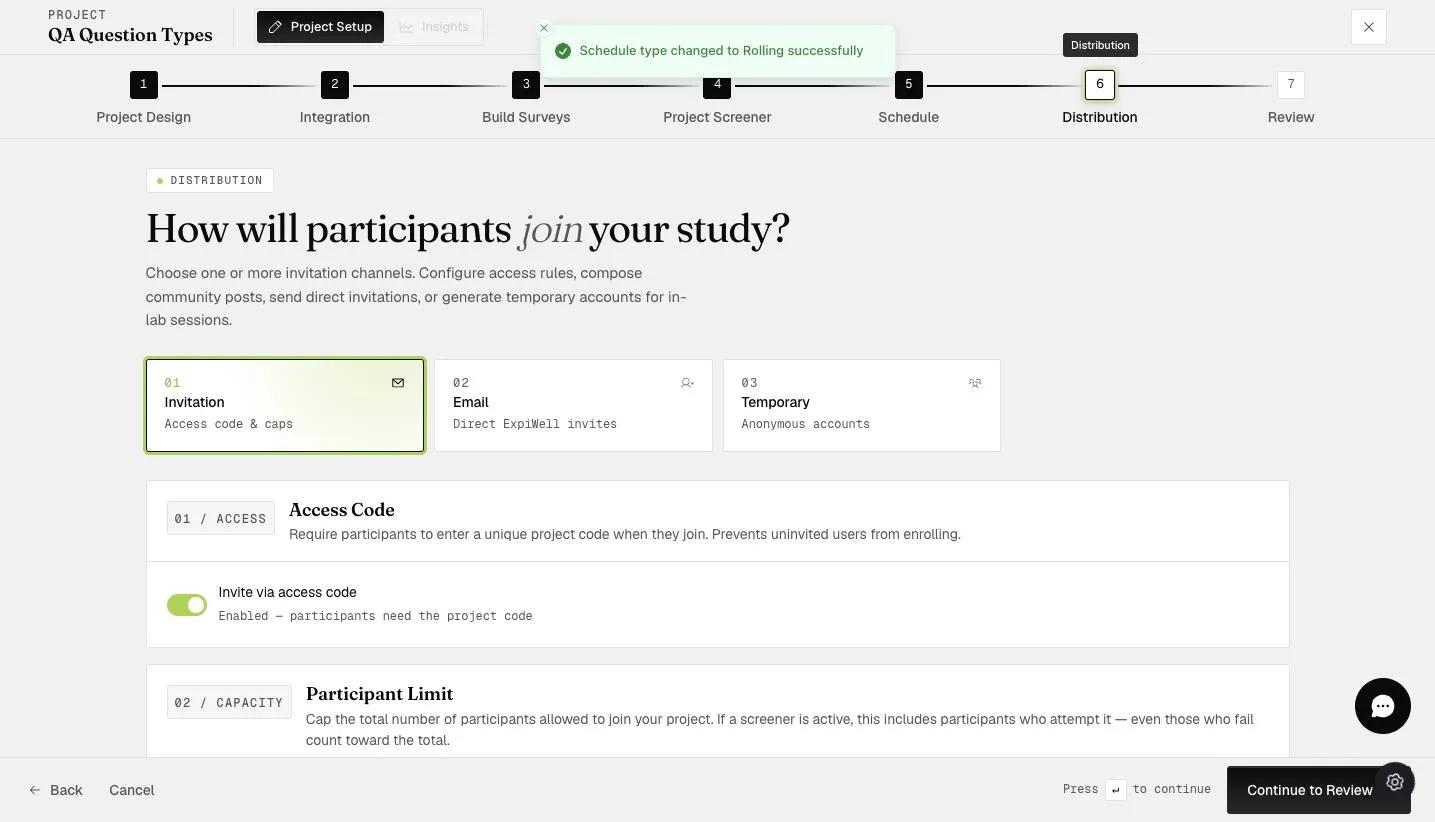
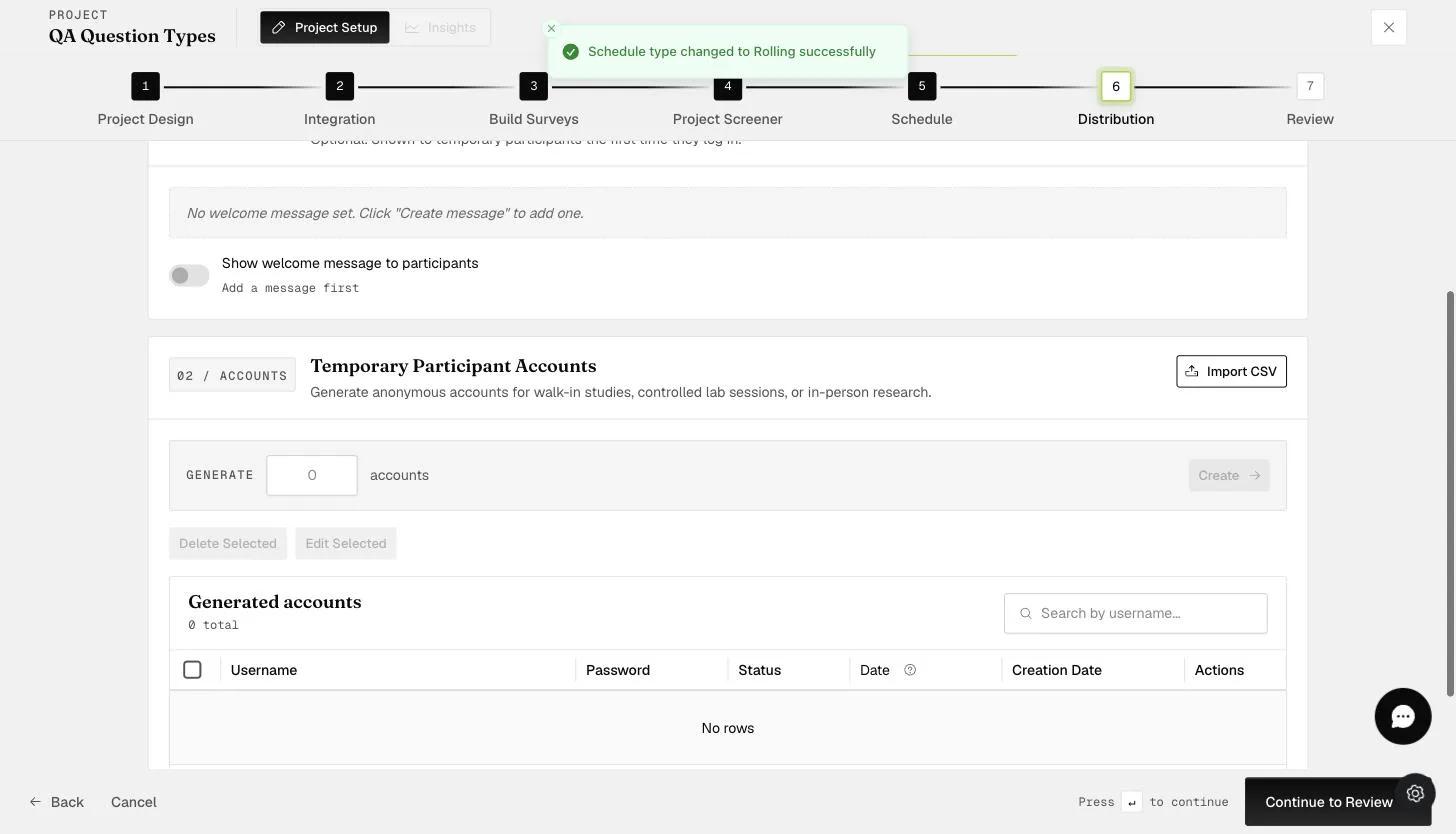
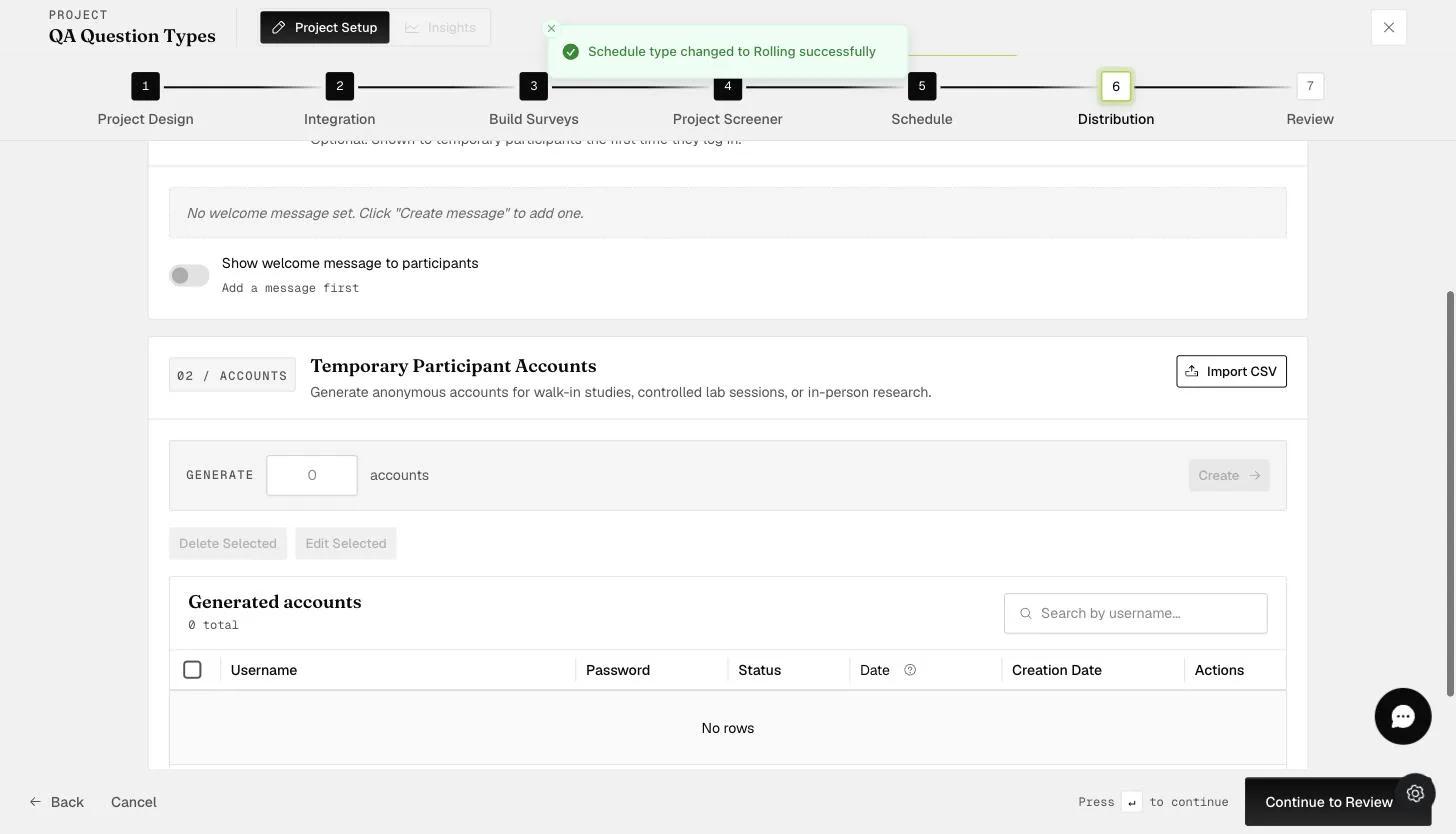
Navigate to the Distribution tab of your project and select the "Temporary" tab to open the Temporary Participant Accounts section.
Within the Temporary Participant Accounts section, specify the desired number of temporary accounts for this project and click "Create".
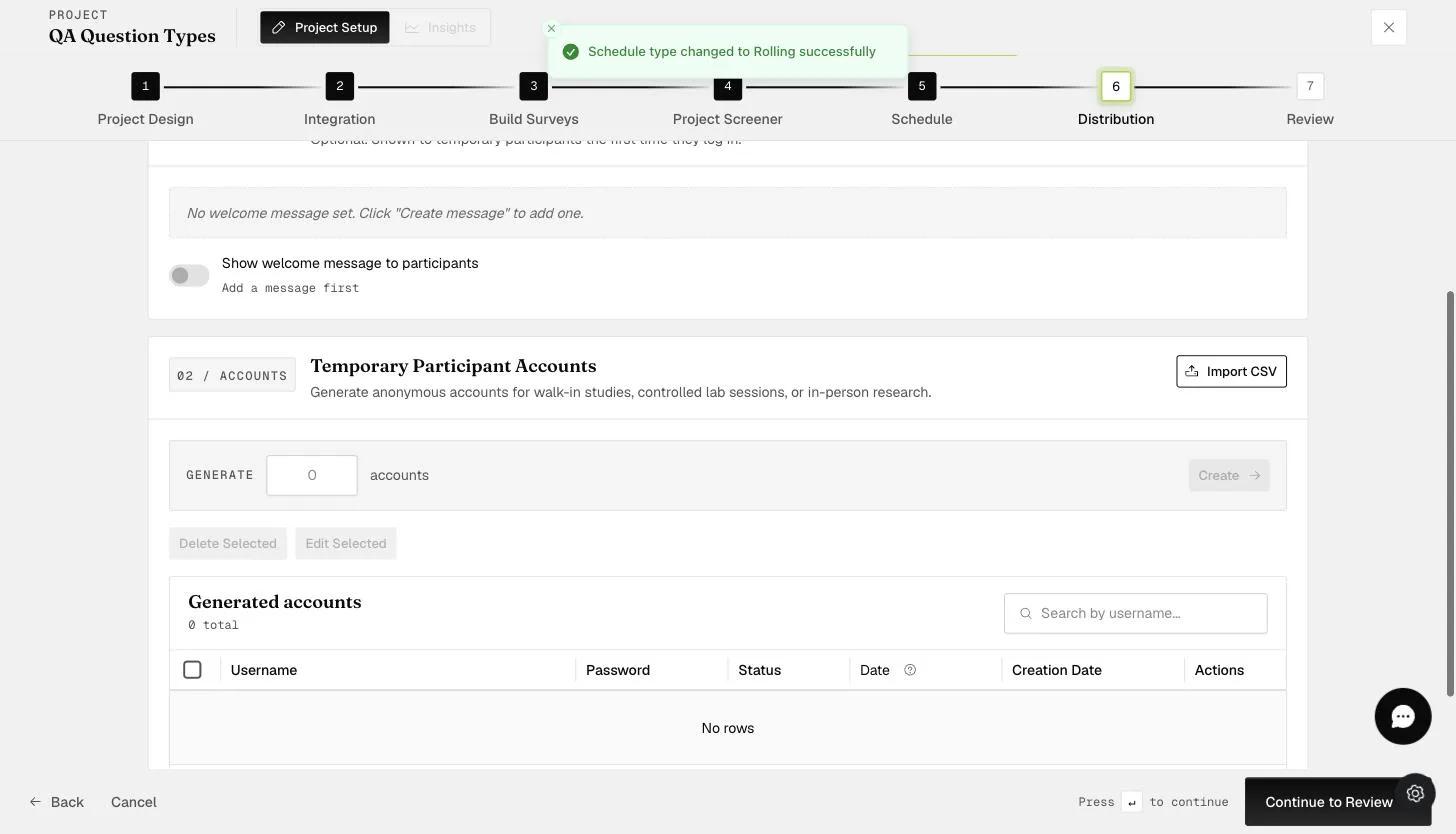
After that, you will see the list of temporary account usernames and passwords that can be used to log in to participate in your project.
CSV Uploads of Temporary Participant Accounts
To import your own usernames and passwords for your temporary participant accounts, click on the 'Import CSV' button.
Follow the specified format for CSV file uploads, as shown below.
Password Generation: If the Password column is left blank, the system will generate a password for the corresponding Username.
Date Column: This refers to the Start Date of the temporary participant account, indicating when the project will be available for the participant.
-
Rolling Schedule: This functionality is only applicable to the Rolling Schedule and not to the Calendar or Static Schedule.
-
Date Format: The Date column must be in the YYYY-MM-DD format.
-
Default Start Date: If the Date column is left blank, the Start Date of the project will be the same day the user first logs in.
After uploading the CSV file, you can distribute the usernames and passwords.
Edit Temporary Accounts Start Date and Deletion of Accounts
You can edit or update the participant's Start Date, which indicates when the project will be available for the participant (as shown in the red box). You can also delete temporary accounts. This can be done individually for a specific temporary account (indicated by the red arrow) or in bulk by selecting the required accounts (indicated by the orange box) and clicking on either "Delete Selected" or "Edit Selected" (indicated by the orange arrow).
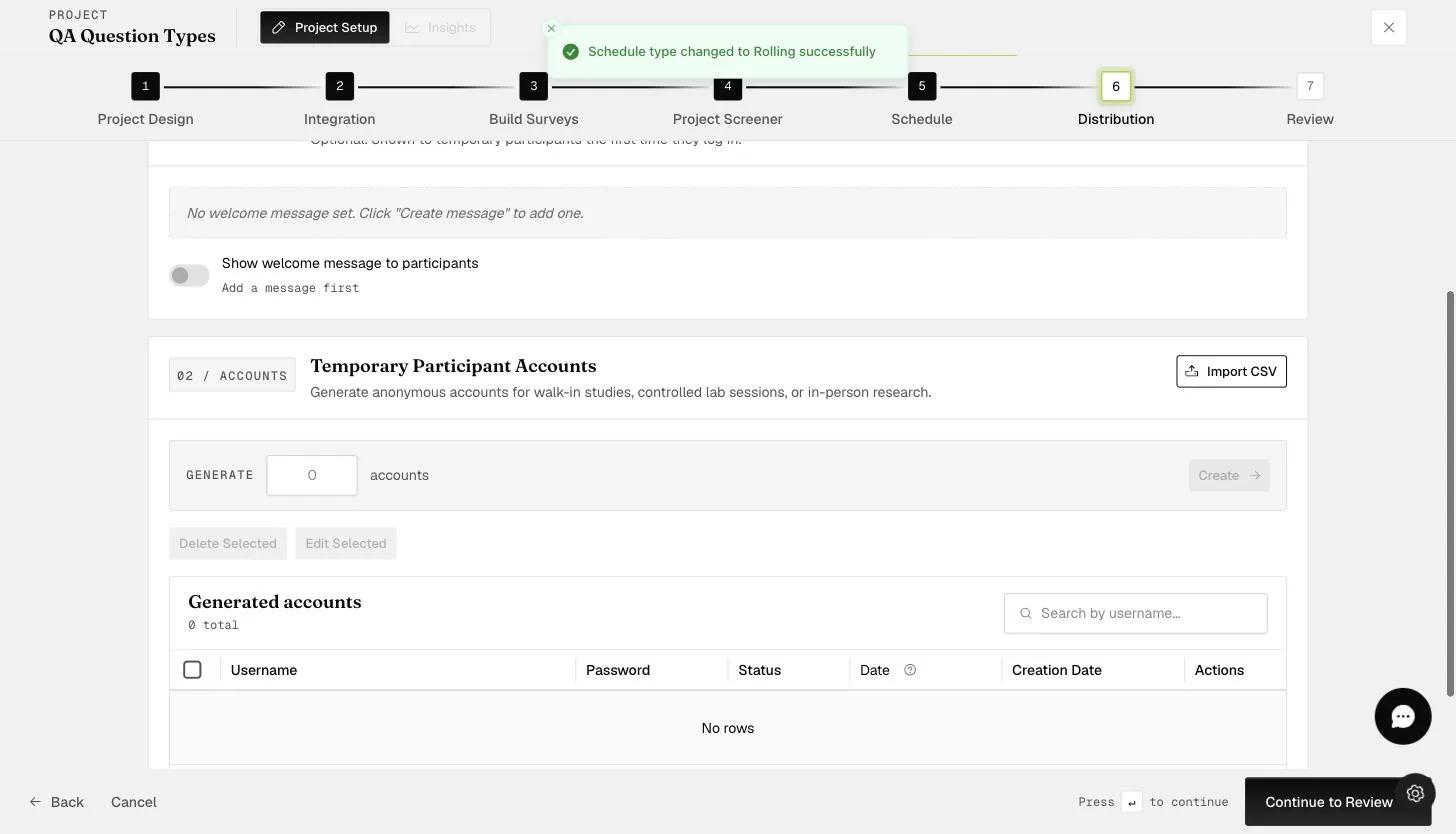
Edit or Set Temporary Accounts Start Date
To set or edit the Start Date, click on the 'Edit' icon as indicated below and a popup modal will appear.
Select the Start Date and click 'Confirm'.
The updated Start Date will be shown after that.
Delete Temporary Accounts
To delete temporary accounts, click on the 'Delete' icon as indicated below and a popup modal will appear to confirm the deletion.
Welcome Message
To include a custom welcome message for your temporary account participants, toggle on the 'Welcome Message' option, then click 'Edit Message' (or 'Create message' if none is set). This welcome message will be displayed only when participants log into their accounts for the first time and will not appear with subsequent logins.
A popup modal will appear where you can input your customized message (limited to 250 characters), as shown in the example below.
Mobile View
Your participants can use their login credentials to access the project, which will automatically be added to their accounts. In the example below, this temporary account user will see the following welcome message upon logging in. Since this account does not have a set Start Date, the project will become available the same day the user logs in.
Below is another example of a mobile view for a user with a Start Date scheduled for 1 February 2024. As this participant has logged into the account on an earlier date, they will see that the project is in their account but will also see that it has been scheduled for the specified Start Date.
Once participants have used the provided temporary account credentials, the temporary account status will be updated to "Active", as shown below.
FAQs
What Happens When You Delete the TEMPORARY ACCOUNT:
When you delete an account, participants will be automatically logged out of their ExpiWell mobile app and will no longer have access to the project.
What Happens If You Don't Set a Start Date for TEMPORARY ACCOUNTS:
If you don't set a Start Date, participants' Start Date will default to the day they log in to the account.
What Happens If Participants Use TEMPORARY ACCOUNTS When the Project Isn't Active Yet:
Participants can still use TEMPORARY ACCOUNTS but will ONLY see available content inside the app once the project becomes active. After you have activated the project, participants will have to log in again to see the project(s).
Do Participants Need to Add the Access Code:
No, participants don't need to add an access code. Using the TEMPORARY ACCOUNTS username and password will automatically add the project to the mobile app.
Availability Based on Schedule Types:
Creating TEMPORARY ACCOUNTS with the ability to edit the Start Date is only available in the Rolling schedule type. The Calendar schedule type is designed for participants to start on specific dates.
Can Participants Use TEMPORARY ACCOUNTS Before Their Start Date:
Yes, participants can use TEMPORARY ACCOUNTS in advance. They will see the surveys as 'scheduled' until their Start Date arrives.
Can You Edit the Start Date After Participants Use the TEMPORARY ACCOUNTS:
No, you can only edit the Start Date of participants before using the TEMPORARY ACCOUNTS. Once TEMPORARY ACCOUNTS are used, the Start Date cannot be changed.
If you have any questions, please reach out to help@expiwell.com.