Personalize timings & retake missed surveys (Beta)
2 Steps to Personalize Timings and Retake Missed Surveys
For some ecological momentary assessment (EMA) and experience sampling method (ESM) projects, it is helpful or even necessary to allow participants to personalize timings or retake missed surveys. To this end, we have built the "personalizer" feature.
Please note that these features are in the beta stage. We encourage researchers to carefully test them out for their projects before launching.
You can do the following three things:
-
Adjust Time: Participants can change the survey timing within the day
-
Move to Different Day: Participants can move the survey to a different day, but survey timings within the day are unchanged
-
Allow Retakes: Participants can retake missed or completed past surveys
Step 1: Schedule and choose surveys you want to personalize
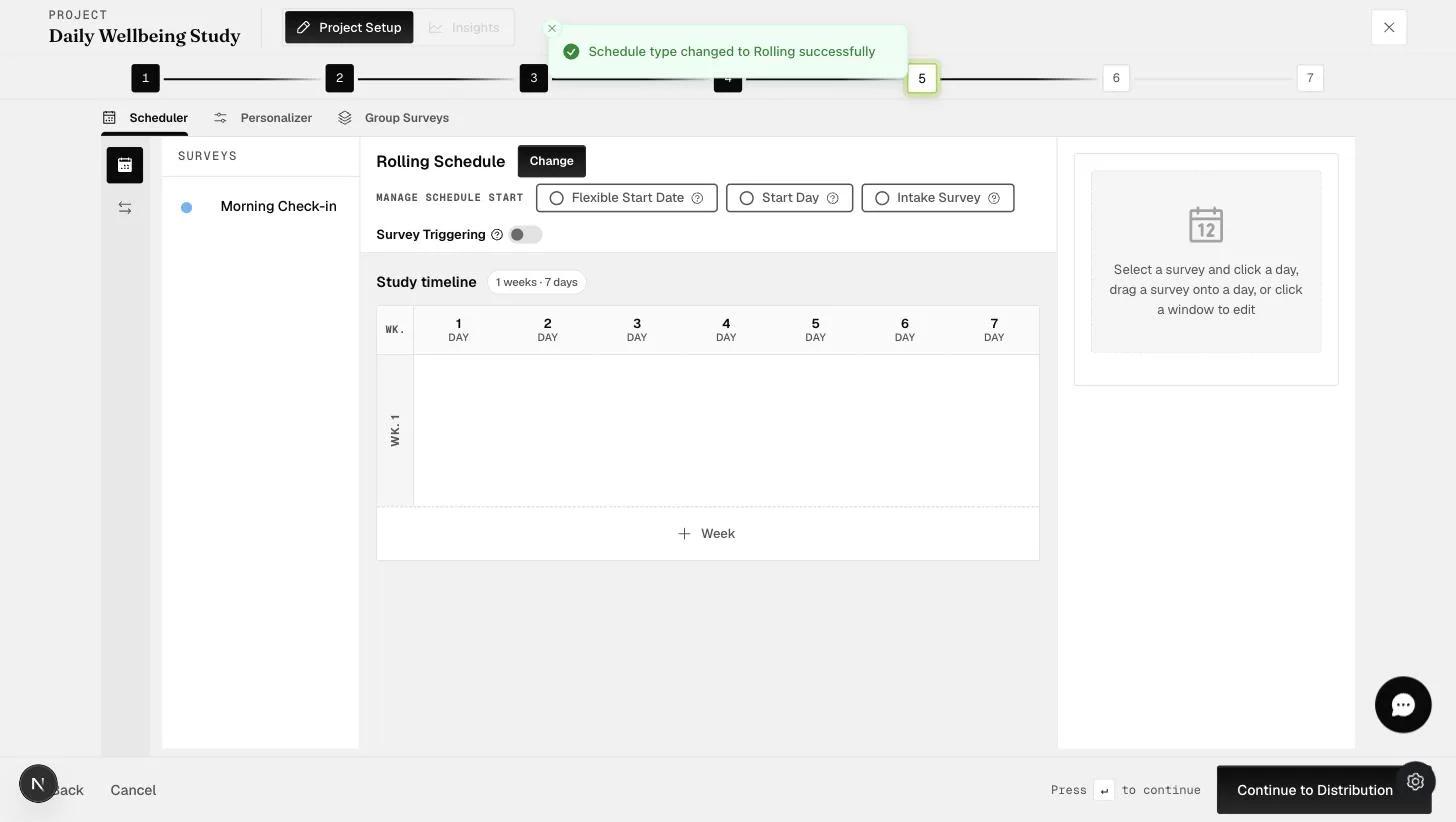
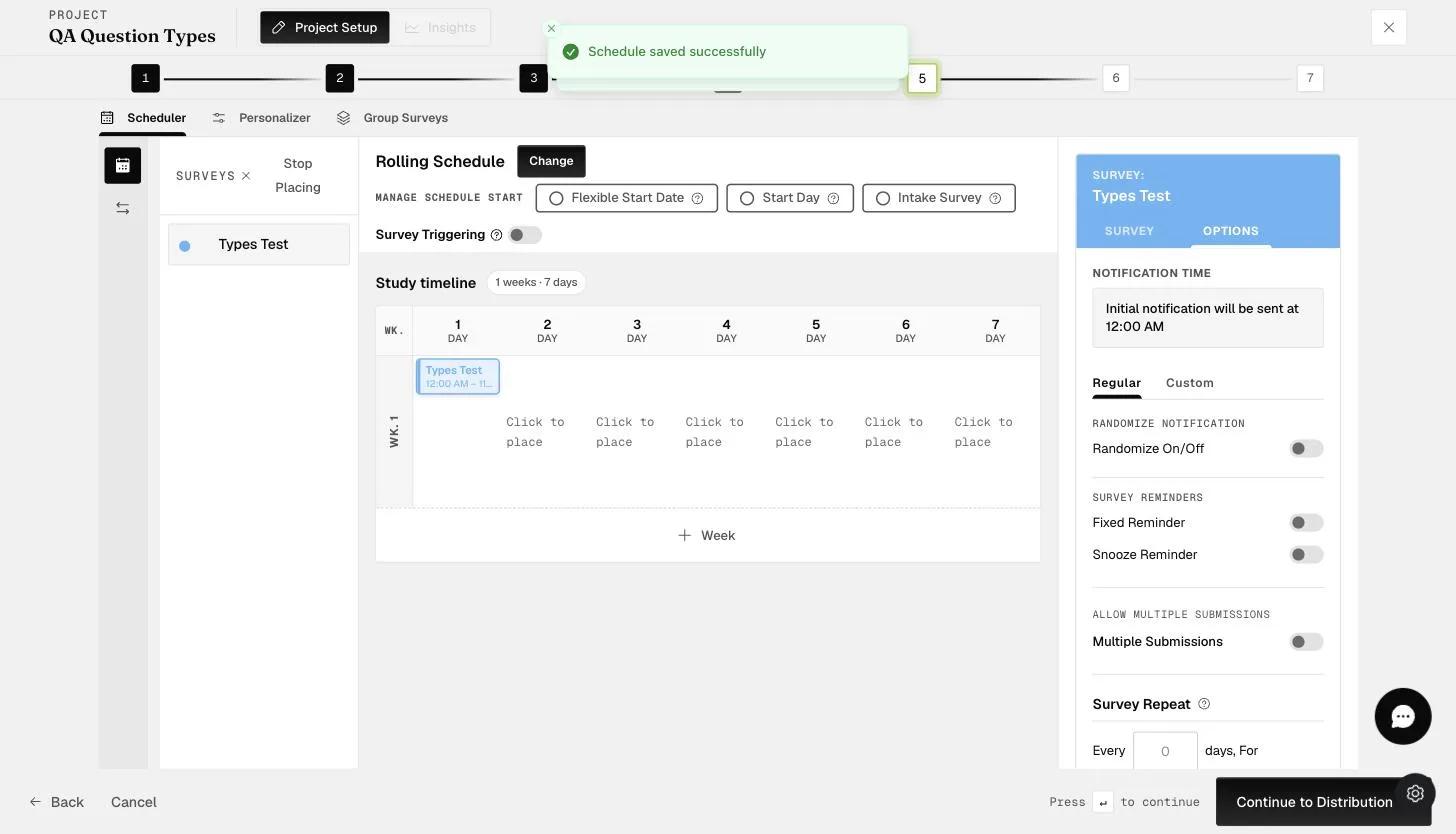
Before enabling the "Personalizer", you will need to create your survey schedule. Below, we have created a week-long schedule with both a "morning survey" and an "evening survey".
In the "Personalizer" tab, click on the "New" button to create a set of surveys that you want to allow participants to personalize.
You will then need to follow the steps below to select the specific surveys that you want to allow participants to personalize. This is because you may not want to allow participants the freedom to change the timings for all the surveys.
- Set Title: Create a title for the set of surveys you want personalized
-
Select Windows: Choose the survey windows to be personalized as part of this set of surveys
-
Optional "Reschedule Multiple Windows": By default, participants can only change the timing of one survey at a time. However, by toggling this, you can allow participants to reschedule all the surveys at once
-
Click the check icon: Click this when you are done choosing the surveys
Step 2: Decide on what participants can personalize
After you have chosen the set of surveys that can be personalized, you can then decide to apply any or all of these personalization options.
Adjust Time
This allows participants to change the survey timing within the day. This personalization is valuable when you want to allow participants flexibility due to different routines. For example, some participants wake up at 6am in the morning whereas others may wake up at 10am due to shift work.
You can first decide on the survey time window, or how long the survey window should be open for.
Next, click on the "Add Time Range" button to create the allowable survey time window for the day as shown below.
Move to Different Day
The next option for personalizing is "Move to Different Day". This enables participants to move the surveys to different days.
As shown below, the first 5 morning surveys can be moved to any of the days 1-7.
You can also add additional days for participants to move their surveys to by clicking the "Add Date" button. Then, choose from the dropdown which day to add. You can add additional days by clicking on the "Add Date" button multiple times.
Allow Retakes
The other personalization option is enabling "Allow Retakes." When participants miss or complete any of their surveys within the set, they are allowed to retake the survey.
How can participants retake the survey on their ExpiWell mobile app?
If researchers enabled retakes in the personalization options, participants will be able to retake the survey on their ExpiWell mobile app.
Step 1: You will be able to see your available experiences on the Current tab — tap it
Step 2: In today’s timeslots, hit the three dots on the survey that you want to retake
Step 3: Hit 'Retake Timeslot' to retake the survey
If you have further inquiries, please contact help@expiwell.com
This walkthrough was recorded in the earlier ExpiWell interface — an updated video for the new dashboard is coming.