How to add experiences
Mobile app · Experiences
Updated July 21, 2026To take part in a study, you add its experience to your app using the access code your research team gave you. You can join as many studies as you're invited to — each one appears on your home screen.
Adding an experience
- On the home screen, tap the + button (bottom-right), or open the menu and tap +.
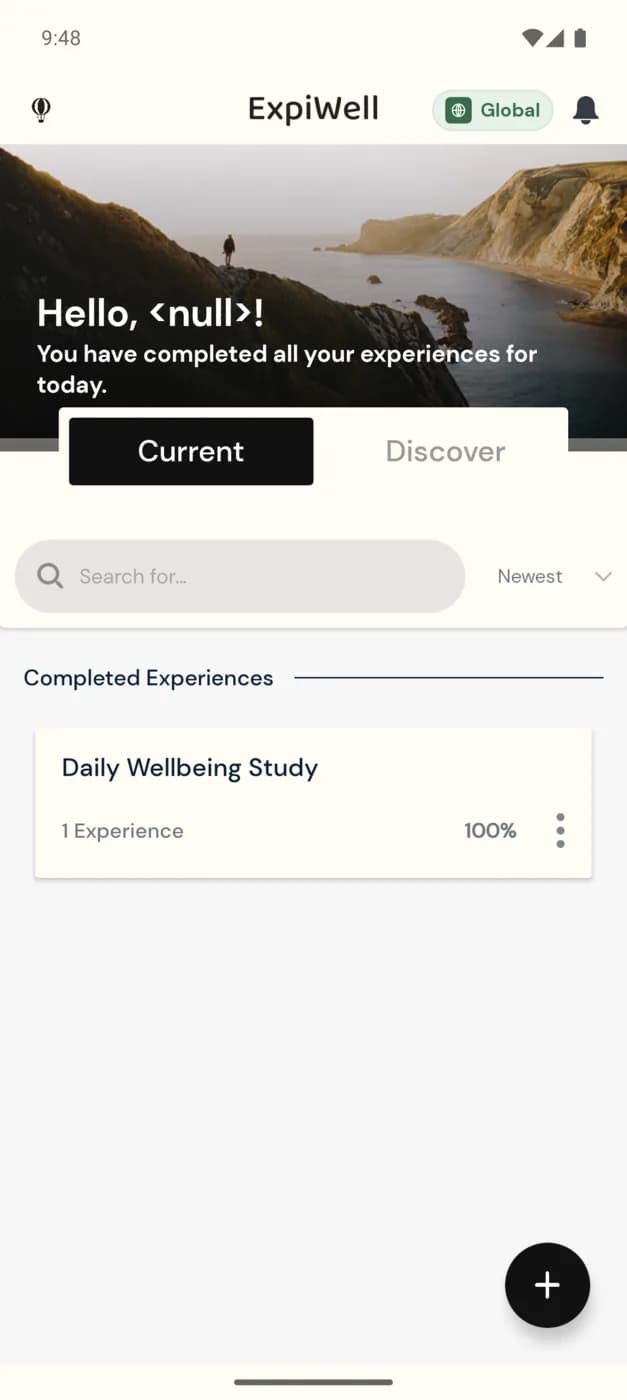
- In the Begin An Experience dialog, type your Experience Access Code and tap ADD EXPERIENCE.
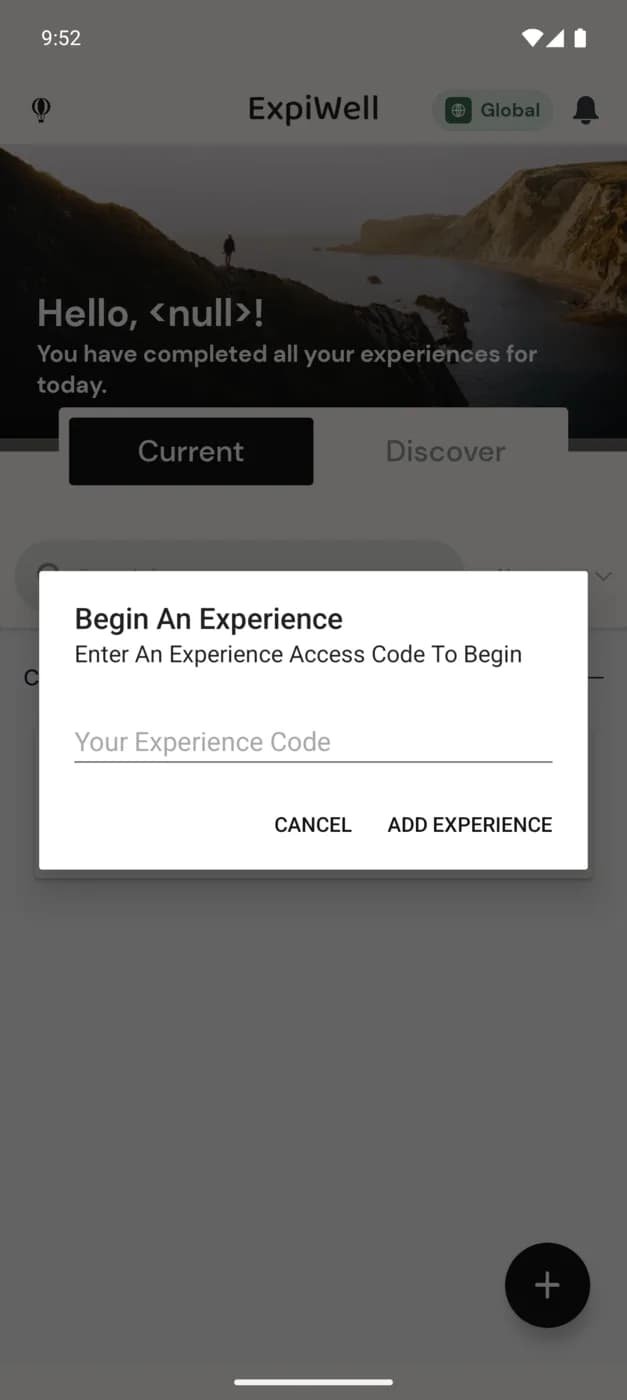
The study is added to your Current experiences, and any surveys it schedules will start arriving as notifications. You only need to enter the access code once per study.
Note
Access codes are not case-sensitive. If a code isn't accepted, double-check it with your research team — see Contacting the researchers.
Other ways in
Some studies invite you a different way instead of an access code — by inviting your email address, or by handing you a ready-made account with login credentials. See Create an account for all three options.
Was this helpful?