Notifications
ExpiWell surveys usually arrive as push notifications on the schedule your research team set. Tapping a notification opens the survey directly, so you can respond in the moment — which is the point of experience sampling.
Your notification inbox
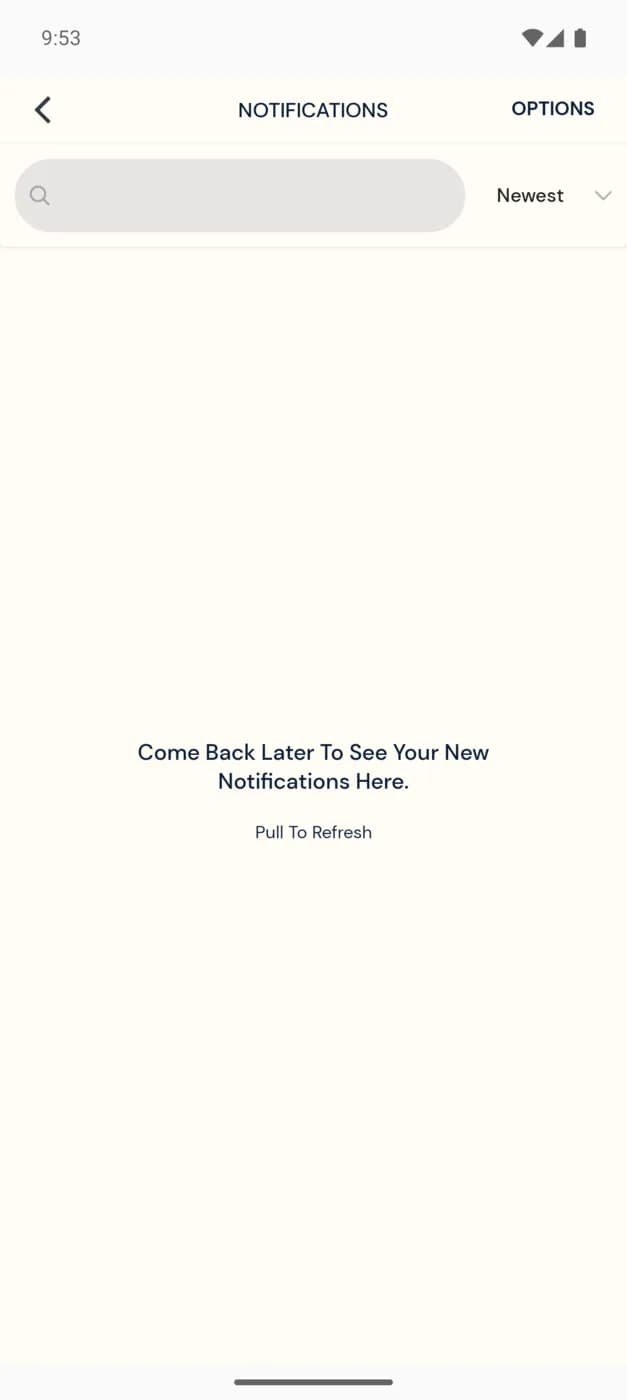
Tap the bell icon in the top-right of the home screen to open your notifications. Past alerts are listed here, newest first, with a search box and a sort control. When you're caught up, you'll see a "come back later" message — pull down to refresh.
How reminders work
- Notifications fire inside the survey's open window — the times follow your own time zone and adjust automatically if you travel; see Schedule personalization.
- Your research team may set a reminder a set time after the first notification, so a survey you missed nudges you again before the window closes.
- You can respond offline — answers upload automatically once you're back online.
If survey alerts stop appearing, check that notifications are enabled for ExpiWell in your phone's system settings, and that the app is allowed to run in the background. To hide survey details on your lock screen, turn on Hide notification content in Settings.
Missed a survey?
A survey is only available during its window, so a missed one may no longer be open. Some studies let your research team re-open or personalize timings — if you're consistently missing surveys, let them know; see Contacting the researchers.