Change your password
Set up · Account Settings
Updated July 20, 2026Change your password at Settings → Account (under Personal), in the password section below the email card. You'll need your current password.
Step by step
- Open Settings → Account and scroll to the password section.
- Enter your Current Password.
- Enter and confirm your New Password (requirements below — the eye icon toggles visibility).
- Click Update Password.
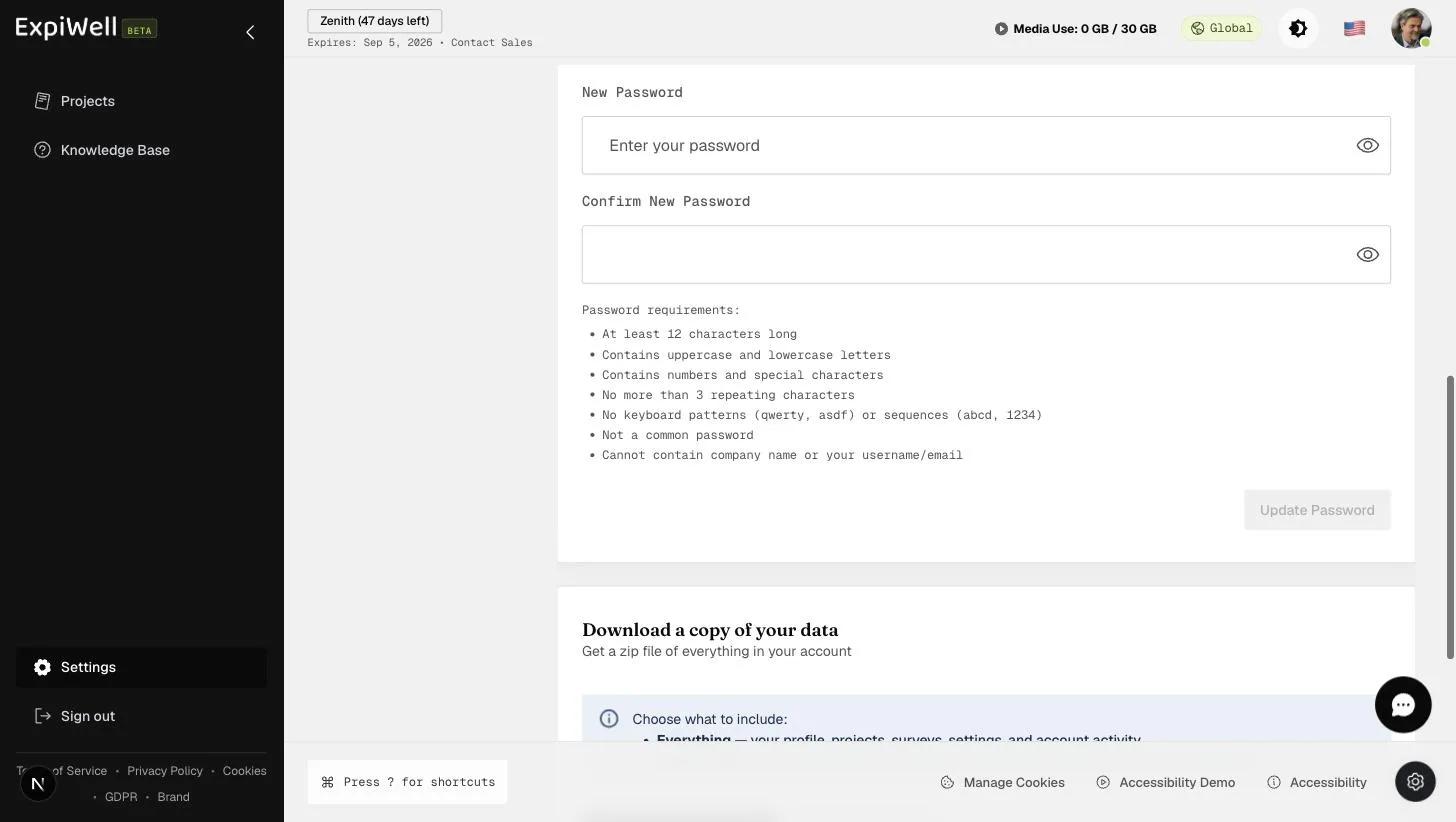
Password requirements
- At least 12 characters long
- Contains uppercase and lowercase letters
- Contains numbers and special characters
- No more than 3 repeating characters
- No keyboard patterns (qwerty, asdf) or sequences (abcd, 1234)
- Not a common password
- Cannot contain the company name or your username/email
Watch it in action
Video demo — Changing your password (coming soon)
Related
Was this helpful?