Time zone update
Build · Notifications
Updated August 12, 2024How to Sync Notifications for Time Zone Update
Participants traveling to a location in a different time zone can update their time zone to sync their notifications. If you have a survey to complete at 9 am, and you are on the East Coast (New York), and you travel to the West Coast (California), your time zone will be -3 hours, resulting in your survey arriving at 6 am. Updating your time zone will fix the time, and you will receive the notification at the original time (9 am).
Participants can simply go to their ExpiWell mobile app and slide from the left side of the screen to see the settings.
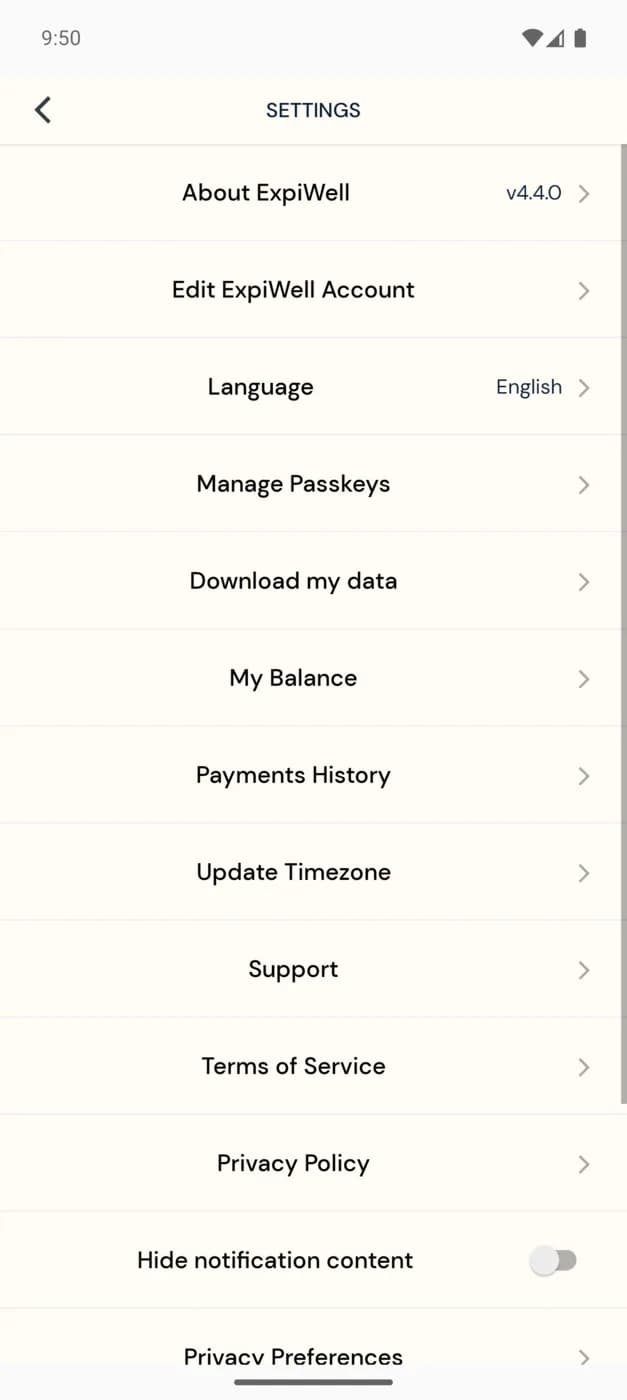
Click 'Update Timezone,' and you will be synced to your original survey scheduled times.
If you have any questions, please reach out to help@expiwell.com
Video demo — Time Zone Update (coming soon)
Was this helpful?