Exporting participants' responses
How to Export Participants' Responses
One of the most exciting parts of conducting experience sampling, or ecological momentary assessment, is downloading your participants' responses. In ExpiWell, you can download your data at any time.
A video tutorial is available at the end of this article.
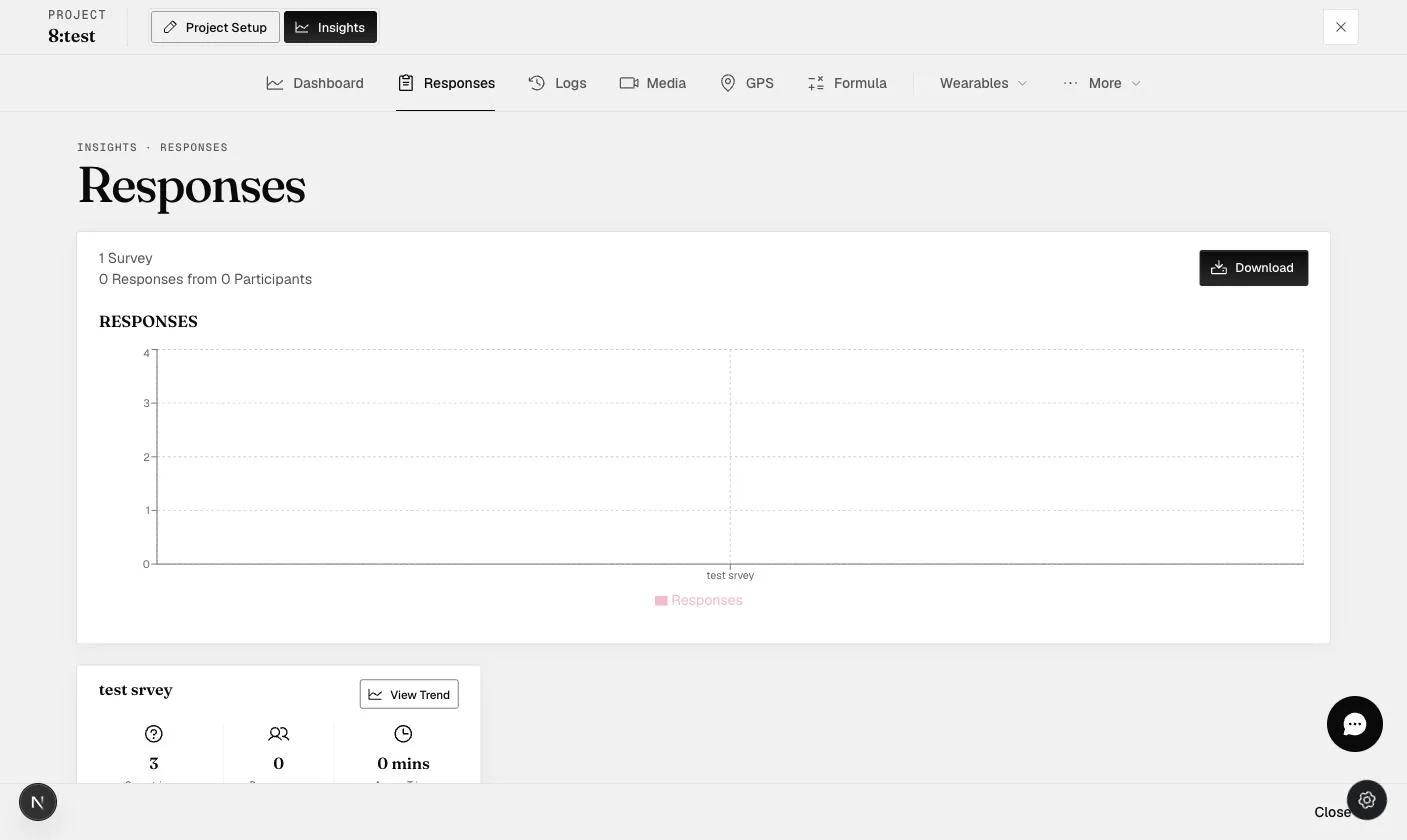
To get started, simply navigate to the INSIGHTS TAB > Responses > Download.
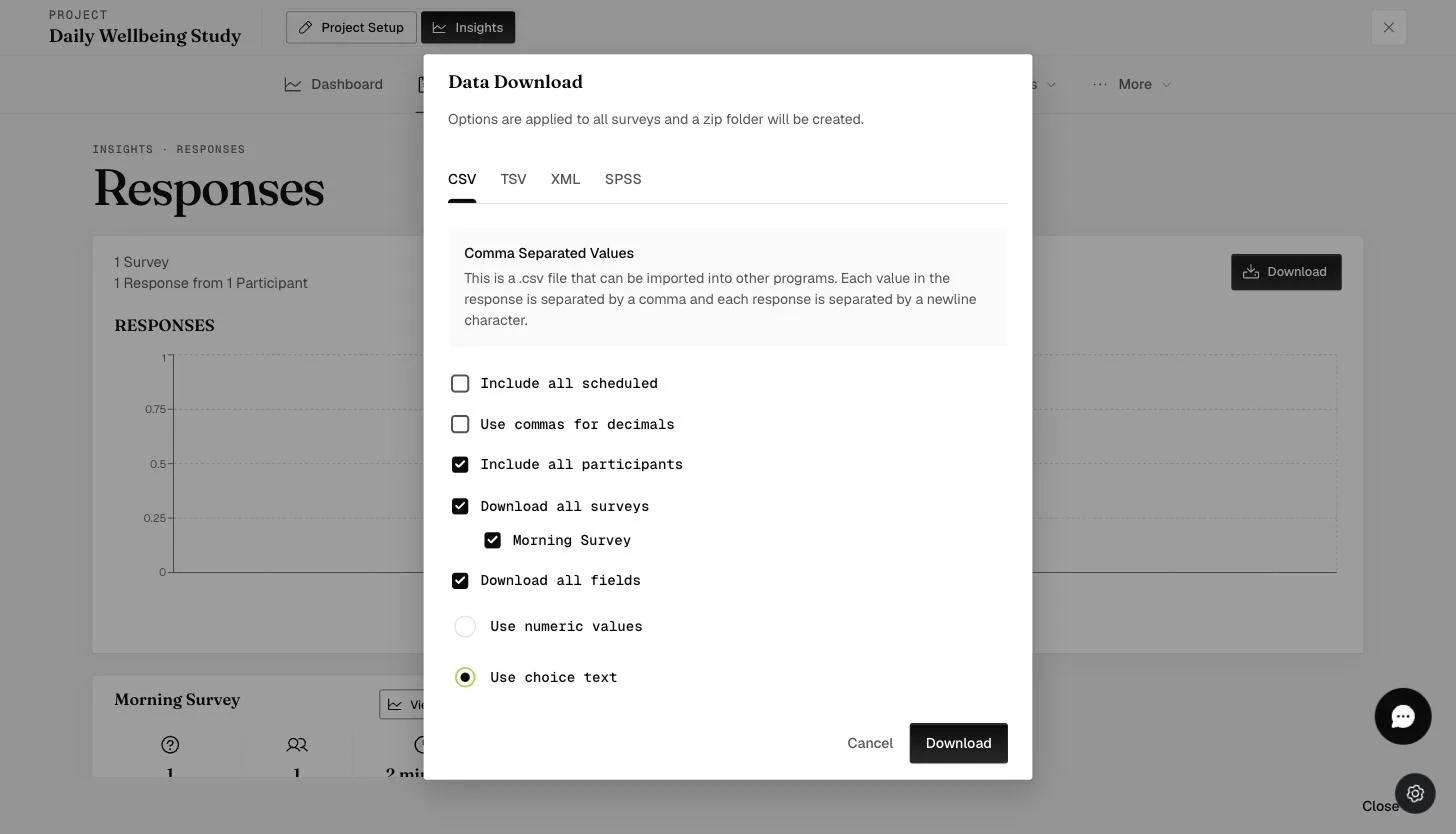
Upon clicking 'Download', you'll encounter various options to tailor your download experience:
-
File Format Options: Choose your preferred file format, such as CSV, for easy data manipulation.
-
Including Scheduled Surveys: Toggle the "Include all scheduled" option to access future scheduled surveys, including those missed by participants. The "Finished" column in the data file indicates whether a survey was completed or missed (it is left blank if a participant missed the survey).
-
Including or Skipping Participants: Option to include or skip specific participants based on their response effort, providing flexibility in managing your dataset.
-
Downloading All Surveys: If your project has multiple surveys, download data for a specific survey or all surveys individually. Each survey will have its dedicated data file.
-
Displaying Choice Text: Enhance your analysis by including text from survey choices in your downloaded data, offering valuable context.
-
Displaying Numeric Values: Simplify data analysis, particularly for quantitative studies, by choosing to display numerical values instead of text.
After customizing your download settings tailored to your needs, click the 'Download' button, and your data will be exported. You can now enjoy analyzing your results and making the necessary changes in your Excel file.
2023 update: We have added a column where you can see the IP addresses of the participants if you decide to collect them.
If you notice incomplete or missing survey data in your downloaded response file, the "Finished" column tells you what happened: "Auto Submitted" means our system submitted the survey automatically because it exceeded the allotted time window, while "Finished" means the participant submitted it.
FAQs
Can I download the data file even if the project is still running?
- Yes, you can download your data anytime, even while the project is still ongoing.
Can I download all the different surveys/measurements at once, and will it automatically have 1 data file?
- You can download all the surveys at once, but each survey will have its own data file. You can manually merge them in Excel if needed.
Can I download a portion of the participants?
- Yes, you can. Simply uncheck the 'Include all participants' option and choose the batch of participants you want to download (e.g., 1-200, 201-400). Note: If you have 385 participants and choose to download from participants 201-400, you will download participants 201-385.
Is there a limit to the number of times I can download my survey data?
- No, there is no limit to the number of times you can download your survey data.
What can I see after I download the responses?
- You can easily download all the data in a zip file. Each survey will be in a long format where you will have your Participant IDs and the timing of the surveys. Using ExpiWell's unique alphanumeric Participant ID, you can combine all the data for analyses.
For further assistance or inquiries, please contact help@expiwell.com.
This walkthrough was recorded in the earlier ExpiWell interface — an updated video for the new dashboard is coming.